Columns, sorting and filters
The Quotes tab shows a small set of columns by default. Presets and Choose columns change what each level shows, and sorting and filters help you find lines in a long quote.
Choosing the columns
The buttons under Columns are ready-made sets: Pricing, Purchasing, Negotiation, Planning, Item details and Client. Client shows only what the client sees on the quote. Hover a button to see what it shows.
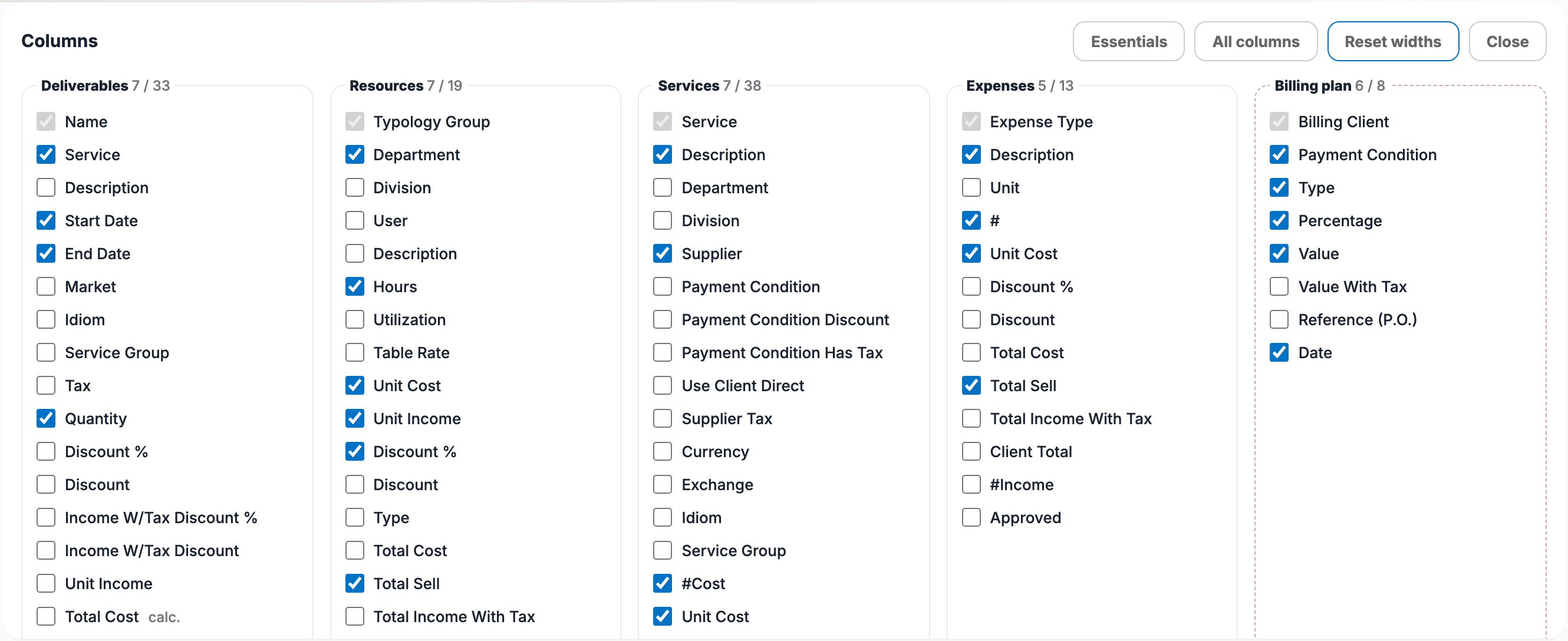
Choose columns lets you tick the columns of each level: deliverables, resources, services, expenses and billing. The first column of each level is always shown. In the same panel, Essentials goes back to the default columns, All columns shows every column, and Reset widths puts the column widths back.
Your choice is kept in this browser.
Showing one line type
Details shows all the line types, or only resources, services or expenses. Press Alt+0, 1, 2 or 3 to switch. Each button shows how many lines of that type the quote has.
Sorting
Click a column header that allows it, such as Typology Group, Department or User, to sort by it. Click again to reverse the order. Right-click the header to clear the sort.
Filtering lines
The funnel in the first column of Services, Expenses or Resources shows a filter row. What you type there filters that line type in every deliverable. Click the funnel again to hide and clear the filters.
The empty rows for adding lines, and the lines you are changing, stay visible while a filter is on.

Rules and behaviour
While a list is sorted or filtered, its rows can't be moved. Clear the sort or the filter first.