Microsoft Teams
1. Overview
Post a card to a Microsoft Teams channel whenever a chosen event happens in Skills Workflow. The integration is built from five pieces:
- Webhook — triggers the automation on the event you configure.
- System Parameters — store the Teams channel webhook URL(s) to post to.
- Template — the Adaptive Card JSON, filled in with the query's data.
- Named Query — retrieves the data that fills in the Template.
- Automation Workflow — ties everything together.
Flow:
- The Webhook fires on the configured event and triggers the Automation Workflow.
- The automation runs the Named Query.
- The automation fills in the Template with the query results.
- The automation posts the card to the URL(s) stored in System Parameters.
None of this is tied to one scenario:
- The webhook's event can be any Skills Workflow webhook event —
StageUpdatedonDeliverable(posting whenever a job changes stage) is just one example. - The Named Query and Template can be swapped or edited to show different data, independently of the webhook.
- System Parameters can hold more than one destination URL, so the same automation can post to several Teams channels — one per project or client, for instance.
2. Package Contents
To enable this integration, import all five items:
| Item (Marketplace name) | Description |
|---|---|
| Webhook | Triggers the automation on the event you configure — see Webhooks |
| System Parameters | Stores the Teams channel webhook URL(s) — one per channel if you need to post to more than one |
| Template | The Adaptive Card JSON posted to Teams |
| Named Query | Retrieves the data that fills in the Template's JSON |
| Automation Workflow | Runs the query, fills in the Template, and posts the result to Teams |
The Item column lists each component's exact Marketplace name — the same in every tenant, so it works for searching your own tenant or a client's.
Templates and Named Queries are general Skills Workflow objects, not exclusive to this integration — reuse an existing one or build a new one as needed.
3. The Card Template
The Template is the Adaptive Card JSON posted to Teams. A basic one needs this envelope:
{
  "type": "message",
  "attachments": [
    {
      "contentType": "application/vnd.microsoft.card.adaptive",
      "content": {
        "$schema": "http://adaptivecards.io/schemas/adaptive-card.json",
        "type": "AdaptiveCard",
        "version": "1.5",
        "body": [
          {
            "type": "TextBlock",
            "text": "{{['NamedQuery'].data[0].Title}}",
            "weight": "Bolder",
            "size": "Medium",
            "wrap": true
          },
          {
            "type": "FactSet",
            "facts": [
              { "title": "Number", "value": "{{['NamedQuery'].data[0].Number}}" },
              { "title": "Status", "value": "{{['NamedQuery'].data[0].Status}}" },
              { "title": "Updated by", "value": "{{['NamedQuery'].data[0].UpdatedBy}}" },
              { "title": "Updated on", "value": "{{['NamedQuery'].data[0].UpdatedOn}}" }
            ]
          },
          {
            "type": "TextBlock",
            "text": "{{['NamedQuery'].data[0].Description}}",
            "wrap": true
          }
        ],
        "actions": [
          {
            "type": "Action.OpenUrl",
            "title": "Open in Skills Workflow",
            "url": "{{['NamedQuery'].data[0].Link}}"
          }
        ]
      }
    }
  ]
}
Replace NamedQuery with the alias given to the Named Query step in the Automation Workflow, and the field names with whatever the query actually returns.
Two kinds of placeholder are used:
| Data type | How to insert it |
|---|---|
| Plain text or number | Inside quotes: "{{['NamedQuery'].data[0].Field}}" |
| JSON array (e.g. chart data) | No quotes: "data": {{['NamedQuery'].data[0].ArrayField}} |
The card is posted as an Adaptive Card, through the incoming webhook created via the Workflows app (see Section 8).
4. Example: Deliverable Stage Change
A common request: post to Teams whenever a Deliverable moves to a specific workflow stage. Using the five pieces from Section 2:
- Webhook — Event
StageUpdated, DocumentDeliverable, filtered onToWorkflowStageNamefor the stage that should trigger it. - Template — the default card from Section 3 already fits: title, number, status, who triggered it, when, a description, and a link back to the Deliverable.
- Named Query — returns one row with the Deliverable's number, title, stage, the user who triggered the event, the event timestamp, its latest brief or description, and a link to it in Skills Workflow.
- Automation Workflow — receives the webhook payload, runs the query, fills in the Template, and posts the result to the Teams URL stored in System Parameters.
If a ready-made Marketplace package matches this scenario, import it (see Section 5) instead of building each piece by hand.
GetDeliverableByIdOne deployed Named Query for this pattern, GetDeliverableById (v1, Active — [Microsoft Teams] [Integrations] GetDeliverableById v1 (Query) {Active}.json), looks up a job by id:
with brief as (
    select top 1 db.Text
    from DocumentBrief db
    where db.DocumentOid = @Oid
    order by db.CreatedOn desc
)
select d.Number, d.Project, d.Name as Title, d.CreatedOnUtc as CreatedOn, b.Text as Description
from JobLookup d, brief b
where d.Id = @Oid
It returns Number, Project, Title, CreatedOn and Description — narrower than the Status/UpdatedBy/UpdatedOn/Link fields shown in the sample card above, so the Template and card layout paired with this particular query would only be able to show these five fields. The Automation Workflow, Webhook, Template and System Parameters that use this query were not included in the export, so the rest of this instance's wiring is not determinable.
5. Installation
Search the Marketplace for a package matching your scenario and import it — e.g. Microsoft Teams Deliverable Notifications for the stage-change example in Section 4. No match? Build the five items yourself (see Section 2).
Items to import:
- Configuration Keys or System Parameters
- Named Query
- Template
- Automation Workflow
- Webhook
6. Configuration
Configure the System Parameters the automation reads at runtime:
- Teams channel webhook URL(s) — one per channel if posting to more than one
- Skills Workflow base URL used in the card link
- Any filter values the webhook needs (e.g. workflow stage name, project ID)
This still requires importing the query, template, automation, and webhook — Configuration Keys only supply values to those items, they don't replace them.
7. Prerequisites
Before setting up the integration, make sure you have:
- Access to the Marketplace
- A Microsoft Teams channel that should receive the card
- A valid Microsoft Teams incoming webhook URL for that channel (see Section 8 to create one)
- A Skills Workflow Webhook configured for the event that should trigger the automation (see the Webhooks reference)
- A Template with the Adaptive Card definition
- The values required by the Configuration Keys or System Parameters
8. Configuring the Incoming Webhook in Microsoft Teams
Classic Office 365 Connectors (the original "Incoming Webhook" connector type) are being retired by Microsoft. Teams now generates webhook URLs through the Workflows app, which is powered by Power Automate. The steps below reflect this current approach. See Microsoft's official documentation for the most up-to-date instructions.
To generate the webhook URL required by the package's Configuration Keys or System Parameters (see Section 6):
-
In Microsoft Teams, go to the team and channel that should receive the cards.
-
Select More options (...) next to the channel name.
-
Select Workflows.
-
In the search box, type
Send webhook alerts to a channeland select it from the Templates list.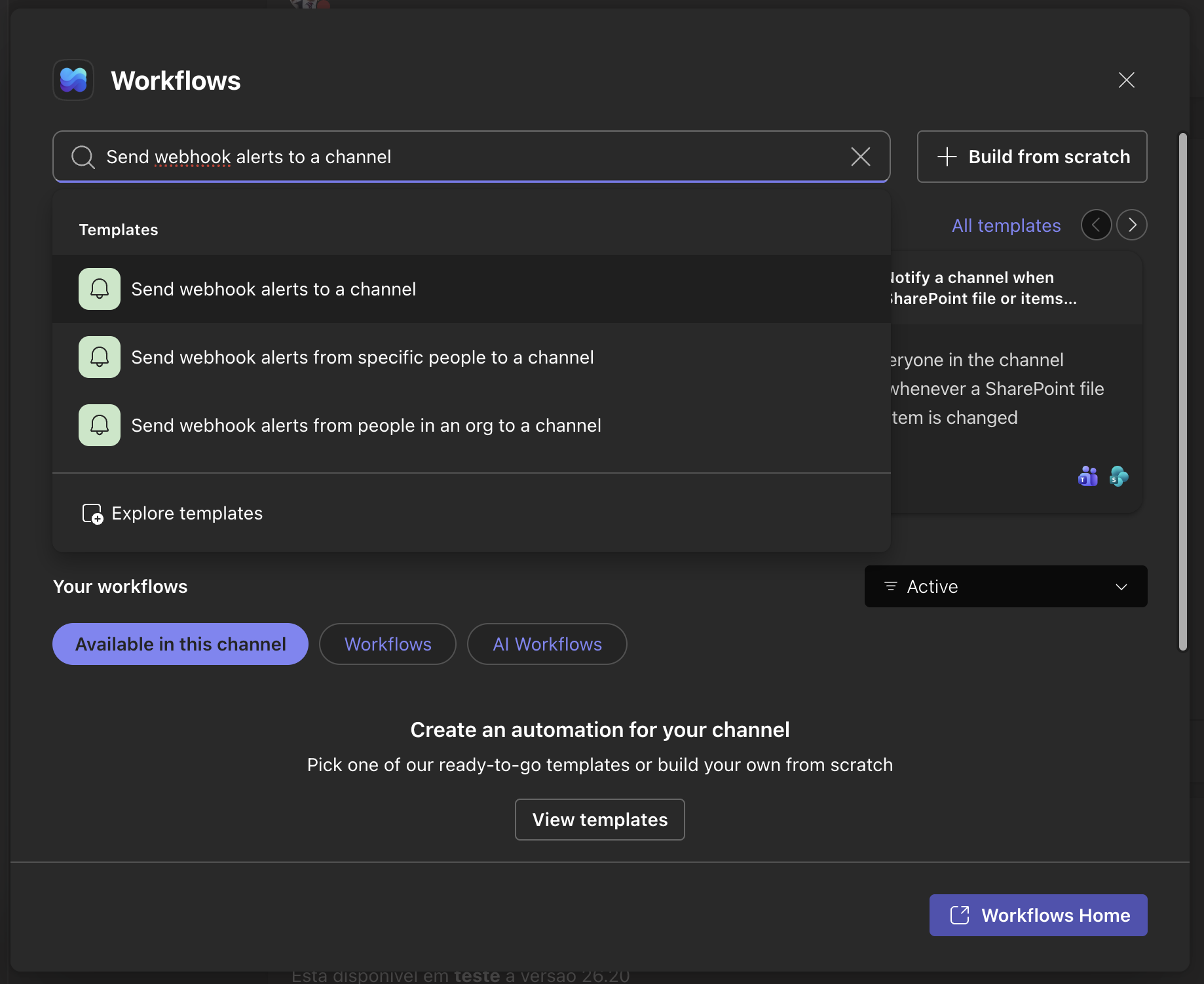
Selecting the Send webhook alerts to a channel template -
Under Parameters, confirm the Team the channel is in and the Channel, then select Save.
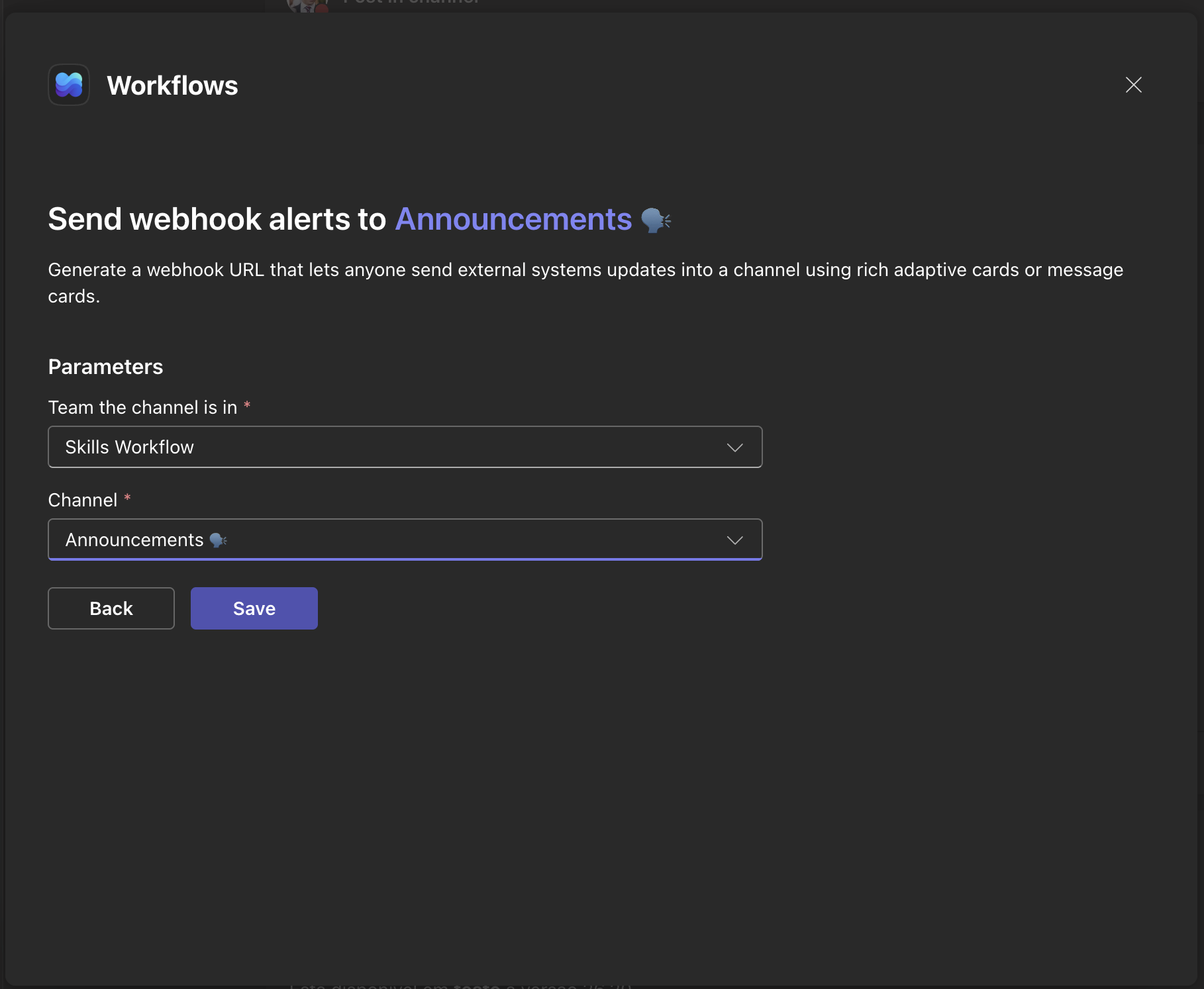
Setting the team and channel for the workflow The workflow is named automatically, for example
Send webhook alerts to Announcementsbased on the channel. You can rename it later using the pencil icon next to the title. -
The workflow opens showing it as Active. Select Copy webhook link to copy the generated webhook URL.
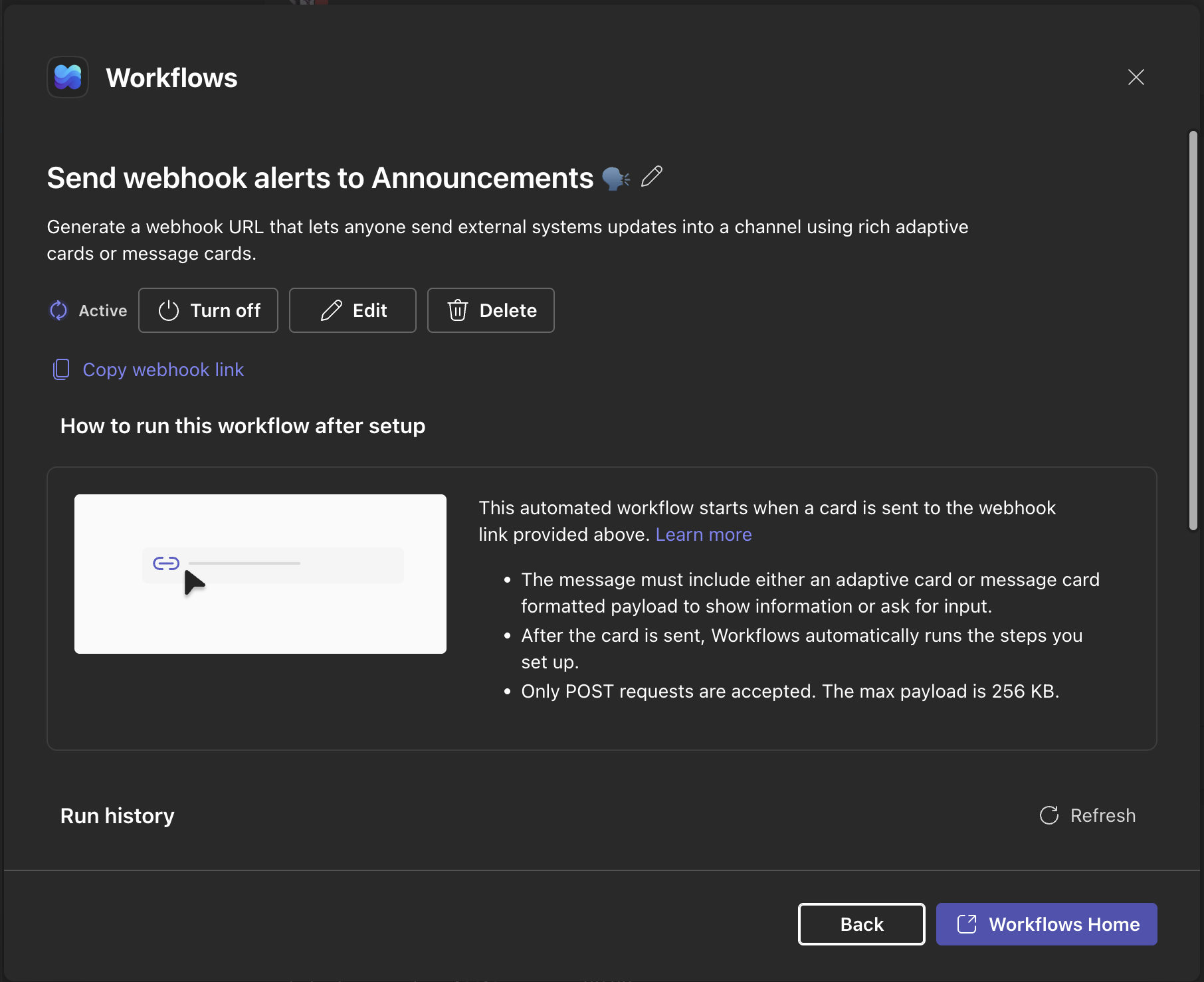
Copying the webhook link from the created workflow -
Paste this URL into the Skills Workflow Configuration Keys or System Parameters value for the Microsoft Teams incoming webhook.
Permissions
- Creating a workflow requires access to the Workflows app in Teams and, depending on tenant Power Automate licensing and policies, may require admin approval.
- Team owners can control who is allowed to create, update, or remove connectors and workflows for a channel under Team settings > Member permissions > Allow members to create, update, and remove connectors.
Managing the webhook later
To disable or remove the integration on the Teams side, open the workflow itself (as shown in the screenshot above) and select Turn off to pause it or Delete to remove it permanently. You can also reach the same workflow from the Workflows app, under Your workflows, by selecting More actions (...) next to it.
Turning off or deleting the workflow stops new cards from being posted to Teams but does not change the Skills Workflow configuration. If you create a replacement workflow, update the stored webhook URL in the Configuration Keys or System Parameters accordingly.
9. Summary
- Import or build the five items: Webhook, System Parameters, Template, Named Query, Automation Workflow
- Configure the required Configuration Keys or System Parameters
- Test the trigger event
- Confirm the card arrives in Microsoft Teams
There is no need to create the query, template, automation workflow, webhook, or configuration entries manually if you're importing an existing package.