Projects on a Fee
note
A Project can be associated with a Fee, so that hours sold under that Fee are deducted as the Project's own hours are planned.
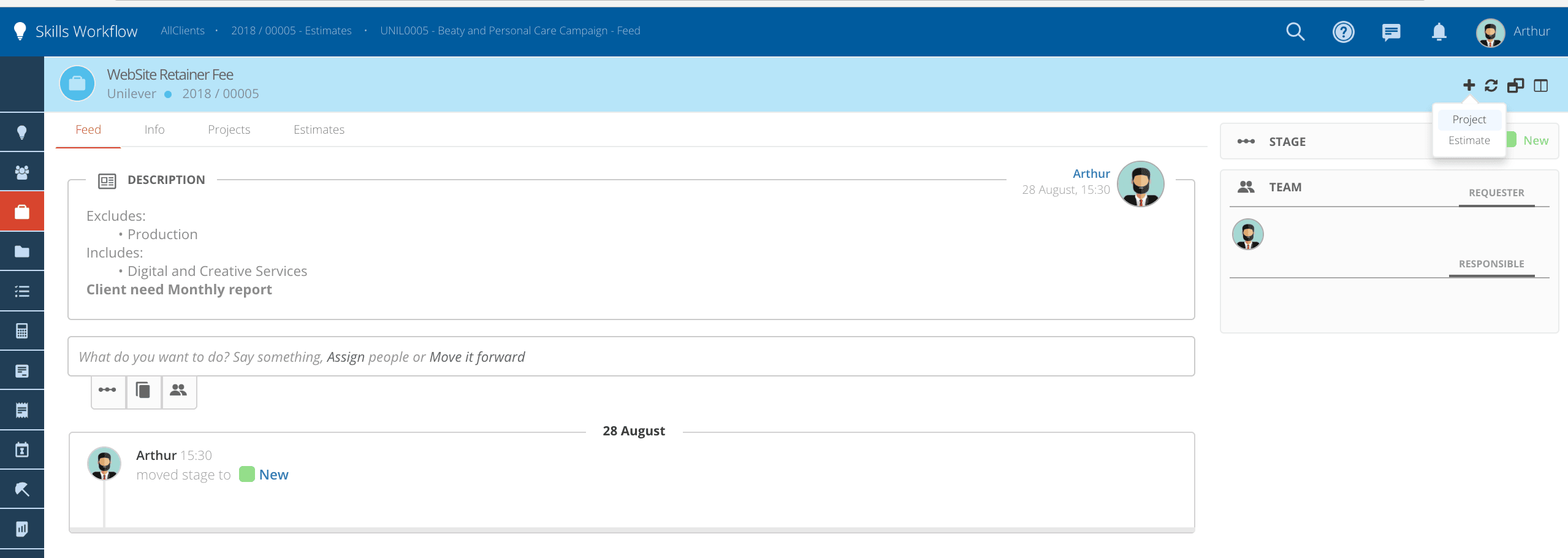
- Click the '+' icon to create a new Project.
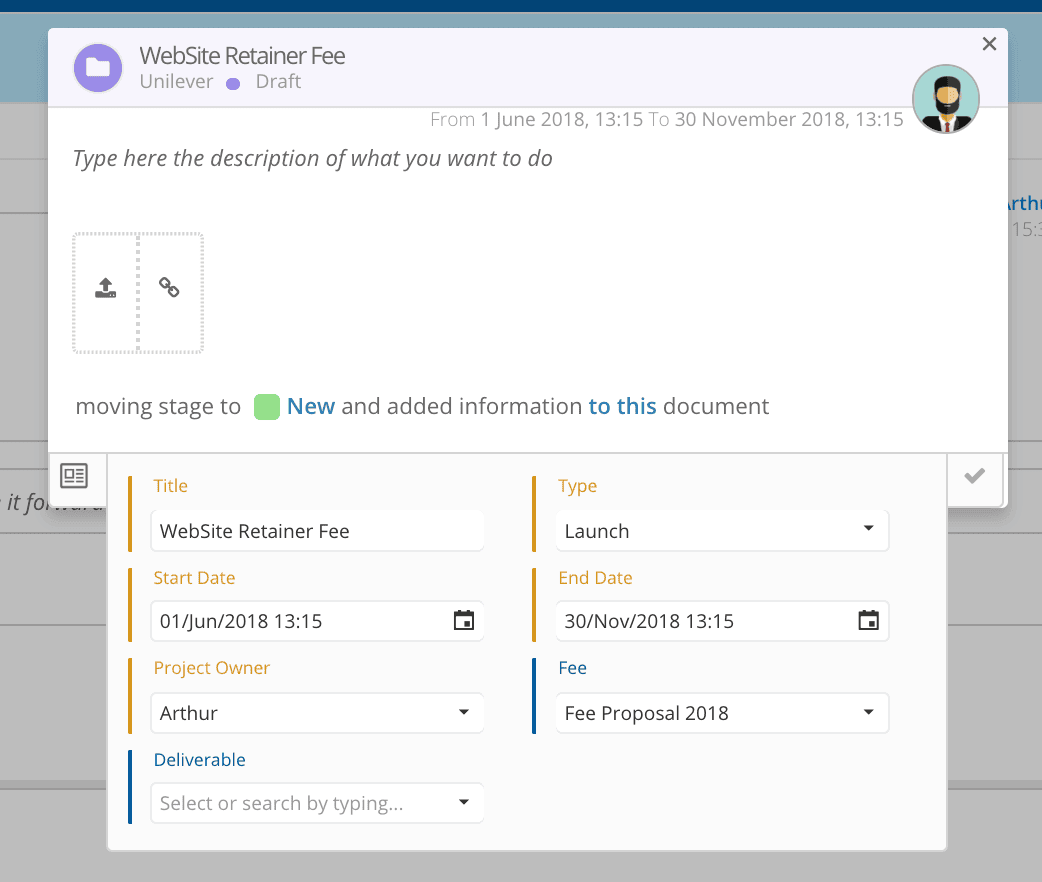
- Fill in the project header.
- Title - Add a name for this project.
- Type - Select the type of project from the dropdown list.
- Start and End Dates - Select the date range for this project.
- Project Owner - Select the user responsible for this project.
- Fee - Select the Fee you want to associate with this project.
- Deliverable - Select the deliverable that you want to associate with this project (estimated deliverables).
Click the check icon to submit.
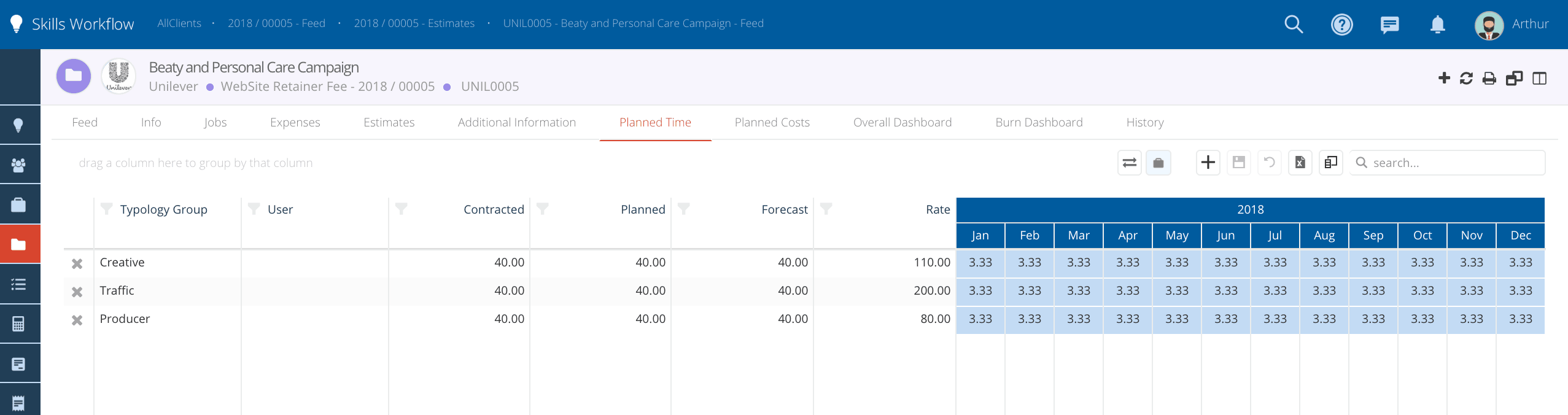
- After the project is created, navigate to the Planned Time tab and fill in the form with the following information:
- Contracted Hours - Click the "Get Contracted Hours" symbol to fill this column with the hours approved on the associated Fee.
- Planned Hours - Adjust the planned hours for this project, if they differ from the contracted hours.
- Projection - Click the "Planned Hours Projection" symbol to distribute the planned hours over the project's date range.
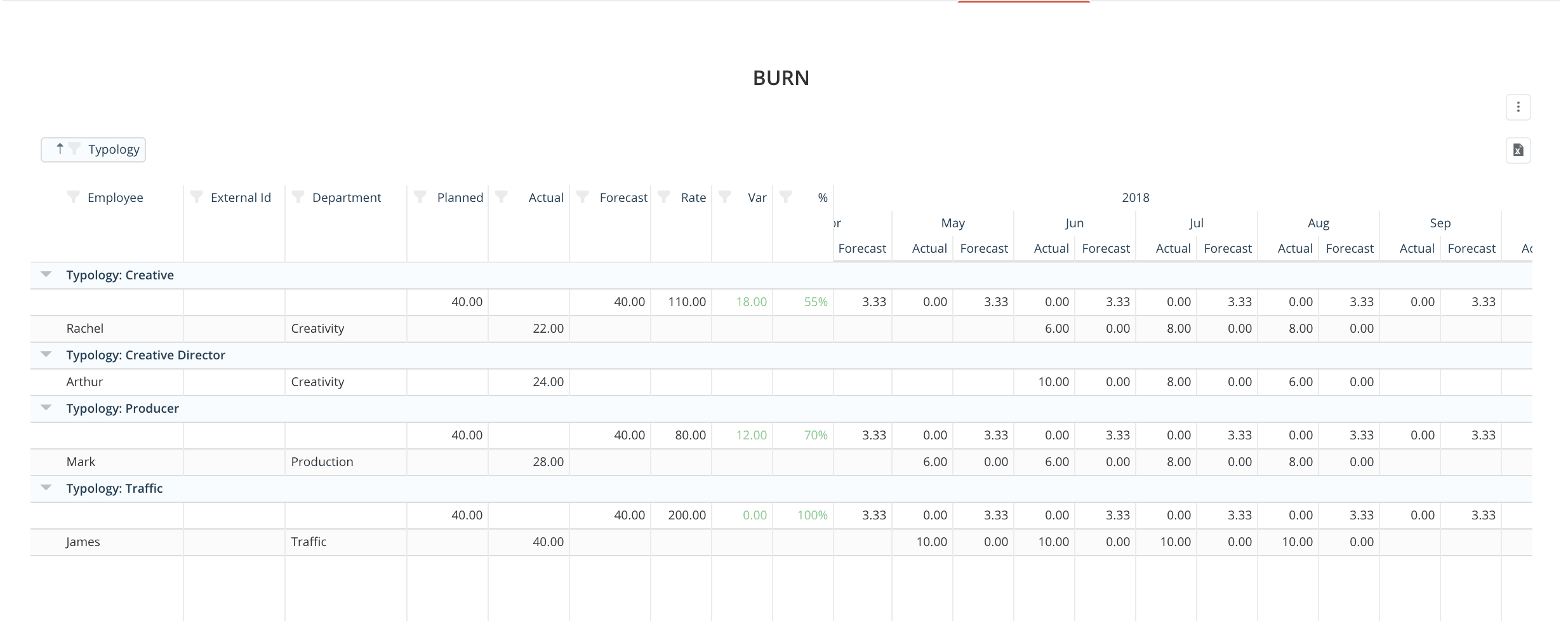
- Analyze the information on the Burn Workspace:
- Check the number of hours planned for each typology group.
- Check the number of hours filled by all users included in that project.
- Check the number of hours available for each typology group.
- Check the % of utilization by typology group.