Custom Tables
Overview
Custom Tables allow you to extend the Skills Workflow data model by creating your own tables with custom columns and data types. They are ideal for storing additional structured data that does not fit into standard document fields — for example, product catalogs, specification mappings, or lookup tables.
Custom tables support:
- Custom schema — define your own columns with specific data types
- Role-based permissions — control who can read and who can write
- Full CRUD — create, read, update, and delete via the UI, SDK, or API
- Query integration — read data using SQL queries with the
CustomTablenamespace - Import / Export — bulk data management via JSON files
Navigating to Custom Tables
- Go to Maintenance in the main menu
- Select the Custom Tables module
You will see a list of all existing custom tables in the system.
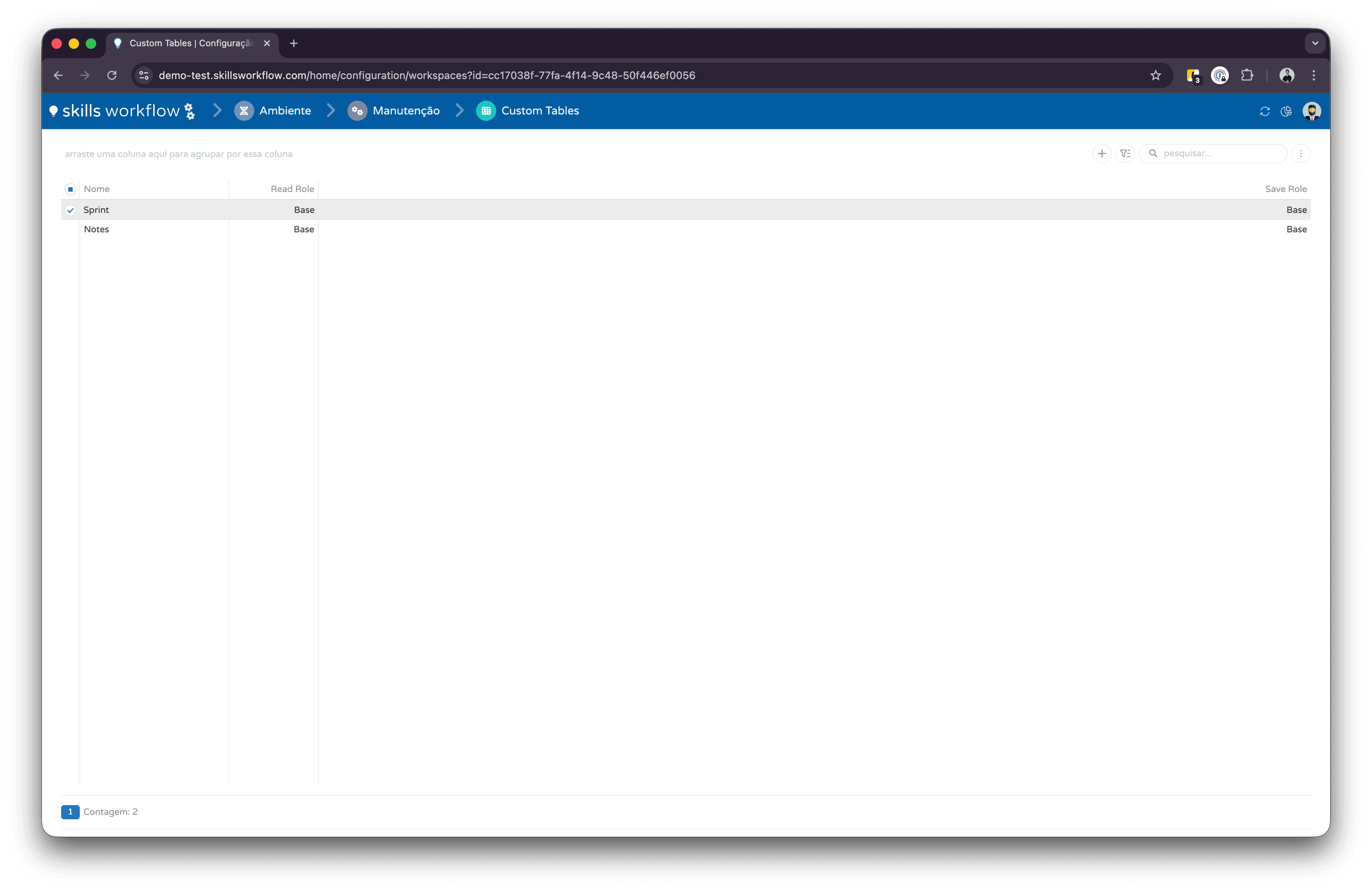
Creating a Custom Table
To create a new custom table:
- Click the + button in the Custom Tables list
- Enter the Table Name (must be unique, no spaces — use PascalCase, e.g.
ProductCatalog) - Define the Key Column — typically
Oidwith data typeUniqueIdentifier(GUID) - Add Columns with their names and data types
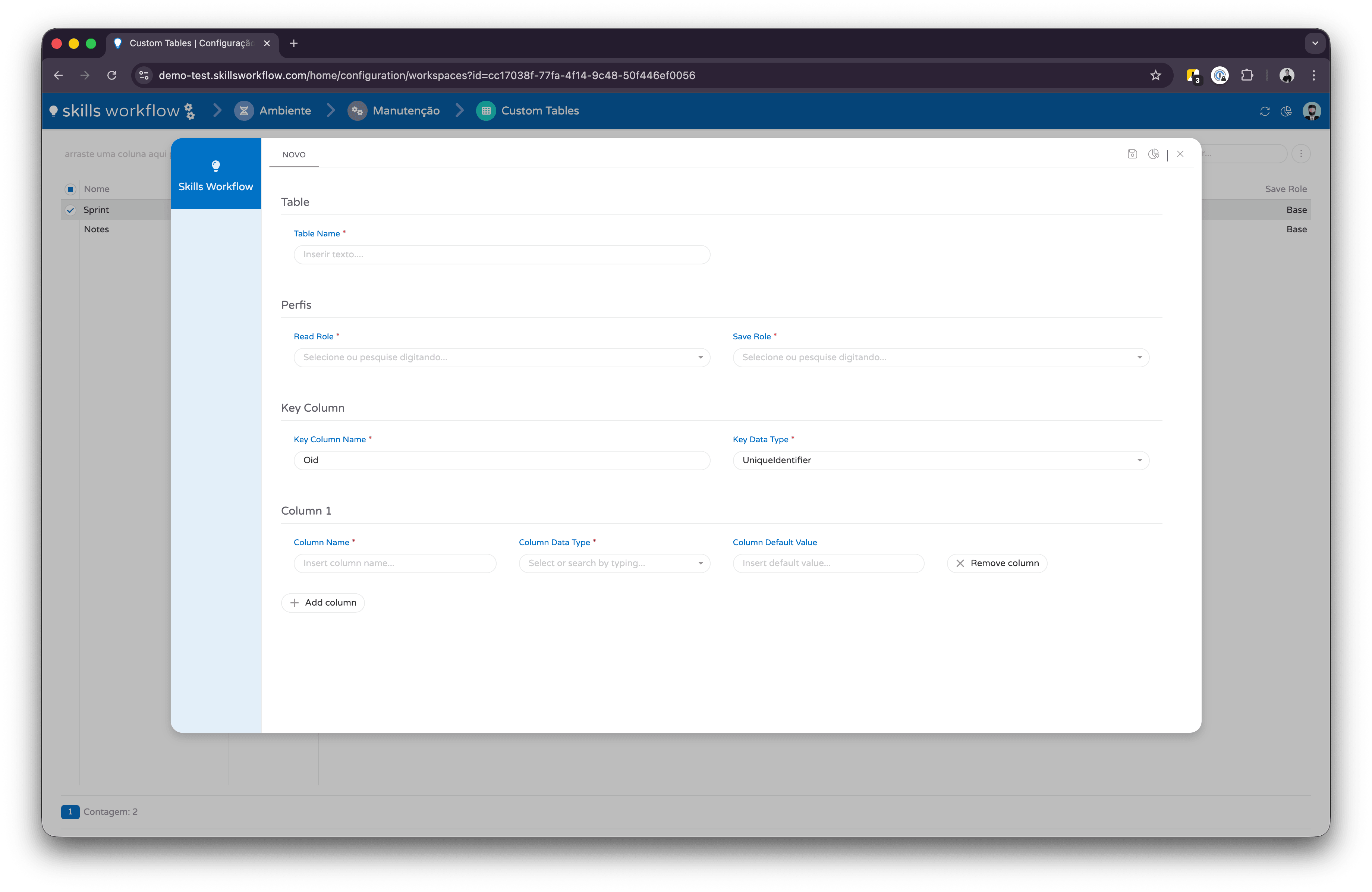
Column names should use PascalCase (e.g. ProductName, IsActive). Once a column is created, its data type cannot be changed — only new columns can be added.
Managing Permissions
Each custom table has two permission roles:
- Read Role — determines which users can read data from the table
- Save Role — determines which users can insert, update, or delete data
To configure permissions:
- Select a custom table from the list
- In the Permissions panel, set the Read Role and Save Role
- Click Save

Viewing Data
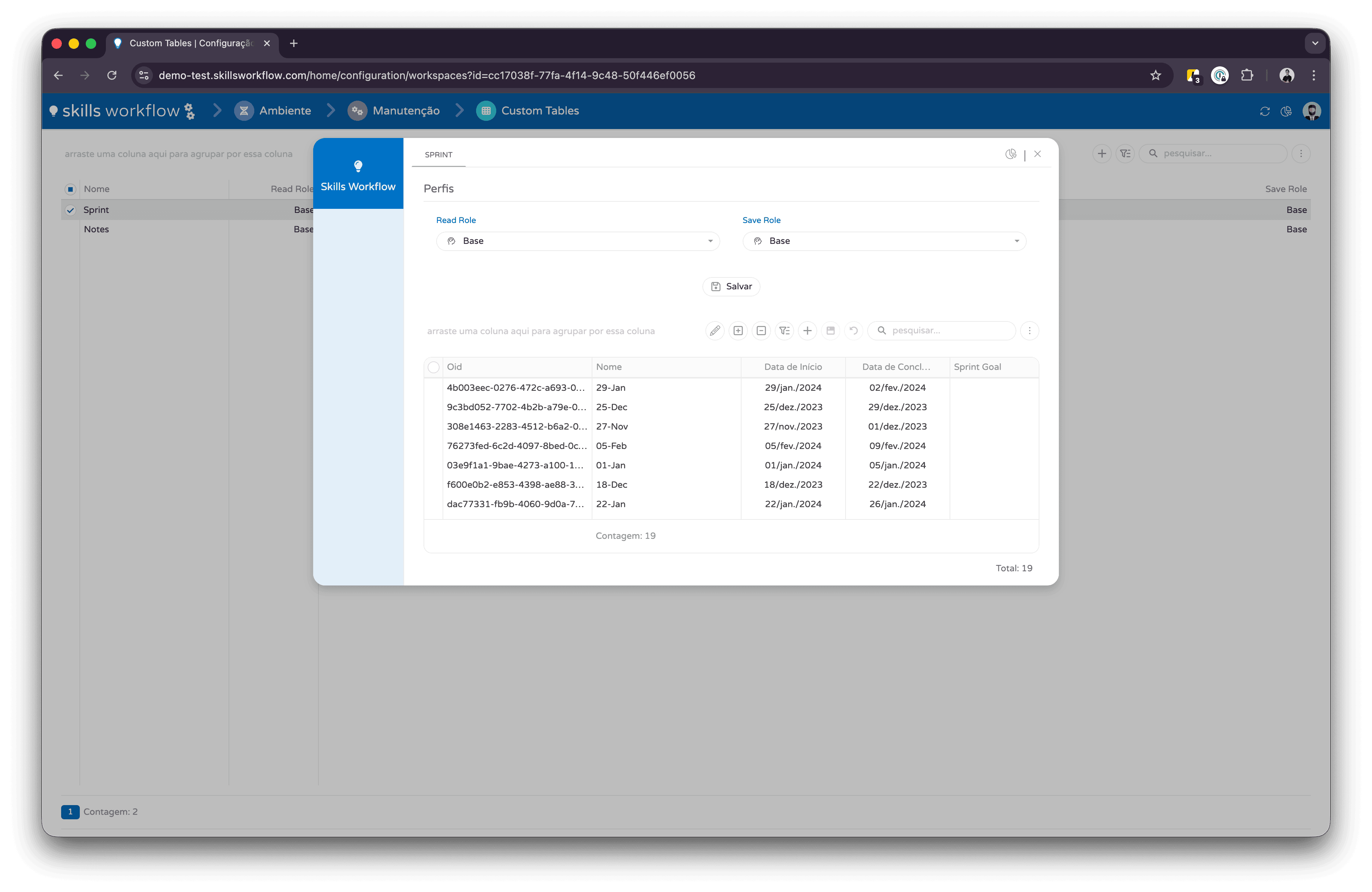
After selecting a custom table, the data grid displays all stored rows with their column values.
The grid shows:
- The key column (e.g. Oid)
- All custom columns and their current values
- A row count at the bottom
Reading Data via Queries
To read custom table data using SQL queries:
- Navigate to Maintenance → Queries
- Create or edit a query
- Set the Namespace to
CustomTable - Write your SQL referencing the table as
[customtables].[YourTableName]
Example:
SELECT Oid, Name, Price, IsActive
FROM [customtables].[ProductCatalog]
WHERE IsActive = 1
ORDER BY Name
The CustomTable namespace is required for the query engine to resolve custom table references at runtime. Without it, the query will not find your tables.
SDK Reference
Use the SDK methods below to interact with custom tables programmatically from workspaces, automations, or any JavaScript context inside Skills Workflow.
Namespace: SW.Document.CustomTable
View SDK Methods
get
Description
Fetches all rows from a custom table and returns them as flat JavaScript objects (column names as keys). Optionally sorts the result by a column on the client side.
Method(s)
declare function get(
    customTableName: string,
    orderByColumnName?: string
): Promise<object[]>
| Parameter | Type | Required | Defaults | Description |
|---|---|---|---|---|
customTableName | string | true | Name of the custom table | |
orderByColumnName | string | false | null | Column name to sort the results by (client-side) |
Basic Usage
// Get all rows from the "ProductCatalog" table
const rows = await SW.Document.CustomTable.get("ProductCatalog");

// Get rows sorted by "Name"
const sorted = await SW.Document.CustomTable.get("ProductCatalog", "Name");
create
Description
Creates a new custom table definition, or adds columns to an existing table. Defines the key column and the schema (column names and data types).
Method(s)
declare function create(
    customTableName: string,
    model: CustomTablePostModel
): Promise<any>
| Parameter | Type | Required | Defaults | Description |
|---|---|---|---|---|
customTableName | string | true | Name of the custom table to create | |
model | CustomTablePostModel | true | Table definition including key column and columns |
CustomTablePostModel
| Property | Type | Required | Description |
|---|---|---|---|
KeyColumnName | string | true | Name of the primary key column (e.g. "Oid") |
KeyDataTypeId | number | false | Data type of the key column (see Data Types table below) |
Columns | CustomTableColumnPostModel[] | true | Array of column definitions |
Basic Usage
await SW.Document.CustomTable.create("ProductCatalog", {
    KeyColumnName: "Oid",
    KeyDataTypeId: 9, // UniqueIdentifier
    Columns: [
        { ColumnName: "Name", ColumnDataTypeId: 6 },       // Varchar100
        { ColumnName: "Price", ColumnDataTypeId: 4 },       // Money
        { ColumnName: "IsActive", ColumnDataTypeId: 0 },    // Boolean
    ]
});
insert
Description
Inserts or updates one or more rows in a custom table. Accepts a single row or an array of rows. Each row defines its key and column values.
Method(s)
declare function insert(
    customTableName: string,
    rows: CustomTableRowPostModel | CustomTableRowPostModel[]
): Promise<any[]>
| Parameter | Type | Required | Defaults | Description |
|---|---|---|---|---|
customTableName | string | true | Name of the custom table | |
rows | CustomTableRowPostModel | CustomTableRowPostModel[] | true | One row or an array of rows to insert/update |
CustomTableRowPostModel
| Property | Type | Required | Description |
|---|---|---|---|
KeyValue | any | false | Value of the key column for this row (e.g. a GUID) |
KeyColumnName | string | false | Name of the key column (e.g. "Oid") |
Columns | CustomTableRowColumnPostModel[] | true | Array of column name/value pairs for this row |
CustomTableRowColumnPostModel
| Property | Type | Required | Description |
|---|---|---|---|
ColumnName | string | true | Column name |
ColumnDataTypeId | number | false | Data type ID (see Data Types table) |
Value | any | true | The value to store |
Basic Usage
// Insert a single row
await SW.Document.CustomTable.insert("ProductCatalog", {
    KeyValue: SW.Utils.Guid.getNew(),
    KeyColumnName: "Oid",
    Columns: [
        { ColumnName: "Name", ColumnDataTypeId: 6, Value: "Widget A" },
        { ColumnName: "Price", ColumnDataTypeId: 4, Value: 29.99 },
        { ColumnName: "IsActive", ColumnDataTypeId: 0, Value: true },
    ]
});

// Insert multiple rows at once
await SW.Document.CustomTable.insert("ProductCatalog", [
    {
        KeyValue: SW.Utils.Guid.getNew(),
        KeyColumnName: "Oid",
        Columns: [
            { ColumnName: "Name", Value: "Widget A" },
            { ColumnName: "Price", Value: 29.99 },
        ]
    },
    {
        KeyValue: SW.Utils.Guid.getNew(),
        KeyColumnName: "Oid",
        Columns: [
            { ColumnName: "Name", Value: "Widget B" },
            { ColumnName: "Price", Value: 49.99 },
        ]
    }
]);
Data Types Reference
Each column has a ColumnDataTypeId that defines the SQL data type used for storage.
| ID | Type | Description |
|---|---|---|
0 | Boolean | True / False |
1 | Date | Date value |
2 | Float | Decimal number |
3 | Integer | Whole number |
4 | Money | Currency value |
5 | Varchar50 | Text (max 50 chars) |
6 | Varchar100 | Text (max 100 chars) |
7 | VarcharMax | Text (unlimited) |
8 | Text | Large text |
9 | UniqueIdentifier | GUID / UUID |
10 | Varchar200 | Text (max 200 chars) |
API Reference
For external integrations or direct HTTP calls, use the REST API endpoints below.
View API Endpoints
All endpoints require authentication via the X-AccessToken header.
Base path: api/v3
Endpoints
| Method | Route | Description |
|---|---|---|
| GET | /custom-tables | List all custom tables |
| GET | /custom-tables/{tableName} | Get table schema and columns |
| GET | /custom-tables/{tableName}/rows/values | Get all rows with column values |
| GET | /custom-tables/{tableName}/row | Get a single row by key |
| GET | /custom-tables/{tableName}/rows/columnValue | Get a specific column value from a row |
| POST | /custom-tables/{tableName} | Create table / add columns |
| PUT | /custom-tables/{tableName}/rows | Insert or update rows |
| PUT | /custom-table-definitions/{id} | Update table permissions (Read/Save roles) |
| DELETE | /custom-tables/{tableName}/rows | Delete rows |
| DELETE | /custom-tables/{tableName} | Drop the entire table |
| GET | /custom-tables/{tableName}/export | Export table to JSON file |
| PUT | /custom-tables/{tableName}/import | Import table from JSON file |
Insert / Update Rows
PUT /api/v3/custom-tables/{tableName}/rows
The request body uses OperationType to control the behavior:
| OperationType | Value | Description |
|---|---|---|
Update | 0 | Update a single row |
UpdateMany | 1 | Insert or update multiple rows (batch) |
UpsertMany | 2 | Insert if not exists, update if exists (batch) |
Single row (Update)
{
    "OperationType": "Update",
    "UpdateModel": {
        "KeyColumnName": "Oid",
        "KeyValue": "a1b2c3d4-e5f6-7890-abcd-ef1234567890",
        "KeyDataTypeId": 9,
        "Columns": [
            { "ColumnName": "Name", "Value": "Updated Product" },
            { "ColumnName": "Price", "Value": 39.99 }
        ]
    }
}
Multiple rows (UpdateMany)
{
    "OperationType": "UpdateMany",
    "UpdateManyModel": [
        {
            "KeyColumnName": "Oid",
            "KeyValue": "a1b2c3d4-0000-0000-0000-000000000001",
            "KeyDataTypeId": 9,
            "Columns": [
                { "ColumnName": "Name", "Value": "Product A" },
                { "ColumnName": "Category", "Value": "Electronics" }
            ]
        },
        {
            "KeyColumnName": "Oid",
            "KeyValue": "a1b2c3d4-0000-0000-0000-000000000002",
            "KeyDataTypeId": 9,
            "Columns": [
                { "ColumnName": "Name", "Value": "Product B" },
                { "ColumnName": "Category", "Value": "Furniture" }
            ]
        }
    ]
}
Delete Rows
DELETE /api/v3/custom-tables/{tableName}/rows
| OperationType | Value | Description |
|---|---|---|
Delete | 0 | Delete a single row by key |
DeleteAll | 1 | Delete all rows in the table |
DeleteMany | 2 | Delete multiple rows by key values |
Single row (Delete)
{
    "OperationType": "Delete",
    "DeleteModel": {
        "KeyColumnName": "Oid",
        "KeyValue": "a1b2c3d4-e5f6-7890-abcd-ef1234567890"
    }
}
Multiple rows (DeleteMany)
{
    "OperationType": "DeleteMany",
    "DeleteManyModel": {
        "KeyColumnName": "Oid",
        "KeyValues": [
            "a1b2c3d4-0000-0000-0000-000000000001",
            "a1b2c3d4-0000-0000-0000-000000000002"
        ]
    }
}
All rows (DeleteAll)
{
    "OperationType": "DeleteAll"
}
Column Data Types
When creating a table or defining a KeyDataTypeId / ColumnDataTypeId, use one of the following values from the ColumnDataType enum:
| Value | Name | Description |
|---|---|---|
0 | Boolean | True/false value |
1 | Date | Date value |
2 | Float | Floating-point number |
3 | Integer | Integer number |
4 | Money | Decimal monetary value |
5 | Varchar50 | Text, up to 50 characters |
6 | Varchar100 | Text, up to 100 characters |
7 | VarcharMax | Text, unbounded length |
8 | Text | Long text value |
9 | UniqueIdentifier | GUID/UUID value |
10 | Varchar200 | Text, up to 200 characters |
11 | VarcharOther | Text with a custom/other length |
12 | VarBinary | Binary data |
Create Table
POST /api/v3/custom-tables/{tableName}
Creates a new custom table with the specified schema. If the table already exists, adds the new columns.
{
    "KeyColumnName": "Oid",
    "KeyDataTypeId": 9,
    "Columns": [
        { "ColumnName": "Name", "ColumnDataTypeId": 6 },
        { "ColumnName": "Price", "ColumnDataTypeId": 4 },
        { "ColumnName": "IsActive", "ColumnDataTypeId": 0 }
    ]
}
Get Row Values
GET /api/v3/custom-tables/{tableName}/rows/values
Returns all rows in the table. Each row includes the KeyColumnName, KeyValue, and a Columns array:
[
    {
        "TableName": "ProductCatalog",
        "KeyValue": "a1b2c3d4-e5f6-7890-abcd-ef1234567890",
        "KeyColumnName": "Oid",
        "KeyDataTypeId": 9,
        "Columns": [
            { "ColumnName": "Name", "ColumnDataTypeId": 6, "Value": "Product A" },
            { "ColumnName": "Price", "ColumnDataTypeId": 4, "Value": 29.99 }
        ]
    }
]
Reading Data via Queries
You can also read custom table data using Queries (created in Maintenance → Queries).
When writing SQL queries that reference custom tables, use CustomTable as the namespace (schema context).
The actual database schema is [customtables], so the table is accessible as [customtables].[YourTableName] in SQL.
Example query:
SELECT Oid, Name, Price, IsActive
FROM [customtables].[ProductCatalog]
WHERE IsActive = 1
ORDER BY Name
Queries must be created with the namespace set to CustomTable in the query configuration to resolve the correct schema context at runtime.