Timesheet Timer
The Timesheet Timer lets you track the time you spend on a document in real time. Start a stopwatch when you begin working, pause it when you take a break, and stop it when you are done. The tracked time can then be submitted as a timesheet entry.
The Timesheet Timer must be enabled by your administrator in System Settings > Behavior > Enable Timesheet Timer.
Starting the Timer
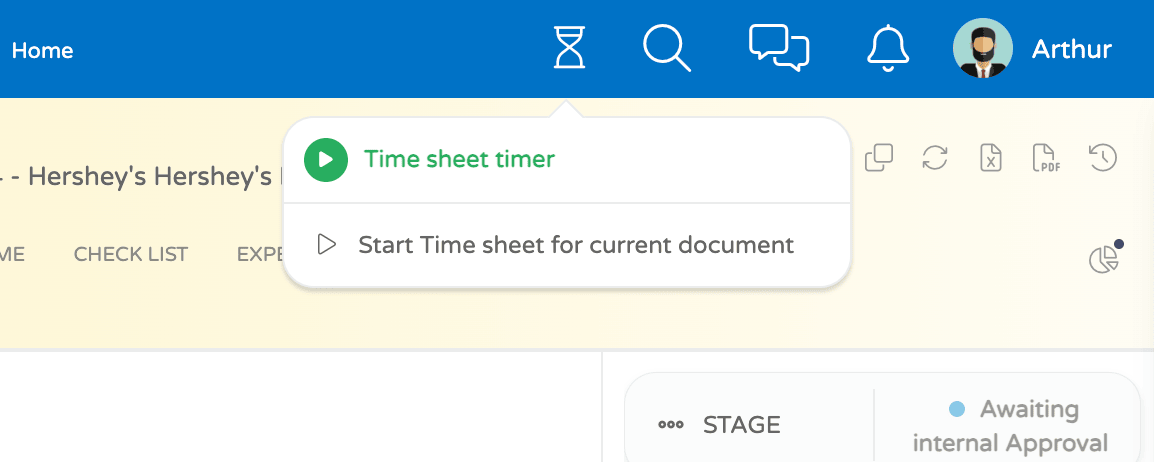
- Look for the timesheet icon in the top menu bar.
- Hover over the icon to reveal the timer options.
-
You will see two options:
- Start Current Document — starts tracking time for the document you are currently viewing. This option is only available when you are inside a compatible document (Project, Job, Deliverable, Client, or Contract).
- Search Document to Start — opens a search popup so you can find and select any document to track.
-
Click one of the options to start the timer.
Timer Running
Once the timer starts, the top menu bar shows a timer pill displaying the elapsed time in HH:MM:SS format.
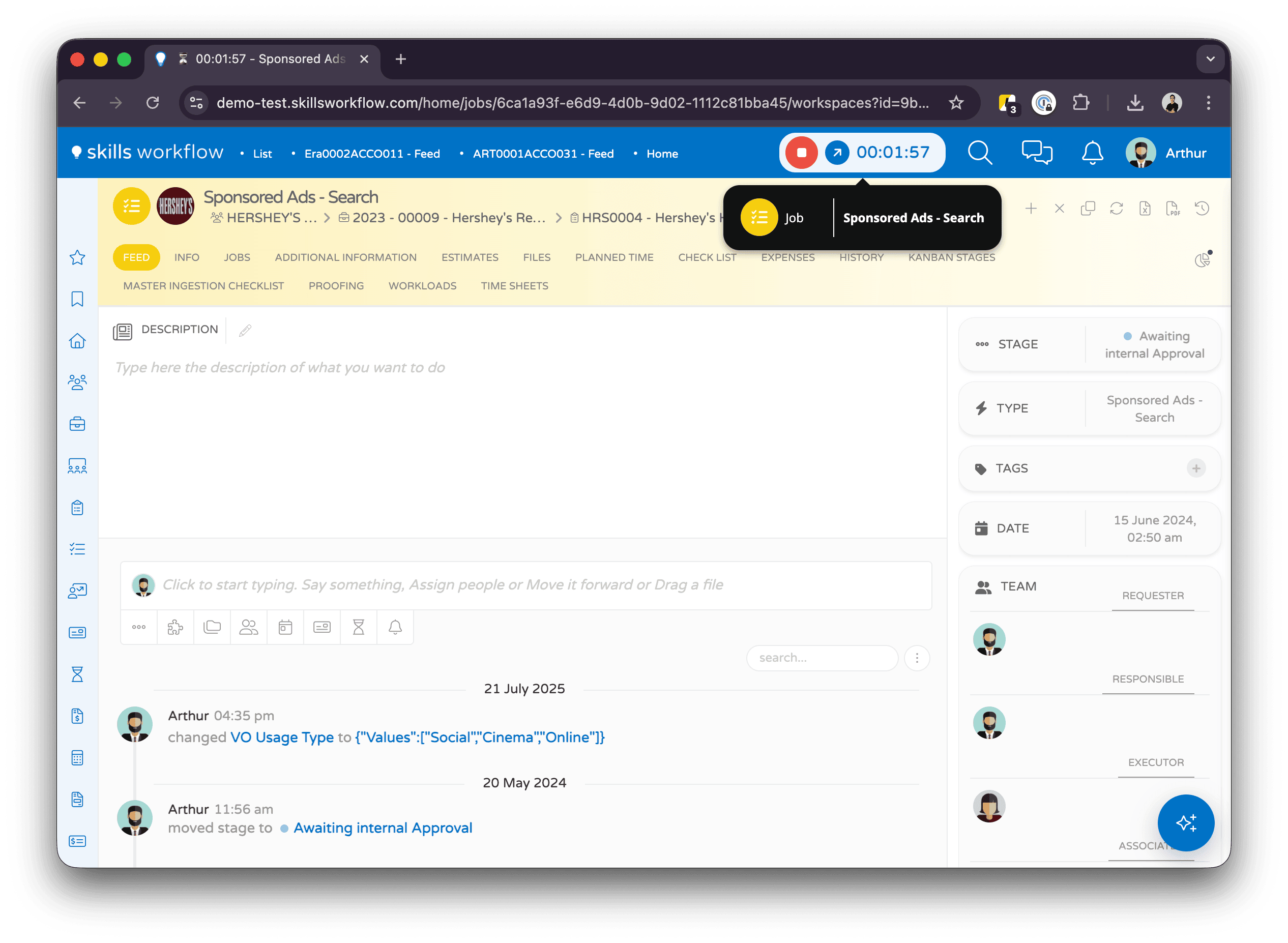
The timer pill contains:
| Element | Description |
|---|---|
| Stop button (red) | Stops the timer and opens the submission form |
| Play button (green) | Only visible when the timer is paused — resumes the timer |
| Go-to button | Navigates to the document being tracked |
| Time display | Shows elapsed time. Click to pause the timer |
While the timer is running, the browser tab title also updates to show the elapsed time and document name (e.g., ⏱ 01:23:45 - My Project).
Hover over the timer pill to see a tooltip with the document name and type.
Pausing and Resuming
- To pause the timer, click the time display. The time text will dim and a pause indicator will appear.
- To resume, click the green play button that appears when paused.

You can pause and resume as many times as needed. Each session segment is tracked separately.
Stopping the Timer
- Click the red stop button on the timer pill.
- A popup form will open where you can review and submit the tracked time.
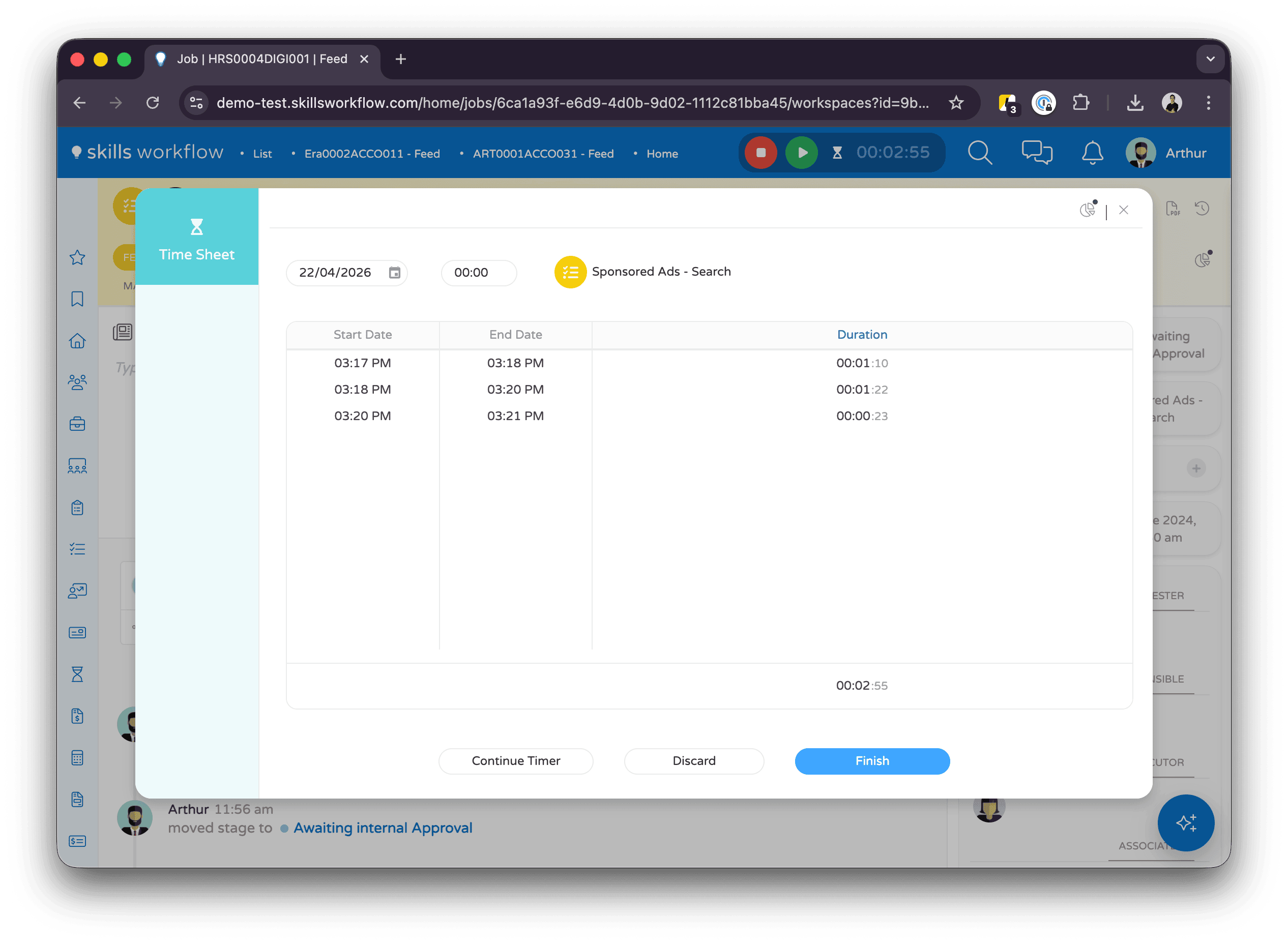
- Review the tracked time, adjust if needed, and submit the entry to your timesheet.
Switching Documents
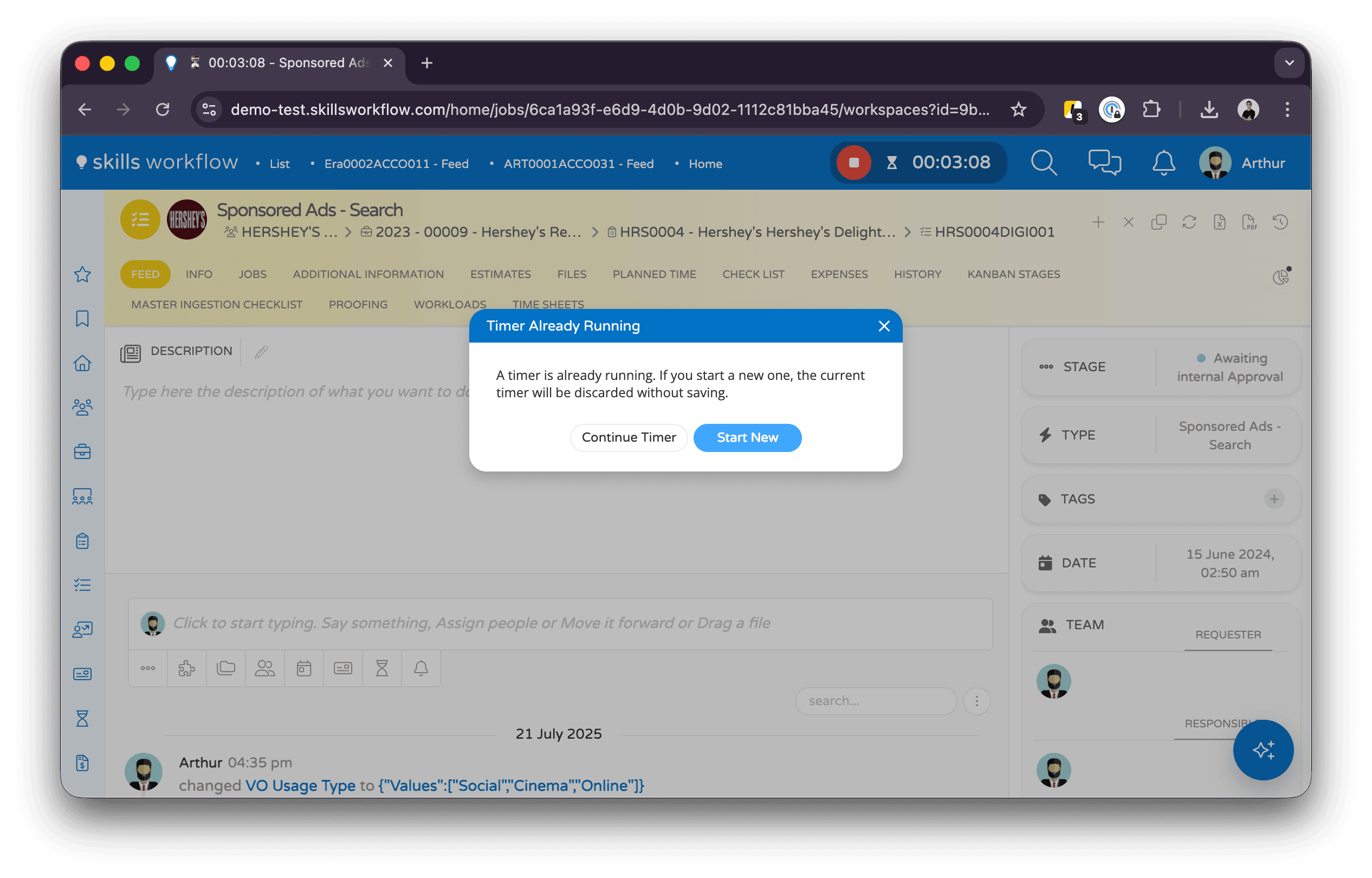
If you start a timer while another one is already running, a confirmation dialog will appear asking you to choose:
- Start New — stops the current timer and starts a new one on the selected document.
- Continue Timer — keeps the current timer running and dismisses the dialog.
Overtime Alert
If your timer reaches 8 hours, the system will notify you with a browser notification and an in-app confirmation dialog. You can choose to continue tracking or stop the timer.
Timer Persistence
Your timer state is saved automatically on the server. If you close the browser, refresh the page, or switch devices, your timer will resume from where it left off when you log back in.
Compatible Document Types
The "Start Current Document" option is available when viewing any of the following document types:
- Projects
- Jobs
- Deliverables
- Clients
- Contracts
To track time on other documents, use the Search Document to Start option.