Using the Feed
The Feed is the collaboration area for a document. It brings together the document context, messages, workflow activity, files, notifications, and conversations in one place.
Read the document context
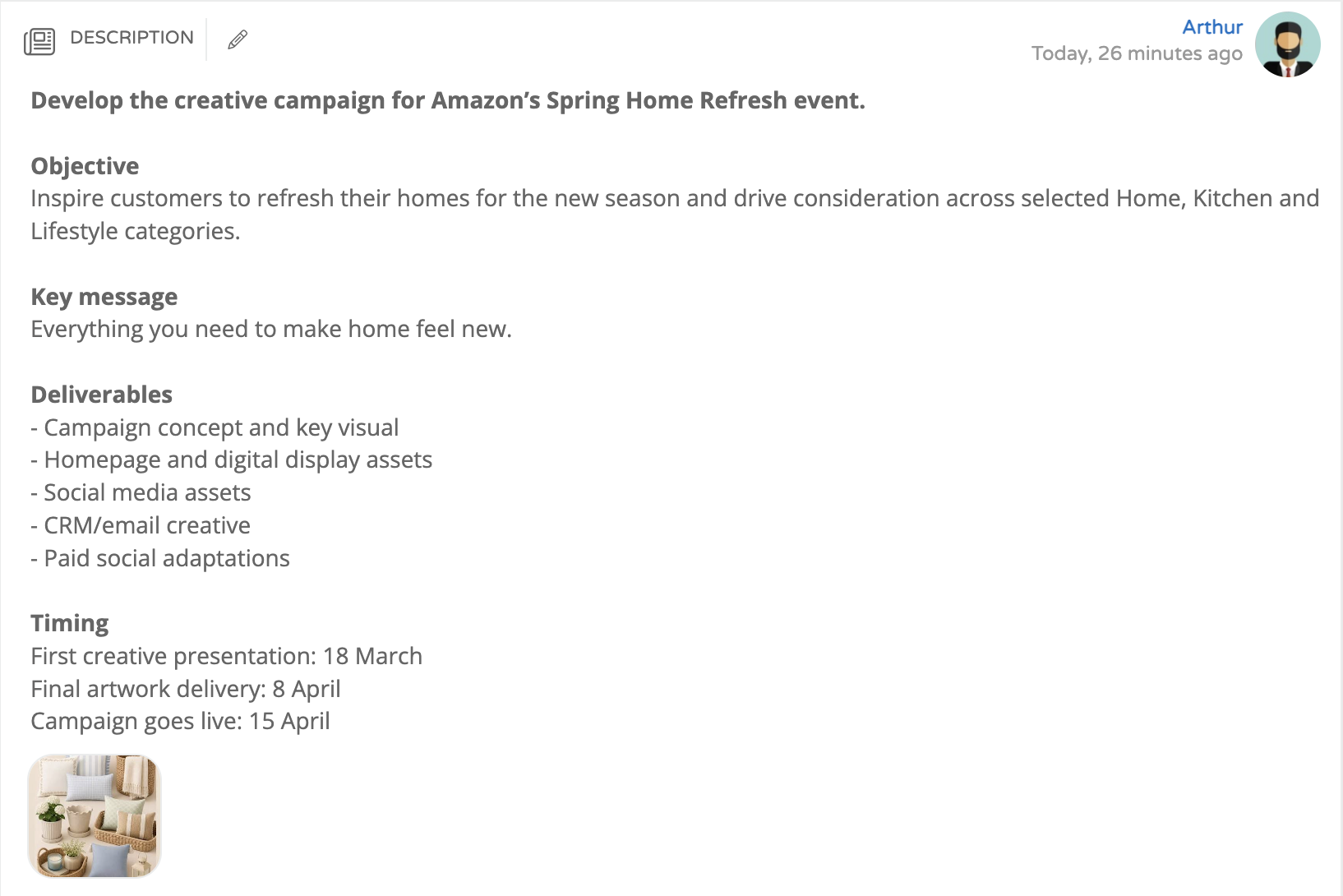
At the top of the Feed, you can read the document description and its supporting information before reviewing the activity below. Depending on the document type and its configuration, this area can also show other descriptive fields and files attached to the document.
Use this information to understand the request or brief before adding a post. The document context is separate from the Feed timeline: update the description when the document's core context changes, and use posts to record collaboration and decisions.
Add a post or workflow action
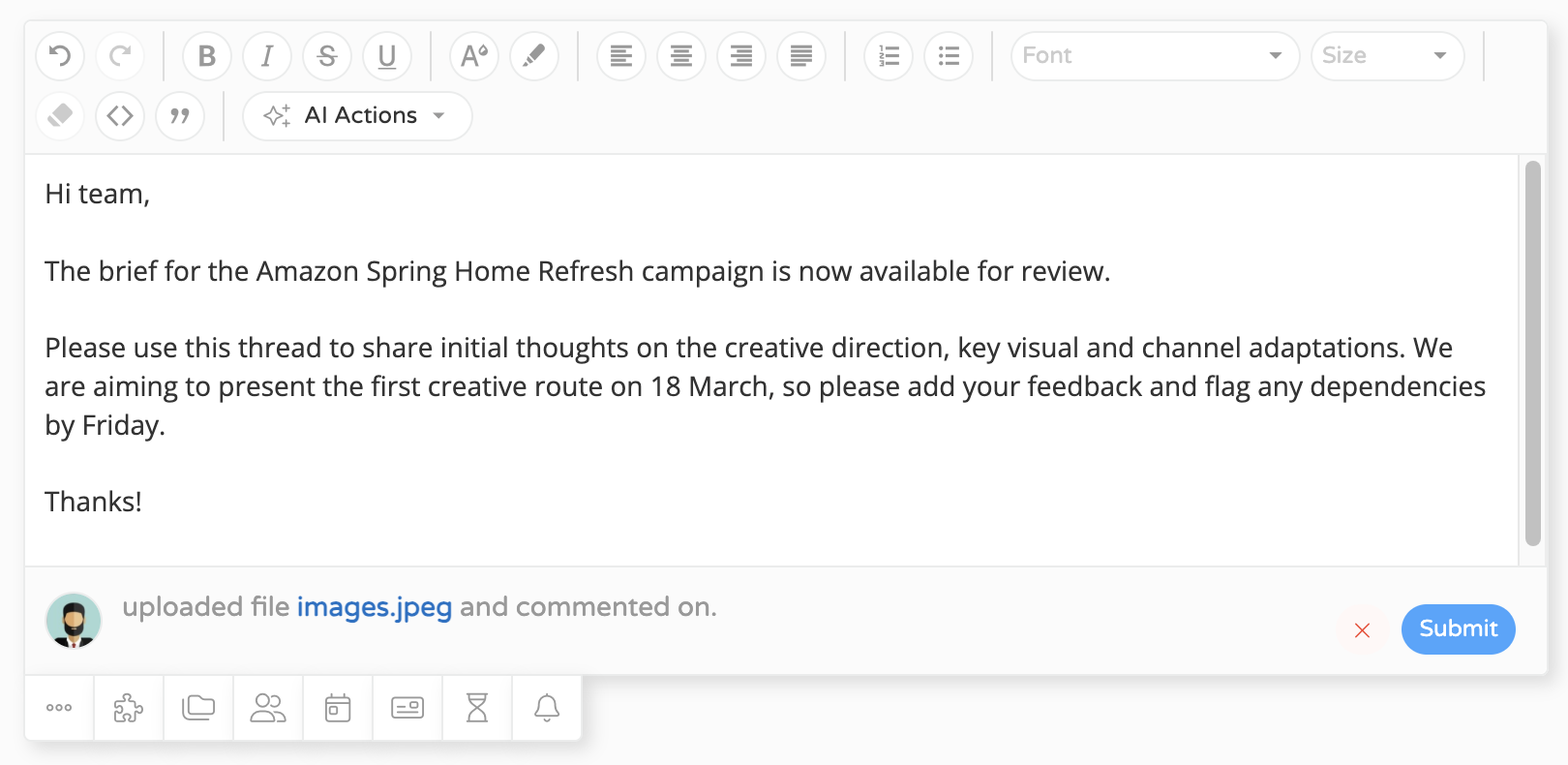
Use the composer below the document context to write a message. You can also use the available actions to add files, assign or notify people, and move the document forward in its workflow.
When you publish, the Feed records the post together with the actions performed. For example, a single Feed entry can contain a message, files, a workflow-stage change, and people who were notified or mentioned. The actions available to you depend on the document, its workflow, and your permissions.
Use Feed actions

Select an action below the composer, complete the information requested, and publish the post to record the change in the Feed. The following actions were available in the current WebApp:
| Action | What it does |
|---|---|
| Move stage | Selects an available workflow transition and moves the document to its destination stage. The transitions offered depend on the document's current stage and workflow. |
| Items | Creates an item from the Feed. Enter its name, select its type, and set its date. The available item types depend on your configuration. |
| Add file | Attaches a file to the post. You can also drag a file into the composer. |
| Add assignment | Opens the document's team assignments, grouped by assignment type. Use the controls available to add, update, or remove an assignment. |
| Change end date | Changes the document's end date and time. |
| Additional information | Opens the additional fields configured for the document so they can be completed or updated. The fields vary by document type and configuration. |
| Notifications | Lets you choose a user to notify when the post is published. |
Do not use Notifications to include client users in an internal discussion. Notifying or @mentioning a client can make a post visible to that client.
Follow the activity and conversations
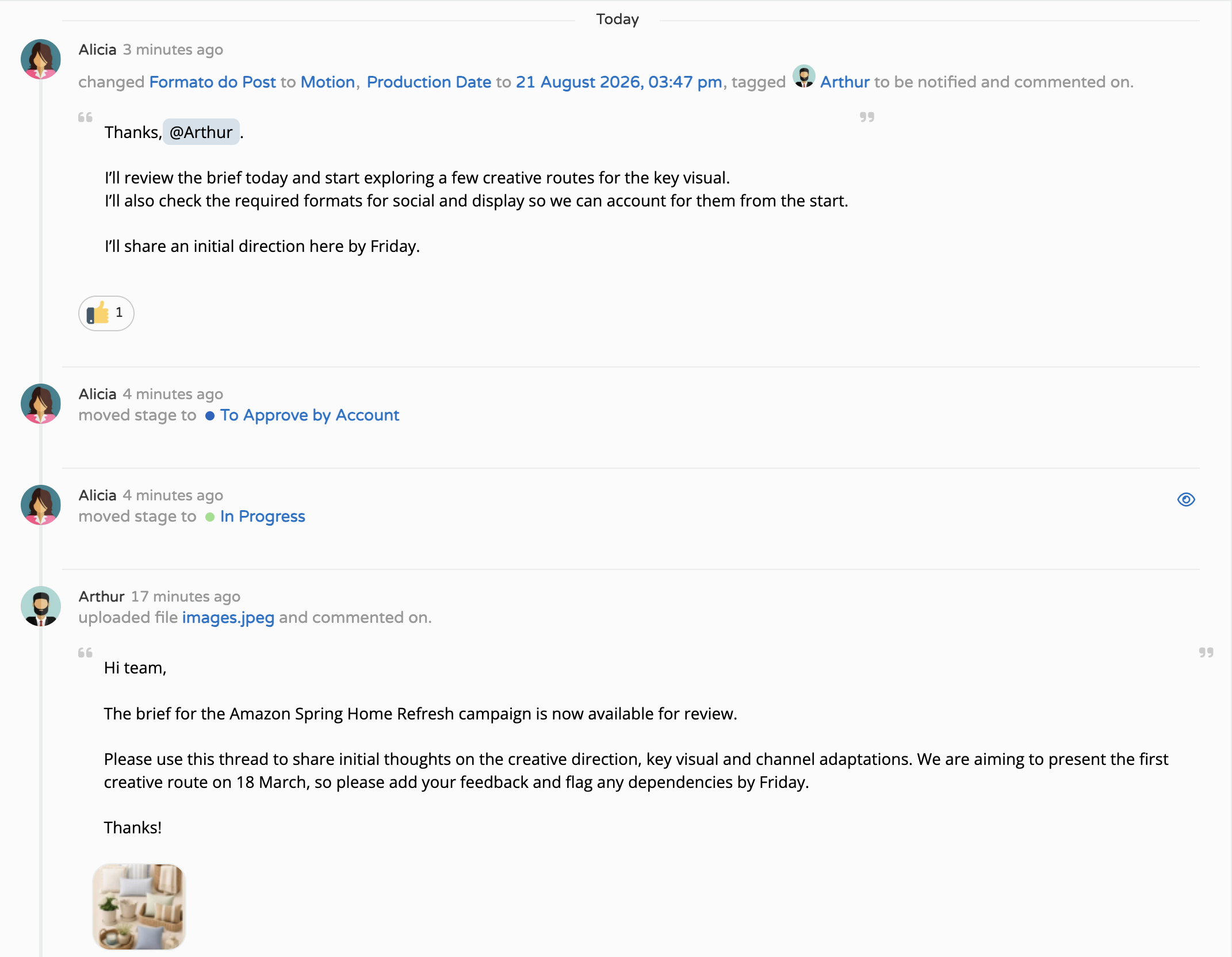
The timeline shows the most recent activity first. Each entry can include the author, time of publication, message, files, workflow activity, and notified or mentioned people. Use comments and replies on a post to keep the conversation and its context together.
Use the Feed search to find previous activity when it is available in your workspace. Reactions and other post options may also be available, depending on your configuration.
Visibility for client users
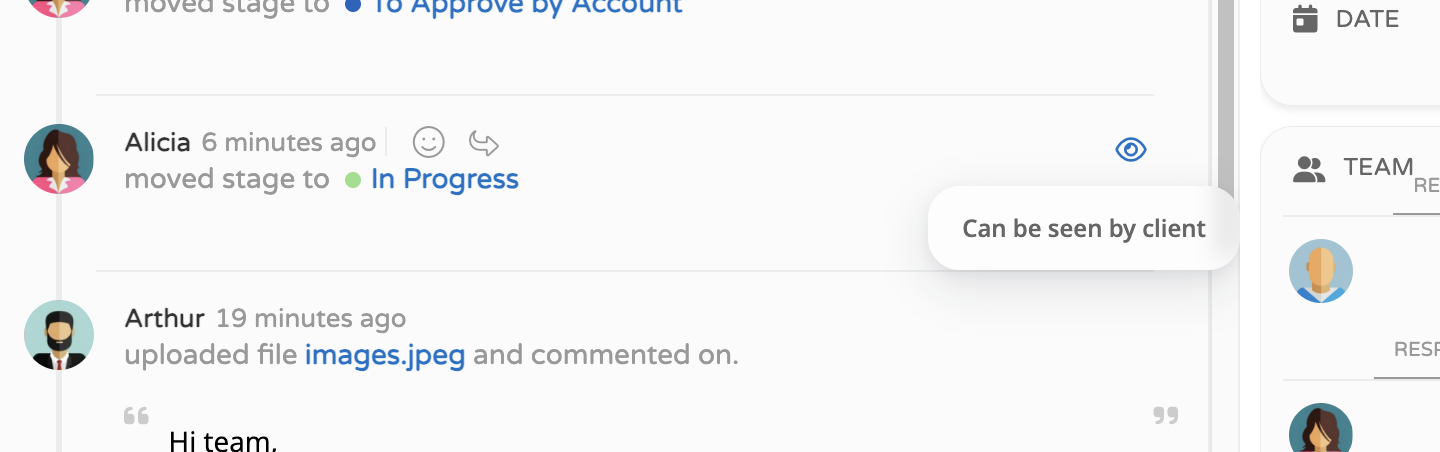
A user is treated as a client when the IsClient flag is enabled. Whether a client can see a discussion is defined on its parent post through IsVisibleToClient; it is not configured separately on a comment or reply.
The system determines a post's visibility automatically from the workflow: the IsVisibleToClient setting of the current stage or the destination stage determines whether the post is visible to clients. Comments and replies on a post that is not visible to clients are internal, because the client does not see that parent post in the normal Feed.
Create an internal discussion
To keep a discussion internal:
- Confirm that the external user is marked as a client (
IsClient). - Create the post while the document is in a workflow stage that is not visible to clients.
- Add comments and replies to that post.
- Do not include clients in notifications or
@mentionclients, as this can make the post visible to the client.
Good practices
- Read the description and supporting information before posting, so the conversation stays aligned with the document context.
- Keep related messages, decisions, and follow-up in the same post and its replies.
- Use a workflow stage that is not visible to clients before starting an internal conversation.
- Check a post as an internal user: a post visible to clients displays the Client can see indicator. If this indicator is absent, the post is not visible to clients.
Limitations and points of attention
- A client can still see posts that they created. Do not use a post created by a client for an internal discussion.
- In the current WebApp, there is no visible functional control to manually change the privacy of a post after it has been created. Set the document to the appropriate workflow stage before creating the post.
- The fields, actions, and options shown in the Feed can vary by document type, workflow configuration, and user permissions.