Writing Tools
Writing Tools bring AI-powered text assistance directly into the rich text editors across Skills Workflow. Instead of switching to an external tool, you can rewrite, shorten, change tone, or generate content right where you are editing.
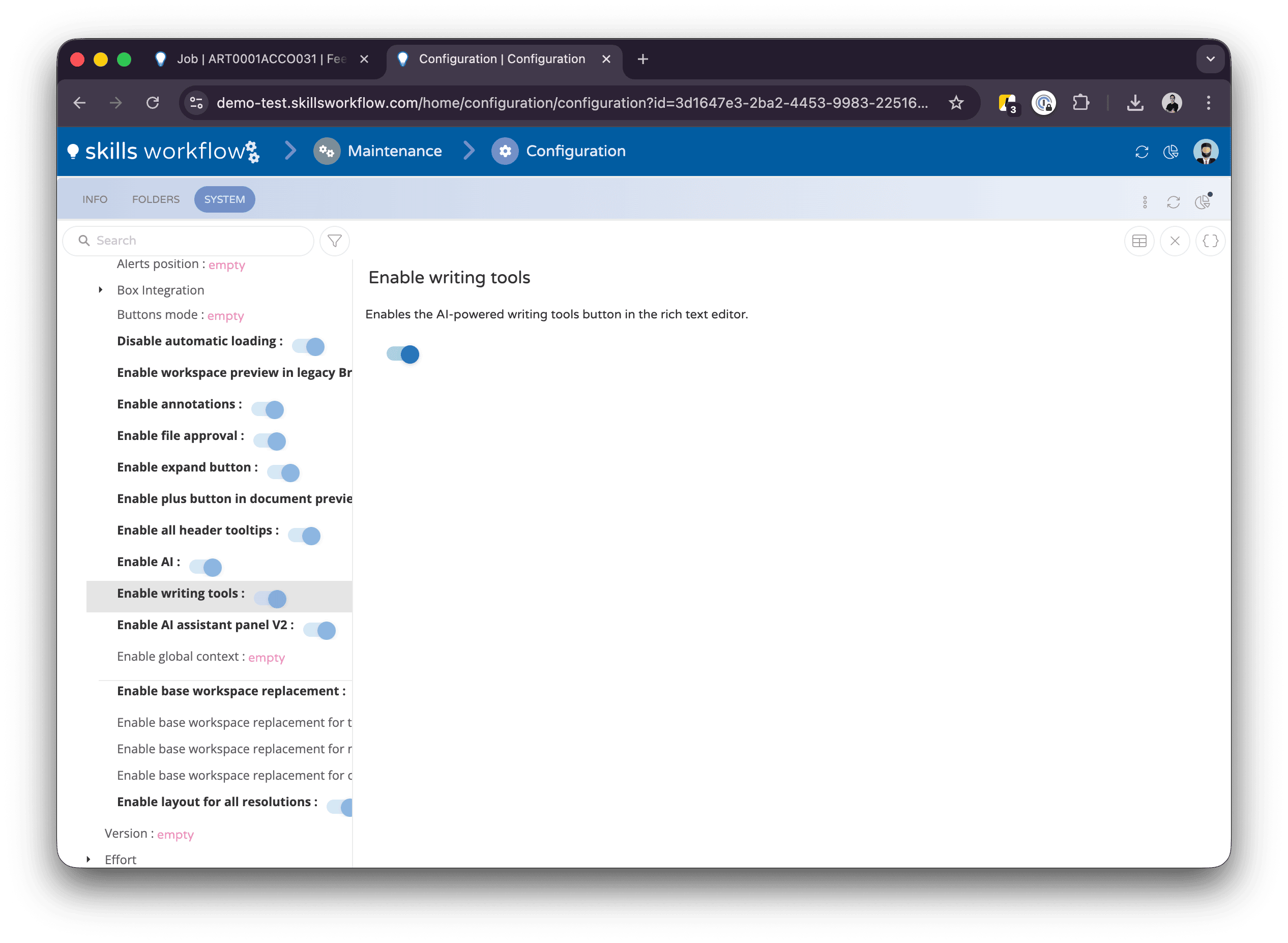
Writing Tools must be enabled by your administrator in System Settings > Behavior. Both Enable AI and Enable Writing Tools must be turned on.
Where Writing Tools Are Available
Writing Tools appear in any rich text editor used for:
- Document briefs and descriptions — when editing the brief of a Job, Deliverable, Estimate, Contract, Request, or any other document type.
- Feed posts — when composing a new post in the document feed.
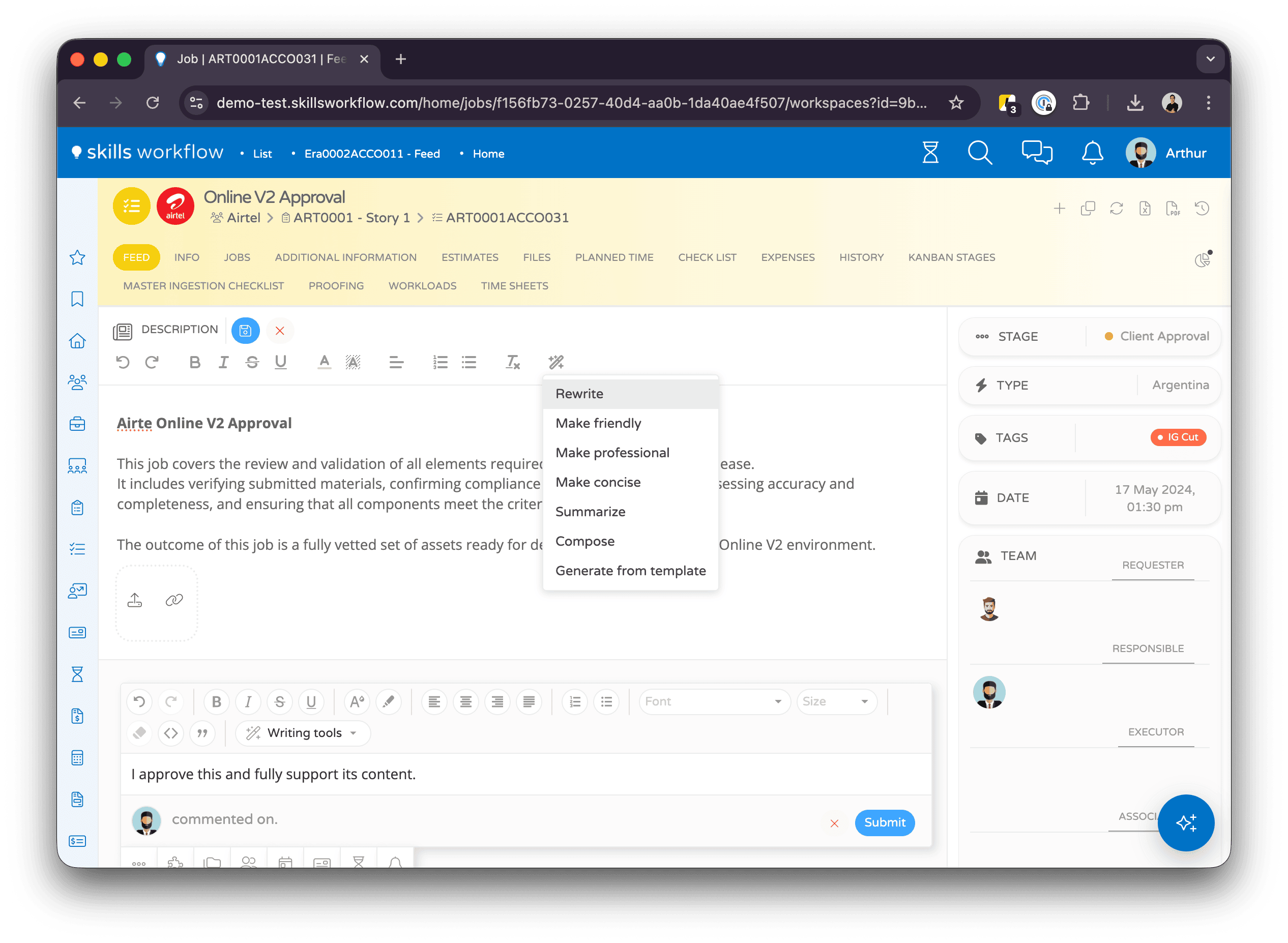
When the feature is enabled, you will see a magic wand icon (✨) in the editor toolbar.
Available Actions
Click the magic wand button to open a dropdown with the following actions:
| Action | What It Does |
|---|---|
| Rewrite | Rewrites your text for better clarity and flow |
| Make Friendly | Changes the tone to sound warm and approachable |
| Make Professional | Changes the tone to sound formal and business-appropriate |
| Make Concise | Shortens your text while keeping the key points |
| Summarize | Creates a summary of the content |
| Compose | Generates new text based on the existing context |
| Generate from Template | Fills in a briefing template structure using the content already in the editor |
How to Use Writing Tools
- Open a document and navigate to the brief or feed section.
- Write your content or ensure there is existing text in the editor.
- Click the magic wand button (✨) in the editor toolbar.
- Select the action you want from the dropdown.
- The editor will briefly become read-only and display a loading indicator while the AI processes your request.
- Once complete, the editor content is replaced with the improved version.
- Review the result. If you are not satisfied, you can undo the change with
Ctrl+Z/⌘+Zor apply another action.
Generate from Template
The Generate from Template action is particularly useful for briefs. It works by:
- Looking up the briefing template configured for the document's job type.
- Analyzing the existing text in the editor.
- Generating a structured brief that follows the template, filling in each section with content extracted from what you wrote.
This helps standardize briefs across your organization while letting users write freely first and then structure the content.
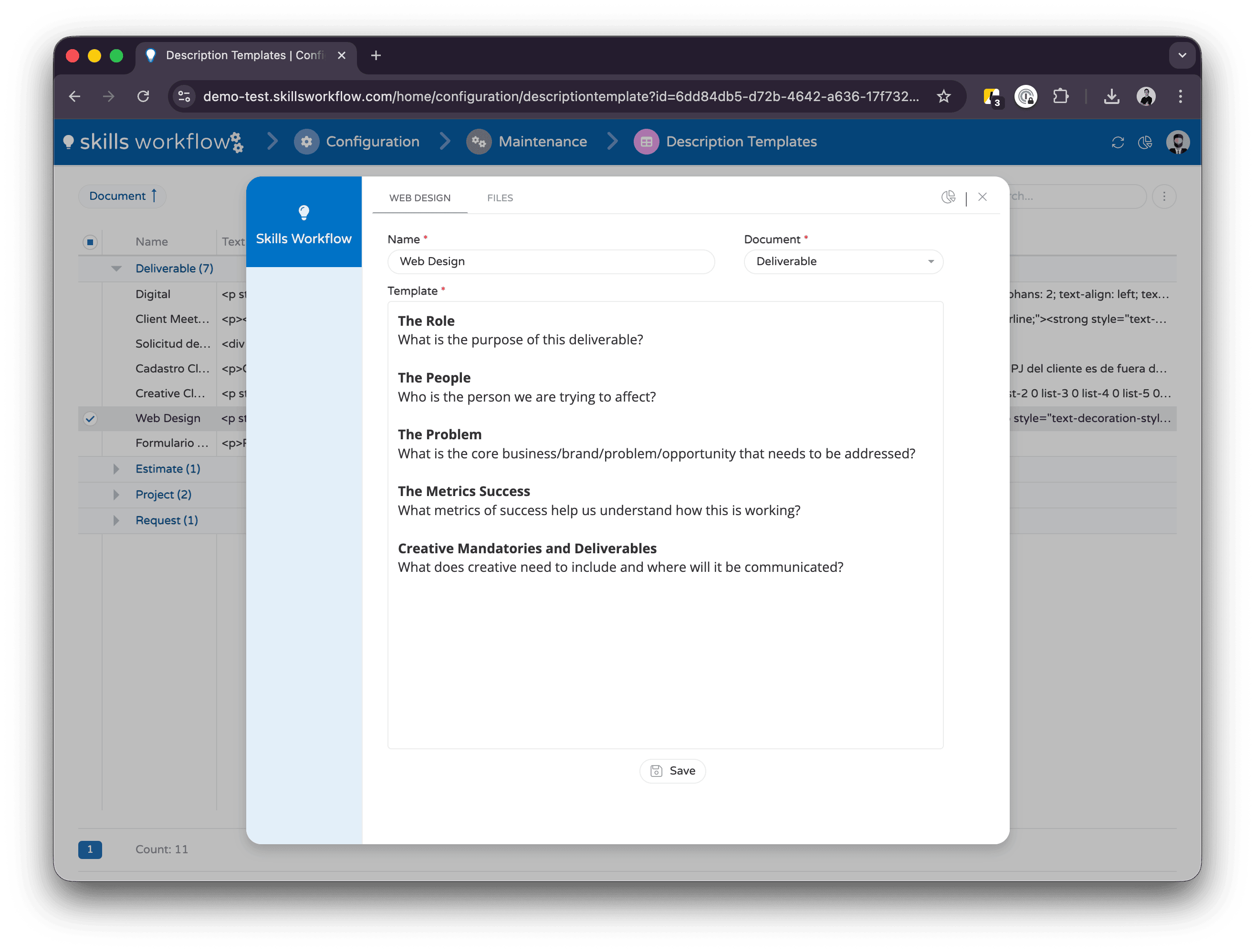
For the Generate from Template action to work, the document's job type must have a Briefing Template configured. Ask your administrator to set this up if it is not available.
Tips
- Write first, polish later — Write your content naturally, then use Writing Tools to improve it.
- Chain actions — You can apply multiple actions in sequence. For example, use "Rewrite" first and then "Make Concise".
- Undo is always available — If you do not like the result, press
Ctrl+Z/⌘+Zto revert. - Works with any language — Writing Tools respond in the same language as your input text.