Ferramentas de Escrita
As Ferramentas de Escrita trazem assistência de texto com IA diretamente para os editores de texto rico do Skills Workflow. Em vez de mudar para uma ferramenta externa, você pode reescrever, encurtar, mudar o tom ou gerar conteúdo exatamente onde está editando.
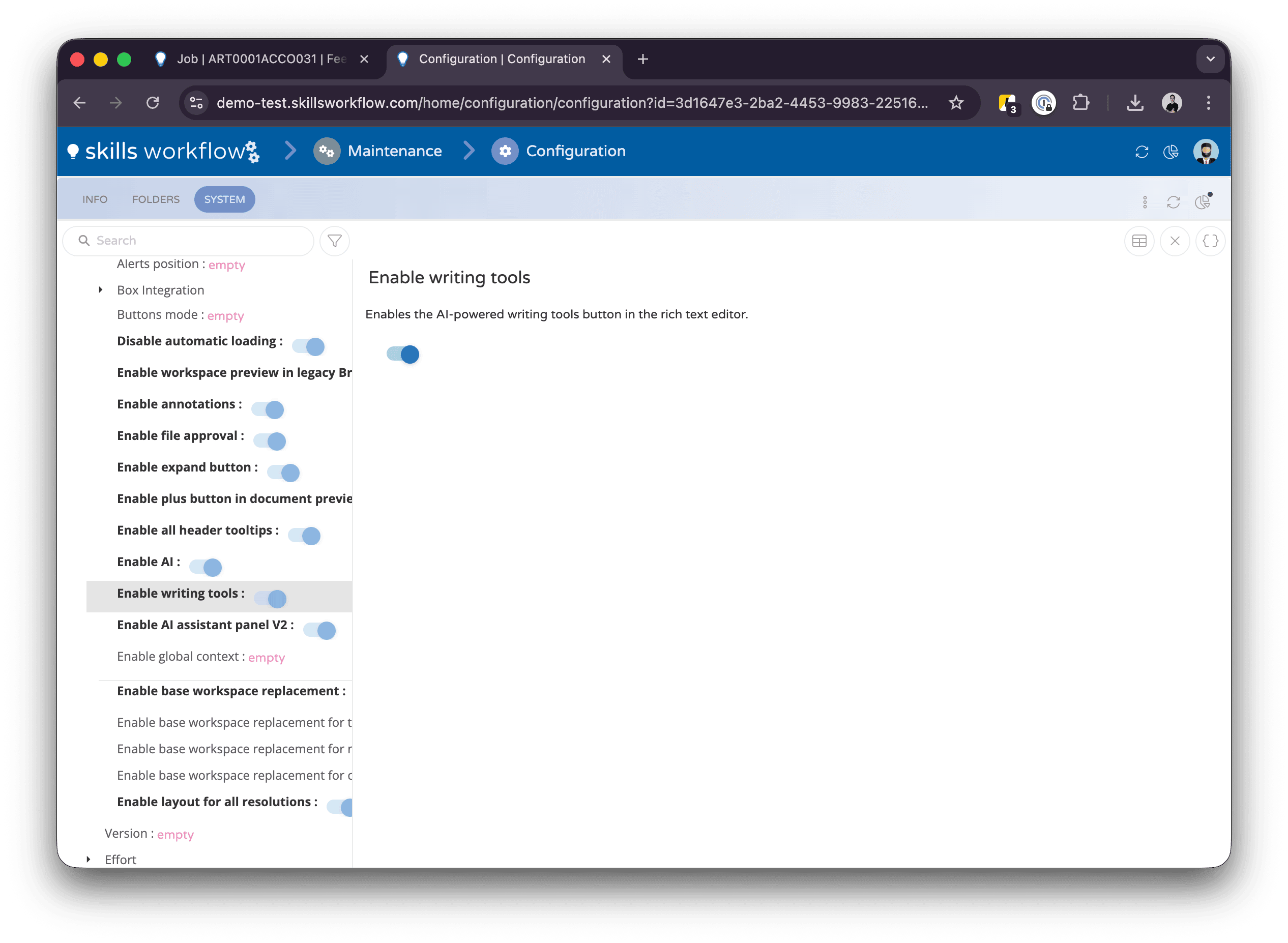
As Ferramentas de Escrita devem ser habilitadas pelo seu administrador em System Settings > Behavior. Tanto Enable AI quanto Enable Writing Tools devem estar ativados.
Onde as Ferramentas de Escrita Estão Disponíveis
As Ferramentas de Escrita aparecem em qualquer editor de texto rico utilizado para:
- Briefs e descrições de documentos — ao editar o brief de um Job, Entregável, Orçamento, Contrato, Solicitação ou qualquer outro tipo de documento.
- Publicações no feed — ao redigir uma nova publicação no feed do documento.
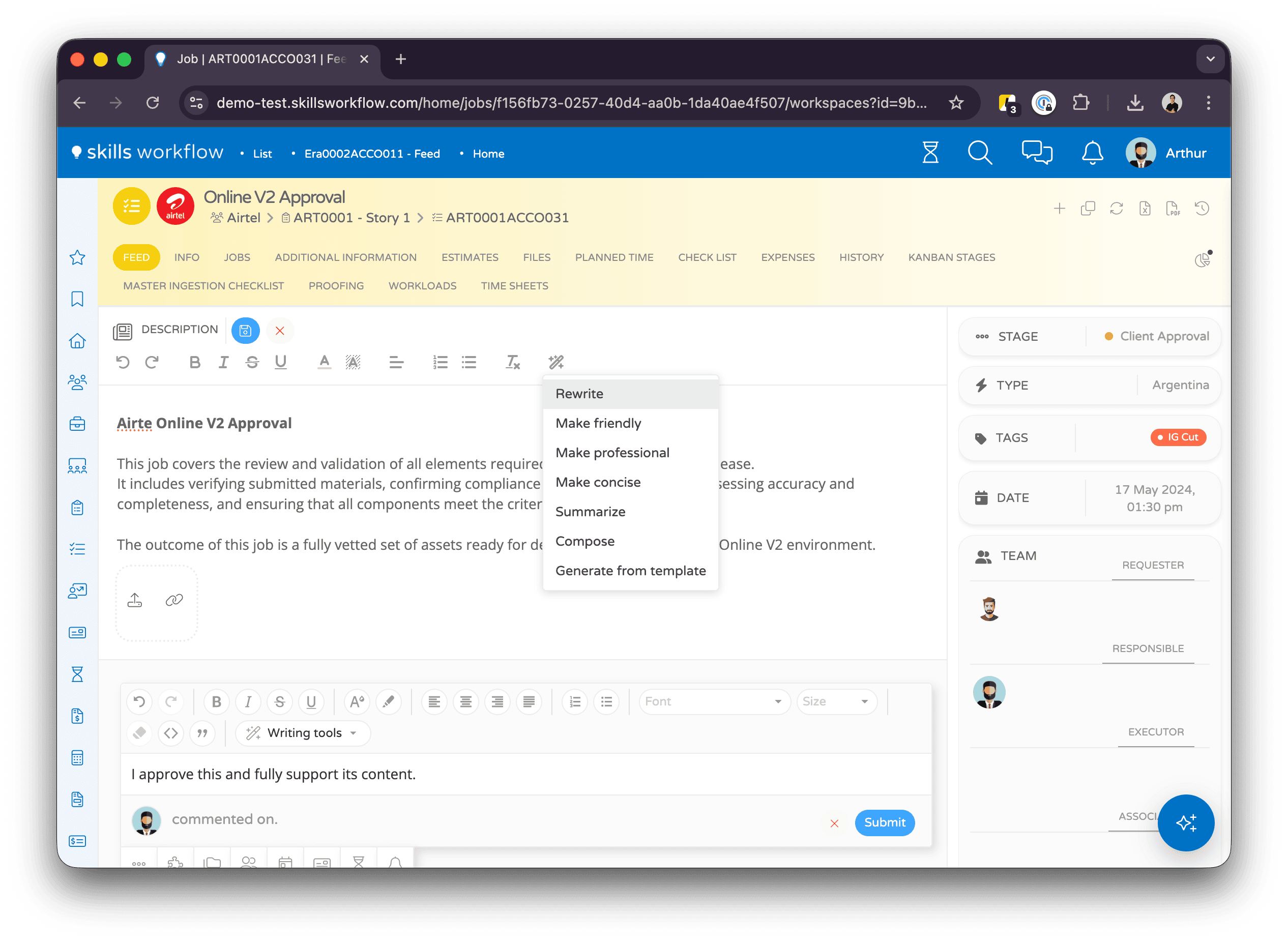
Quando o recurso está habilitado, você verá um ícone de varinha mágica (✨) na barra de ferramentas do editor.
Ações Disponíveis
Clique no botão da varinha mágica para abrir um menu suspenso com as seguintes ações:
| Ação | O Que Faz |
|---|---|
| Rewrite | Reescreve seu texto para maior clareza e fluidez |
| Make Friendly | Muda o tom para soar caloroso e acessível |
| Make Professional | Muda o tom para soar formal e apropriado para negócios |
| Make Concise | Encurta seu texto mantendo os pontos-chave |
| Summarize | Cria um resumo do conteúdo |
| Compose | Gera novo texto com base no contexto existente |
| Generate from Template | Preenche uma estrutura de modelo de briefing usando o conteúdo que já está no editor |
Como Usar as Ferramentas de Escrita
- Abra um documento e navegue até a seção de brief ou feed.
- Escreva seu conteúdo ou certifique-se de que existe texto no editor.
- Clique no botão da varinha mágica (✨) na barra de ferramentas do editor.
- Selecione a ação desejada no menu suspenso.
- O editor ficará brevemente em modo somente leitura e mostrará um indicador de carregamento enquanto a IA processa sua solicitação.
- Após concluído, o conteúdo do editor é substituído pela versão melhorada.
- Revise o resultado. Se não estiver satisfeito, você pode desfazer a alteração com
Ctrl+Z/⌘+Zou aplicar outra ação.
Gerar a Partir de Modelo
A ação Generate from Template é particularmente útil para briefs. Funciona da seguinte forma:
- Busca o modelo de briefing configurado para o tipo de trabalho do documento.
- Analisa o texto existente no editor.
- Gera um brief estruturado que segue o modelo, preenchendo cada seção com conteúdo extraído do que você escreveu.
Isso ajuda a padronizar os briefs na sua organização, permitindo que os usuários escrevam livremente primeiro e depois estruturem o conteúdo.
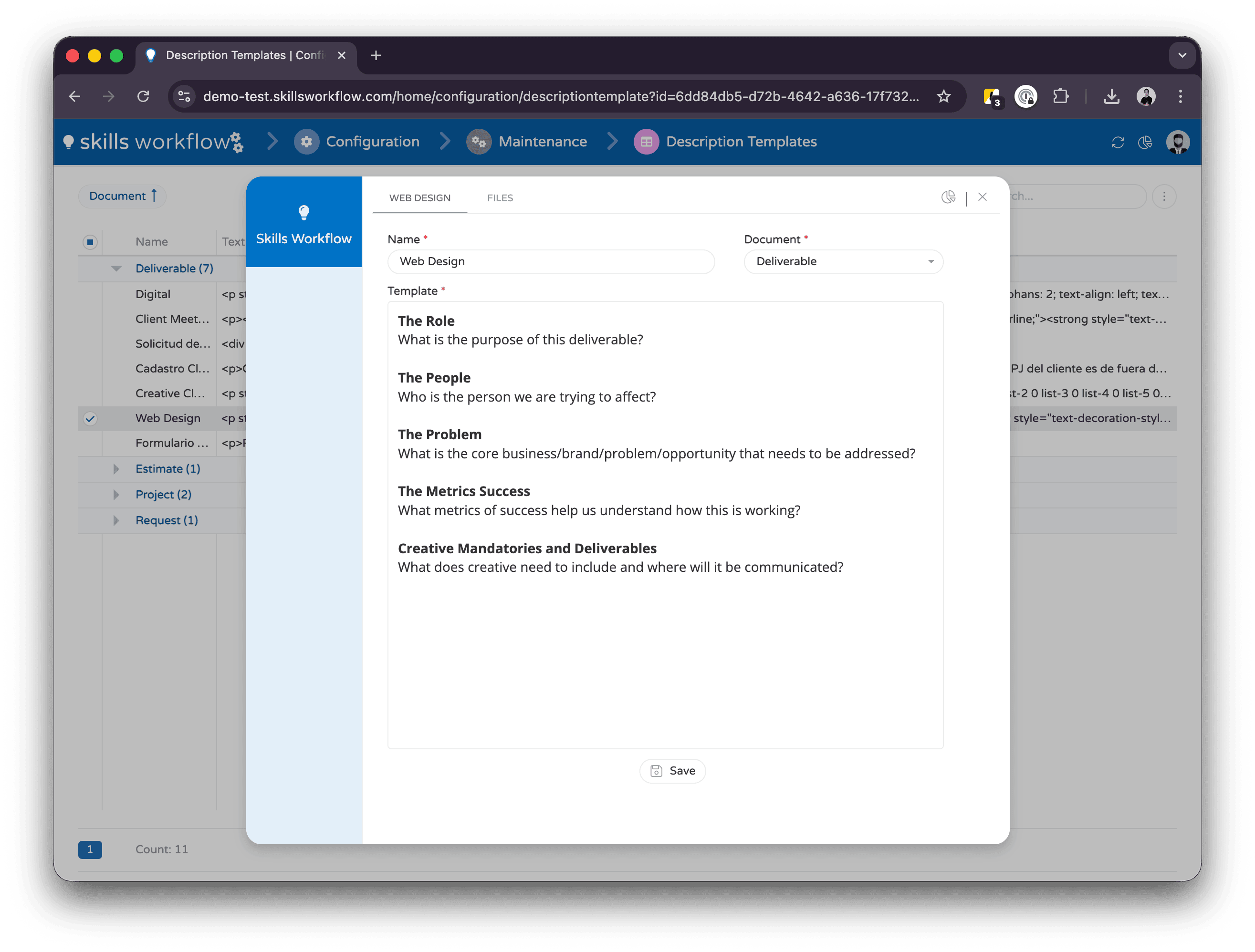
Para que a ação Gerar a Partir de Modelo funcione, o tipo de trabalho do documento deve ter um Briefing Template configurado. Consulte seu administrador para configurá-lo se não estiver disponível.
Dicas
- Escreva primeiro, aprimore depois — Escreva seu conteúdo naturalmente, depois use as Ferramentas de Escrita para melhorá-lo.
- Encadeie ações — Você pode aplicar múltiplas ações em sequência. Por exemplo, use "Rewrite" primeiro e depois "Make Concise".
- Desfazer está sempre disponível — Se não gostar do resultado, pressione
Ctrl+Z/⌘+Zpara reverter. - Funciona com qualquer idioma — As Ferramentas de Escrita respondem no mesmo idioma do seu texto de entrada.