Annotations
Annotations let users place visual feedback directly on file previews. In Skills Workflow, annotations are available for images, videos, and PDFs when the feature is enabled.
File preview annotations
Annotations appear in the file preview side panel under the Annotations module. The module is only shown when annotations are enabled and the current file can be annotated.
The + button in the Annotations module starts a new annotation. Clicking the module title/header does not start the editor.
For videos, the + button is available after the preview's metadata has loaded. For PDFs, it is available after a PDF page has rendered.
Supported file previews:
- Images.
- Videos.
- PDFs.
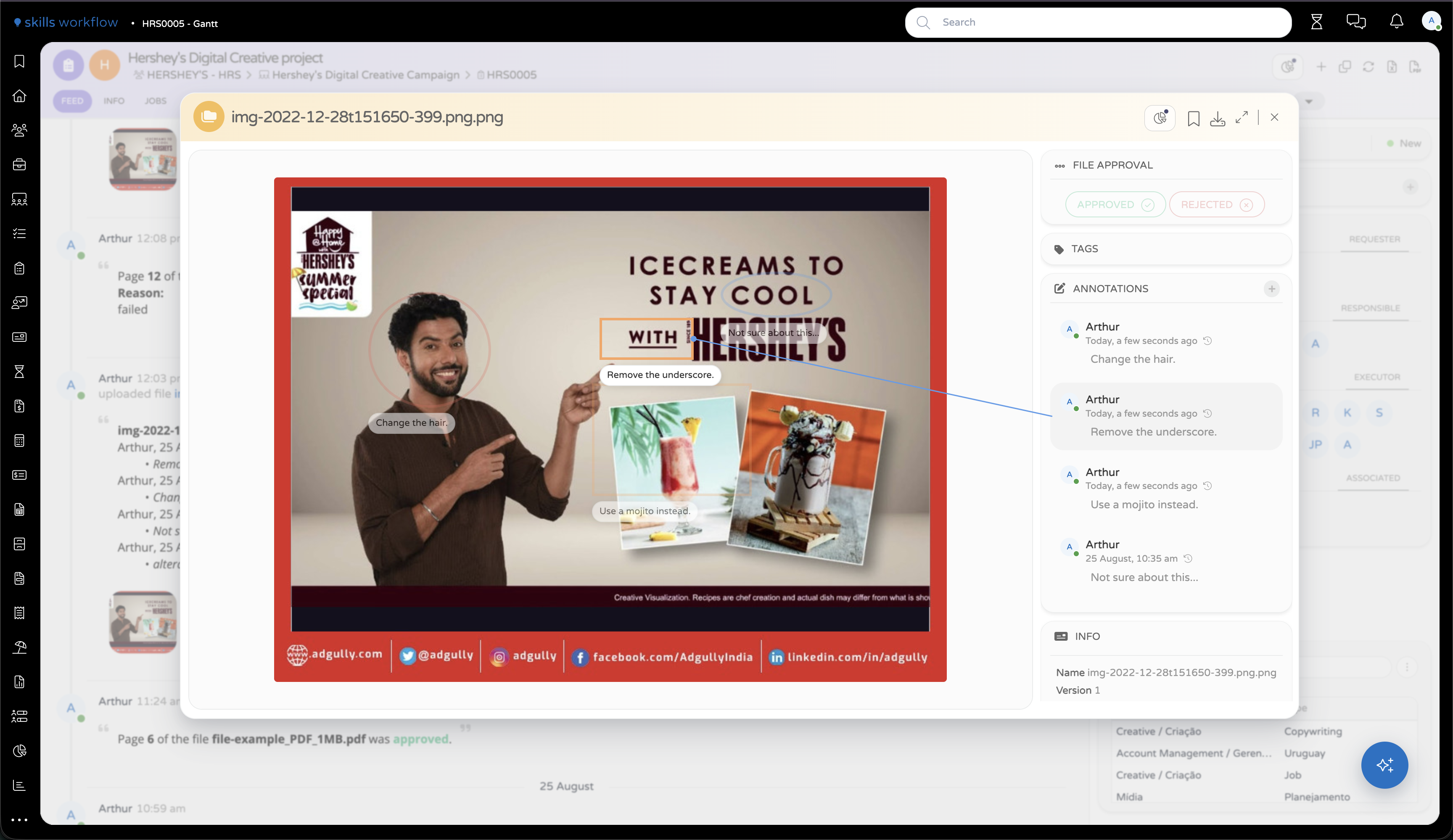
Annotation toolbar
The annotation toolbar is shown inside the Annotations module while the annotation editor is active.
The toolbar provides undo/redo, Frame, Ellipse, Arrow, Line, Freehand, Highlight, and a color dropdown. Save and Cancel are shown in the annotation card when editing a comment, or below the toolbar when no annotation card is being edited.
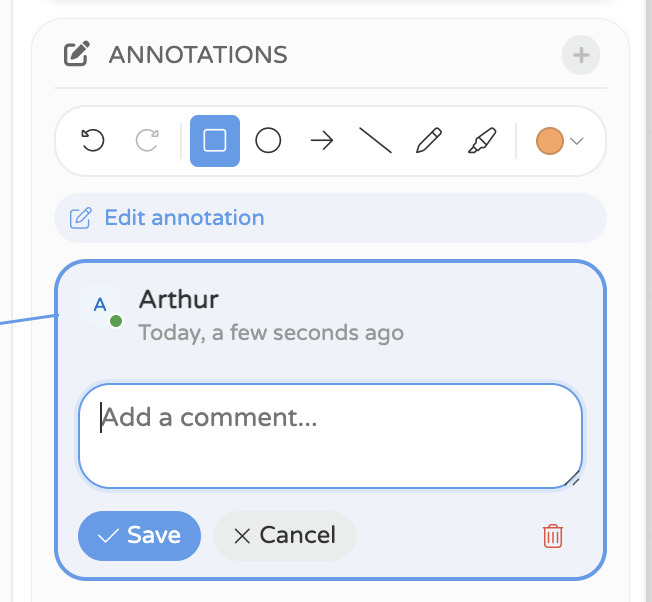
Comments and side panel
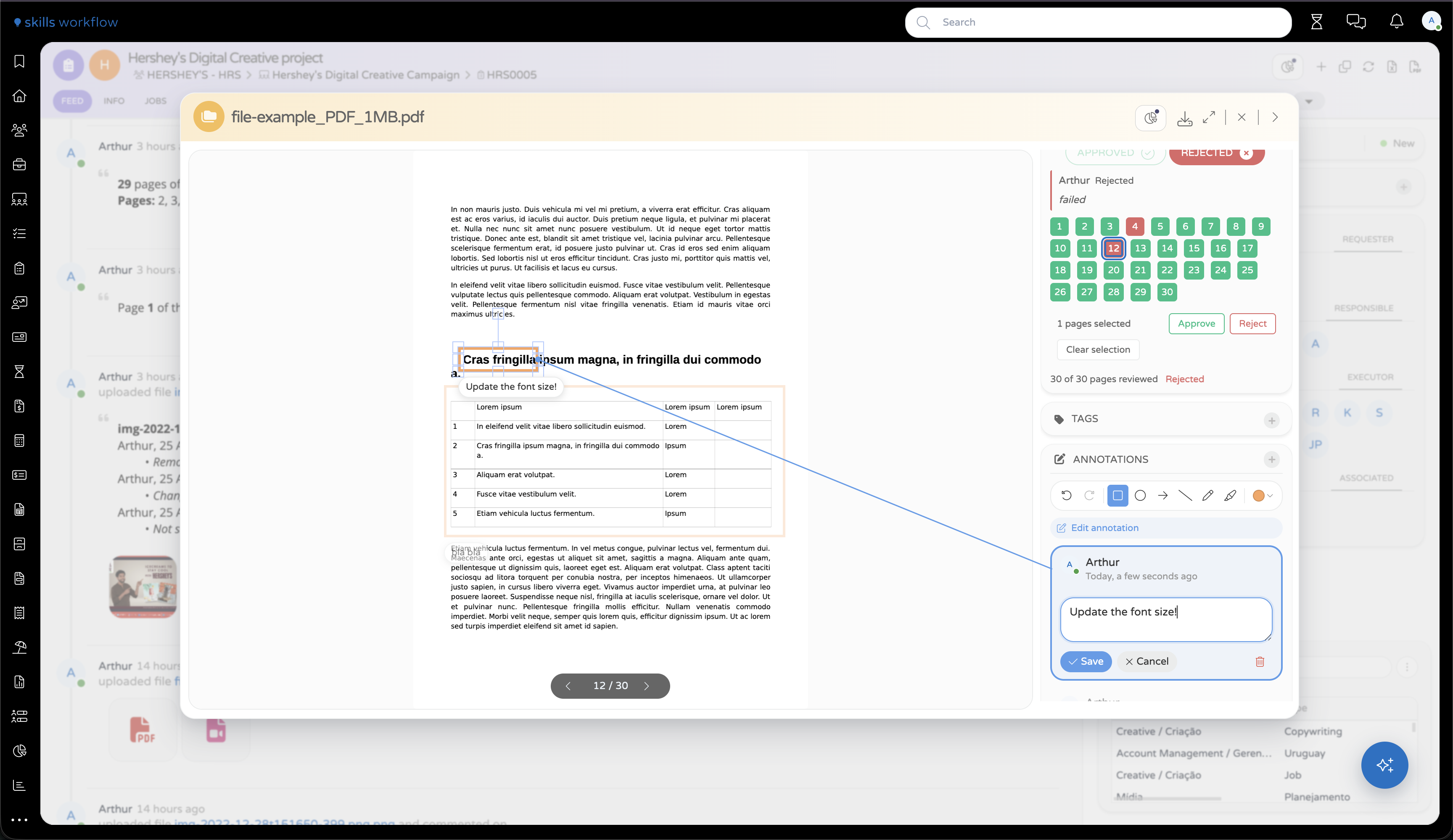
Each annotation card shows the author, date/time, comment text, video timestamp when applicable, PDF page number when applicable, and a history indicator when previous text versions exist.
On the preview, annotations with a comment also show a short comment label beside their marker.
Selecting an annotation in the side panel opens it on the preview. Selecting another user's annotation shows it, but does not show the inline editor.
When an annotation is selected or hovered, Skills Workflow visually links the annotation card to the marker on the preview with a connector line. Hovering a card highlights the related marker without changing the current selection. If another annotation is already selected, the selected connector remains visible but muted.
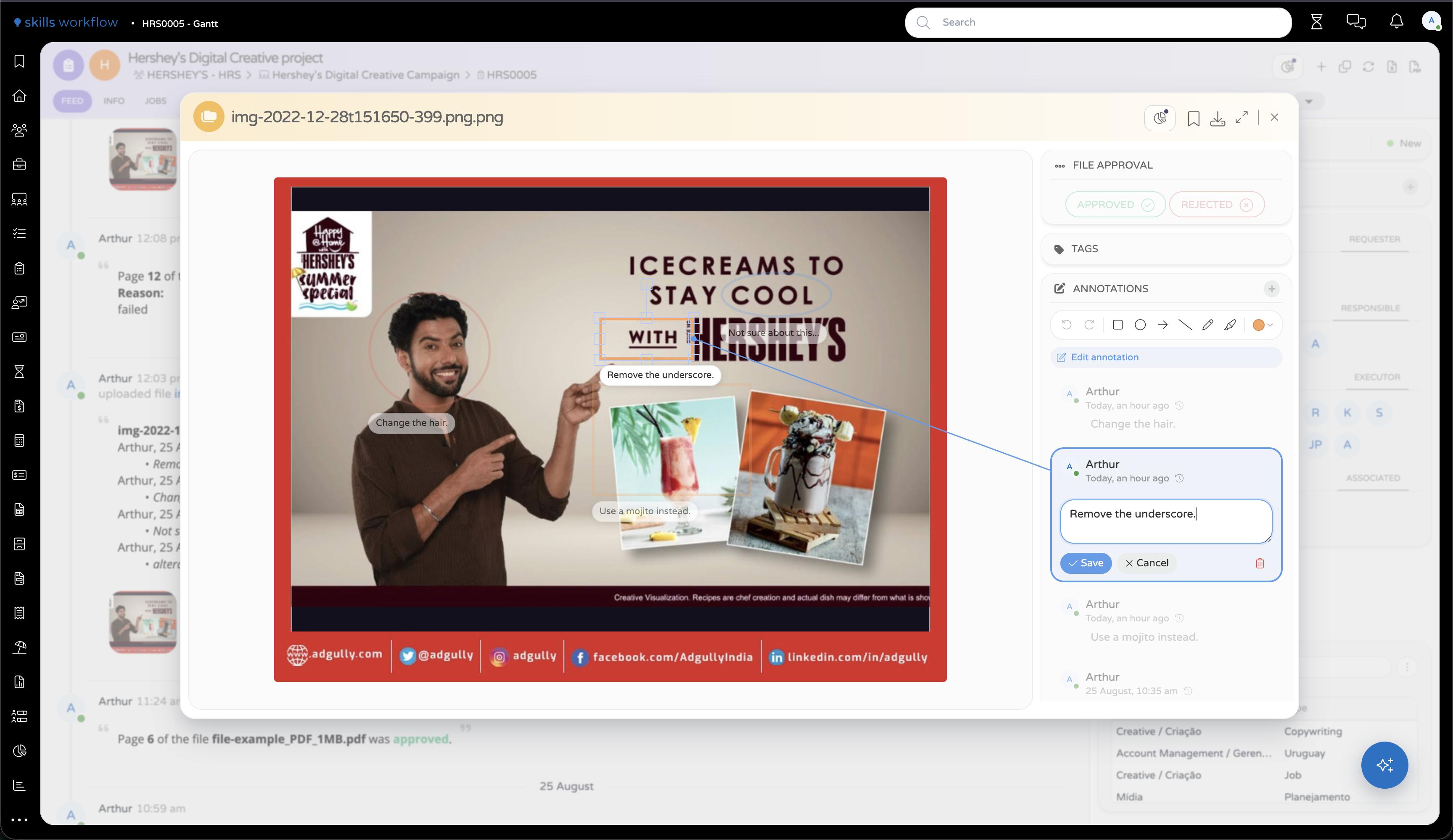
Editing rules
The edit rule is per annotation:
- Users can edit/delete their own annotations.
- Users cannot edit/delete annotations created by another user.
- A new annotation belongs to the user who drew it.
- Editing annotation text records the previous text in the annotation history.
- Saving a comment closes the annotation editor.
- Cancelling reloads the last saved annotation state and discards work in progress.
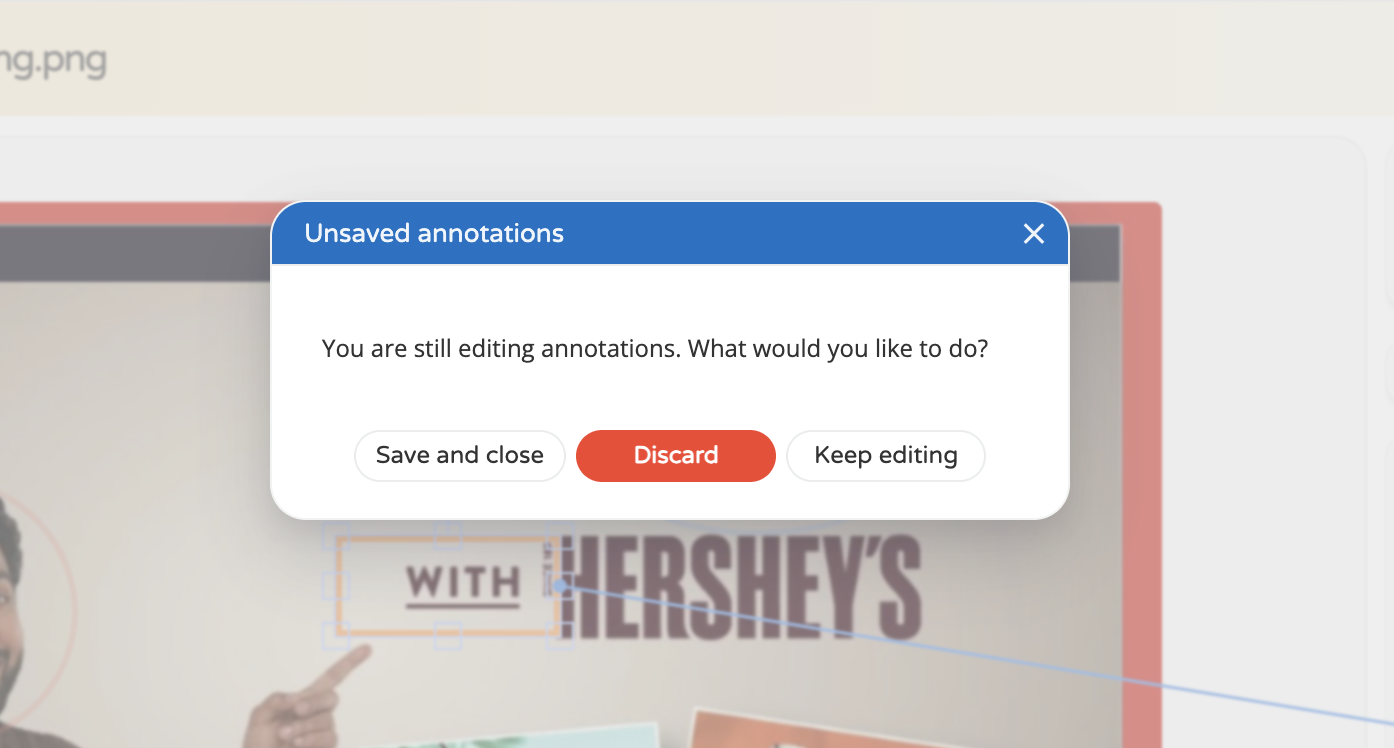
Unsaved changes
When closing the preview while the annotation editor is active, the user chooses between Save and close, Discard annotations, or Keep editing.
Video behavior
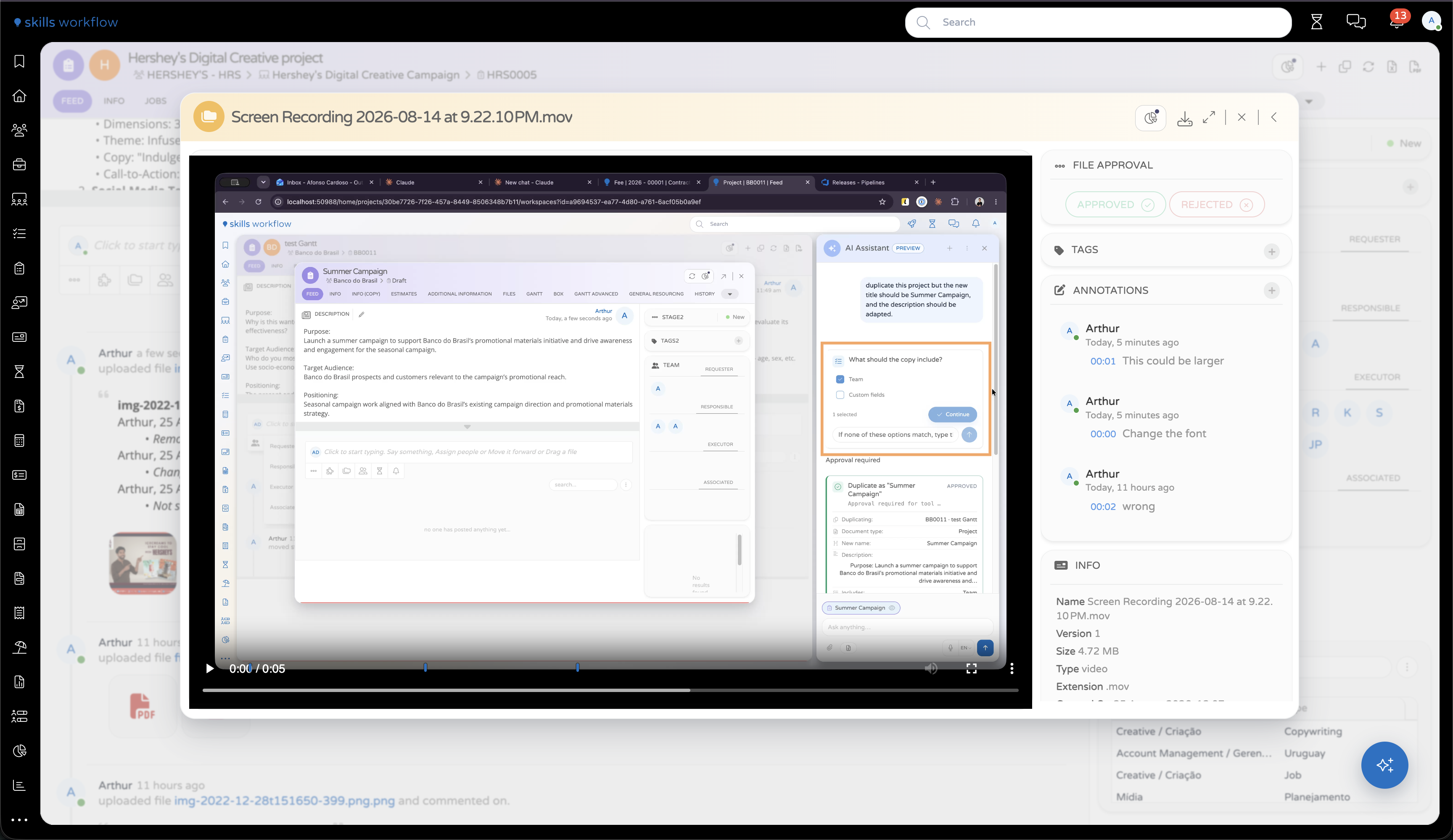
Video annotations are tied to a timestamp. Existing annotations appear over the video when playback is near the stored timestamp, timeline ticks show where annotations exist, and clicking a tick seeks the video to that timestamp. Opening the editor freezes the video frame so the annotation is drawn on a stable image.
PDF behavior
PDF annotations are associated with the page where they were created. When users move between PDF pages, the annotations remain linked to the correct page.
Collaboration and feed
Users who do not own the file can add annotations to the original file. Annotations from different reviewers are kept together on that file.
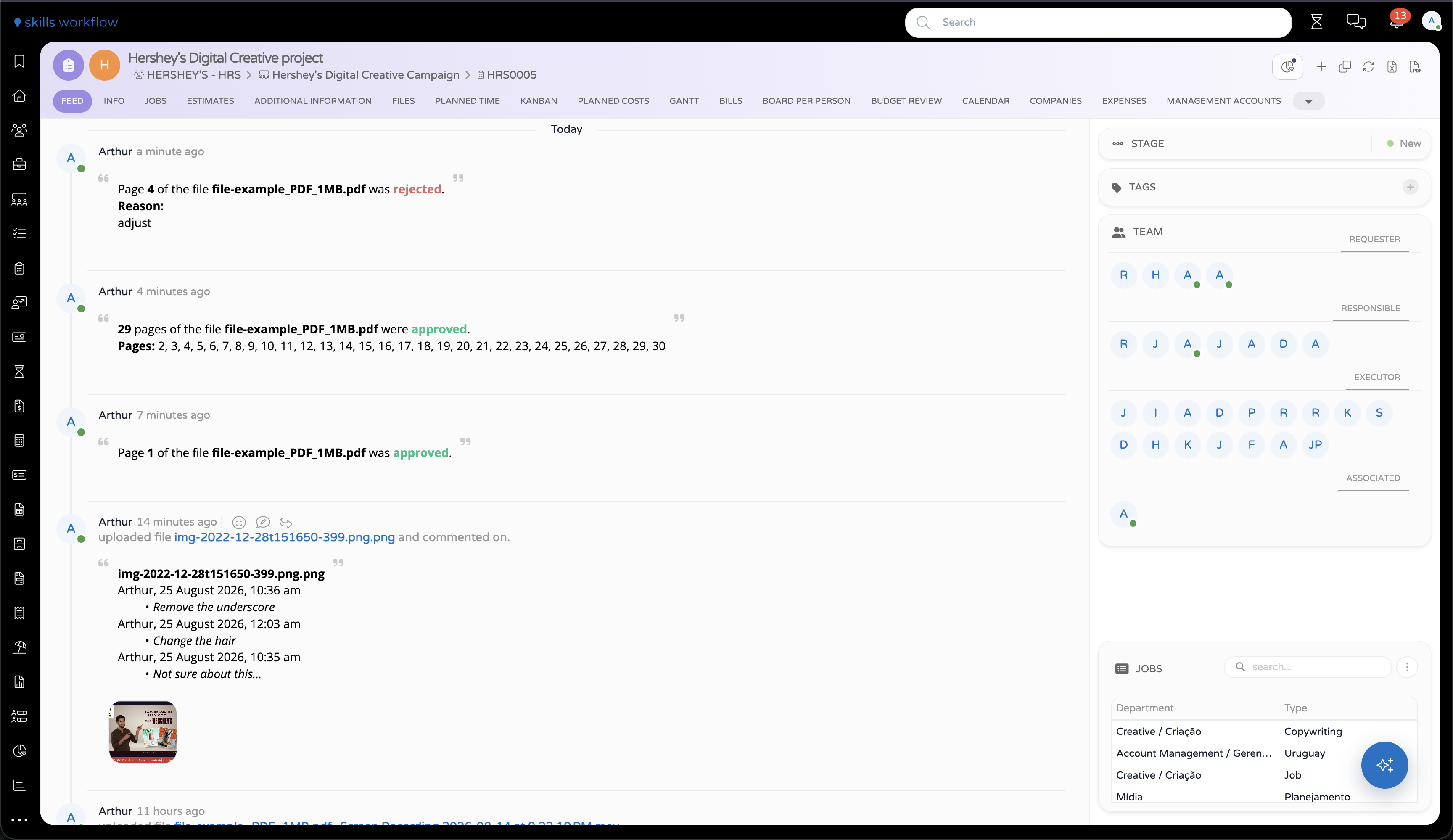
When a reviewer closes the preview after saving annotations, Skills Workflow creates a feed post that references the reviewed file and includes the review comments.
Configuration
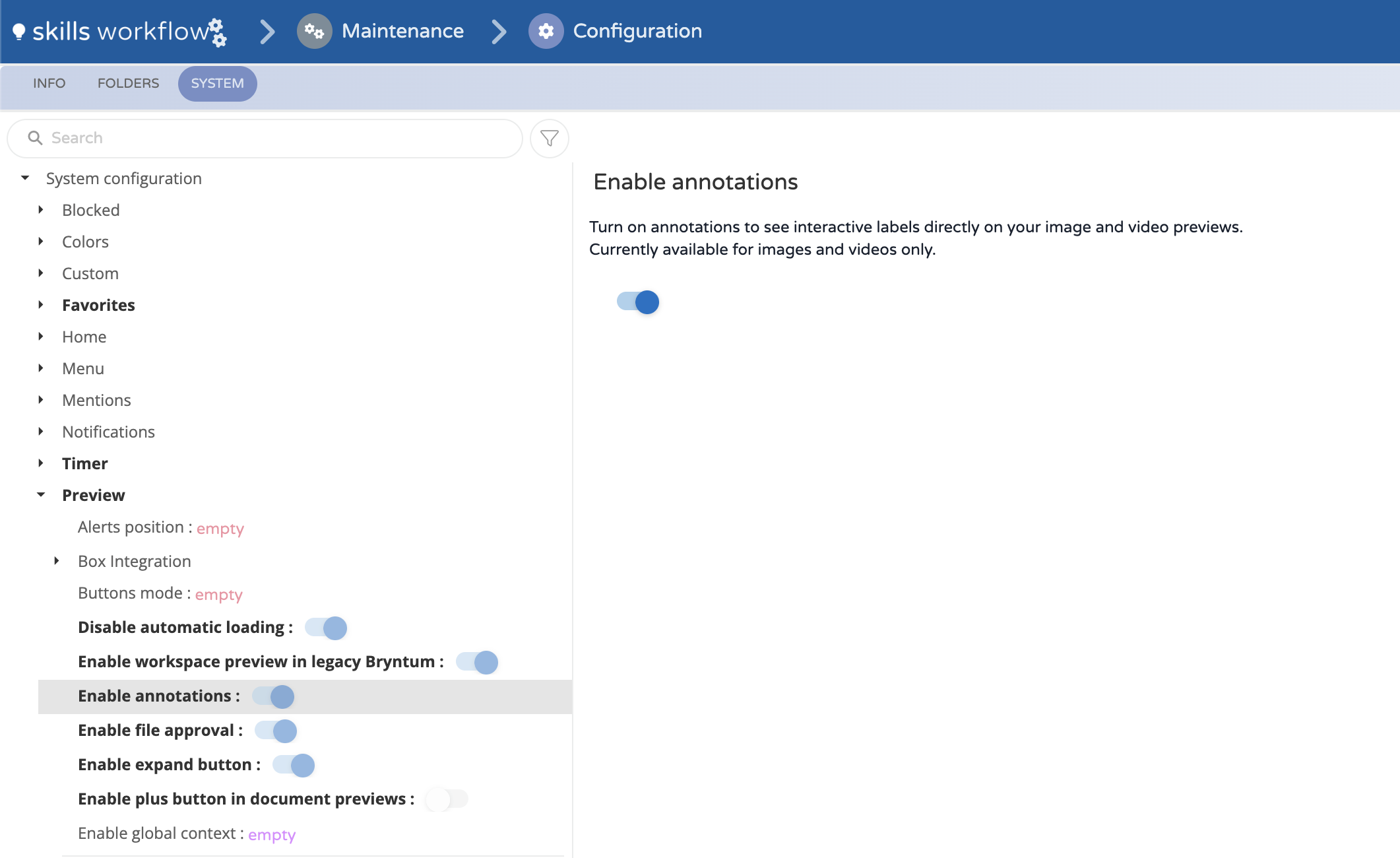
To enable annotations for a client:
- Open Maintenance.
- Go to Configurations.
- Open the Settings tab.
- In the Features area, enable Enable annotations.
- Save the configuration.
Configuration notes:
- PDF page approval is a separate feature and is not required to use annotations.
- If users cannot see the annotation panel after activation, confirm that Enable annotations is enabled and that the file is shown in a supported preview.