Agendamento de Recursos
O Agendamento de Recursos coloca a sua equipa numa linha do tempo. Cada linha é uma pessoa, cada barra é trabalho reservado contra ela, e o painel à direita reúne as tarefas que ainda aguardam alguém. Atribui trabalho arrastando-o para uma linha, ajusta-o arrastando ou redimensionando a barra, e lê a carga de cada pessoa pelos indicadores de capacidade ao lado do nome.
Ler o quadro
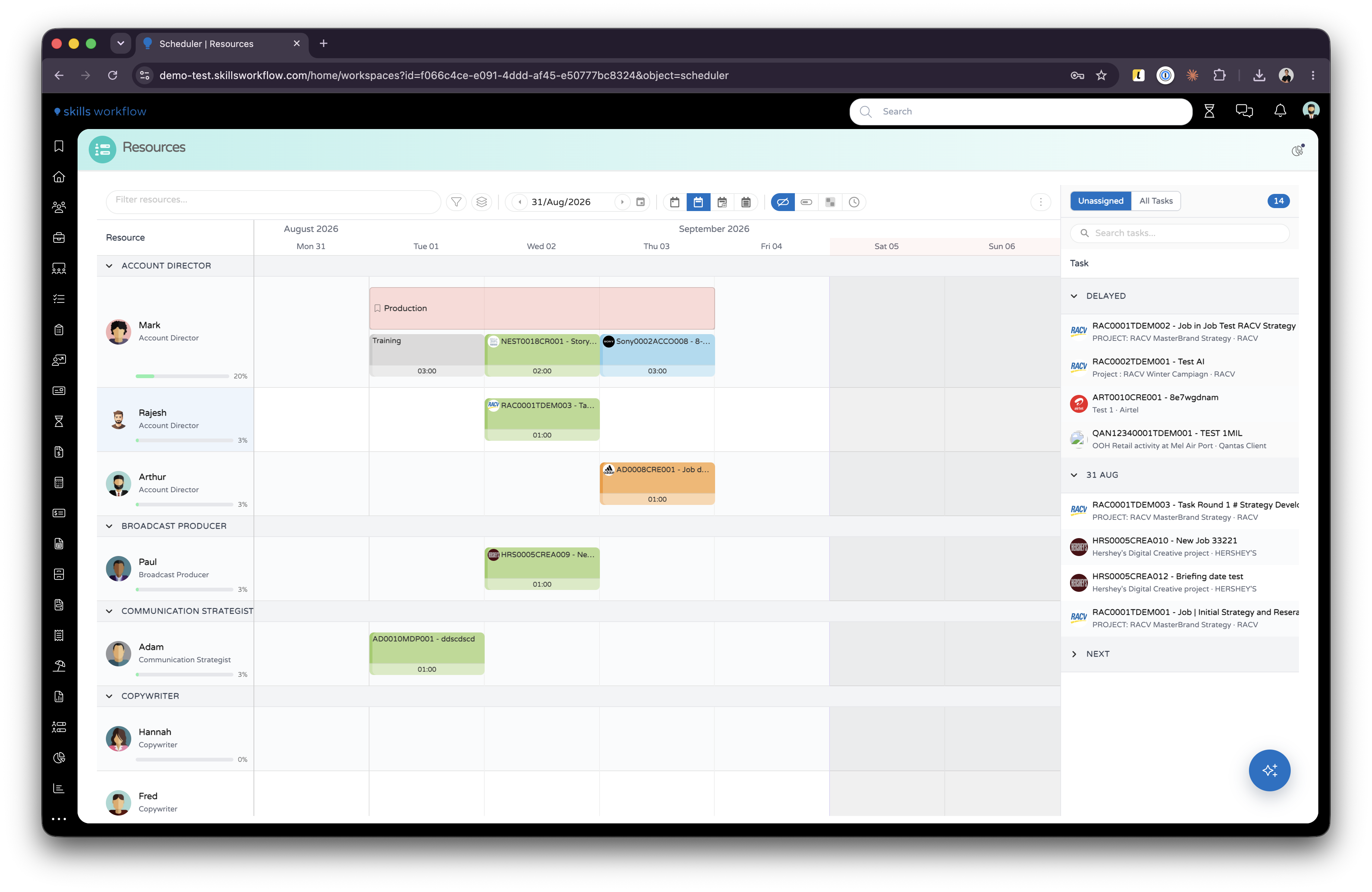
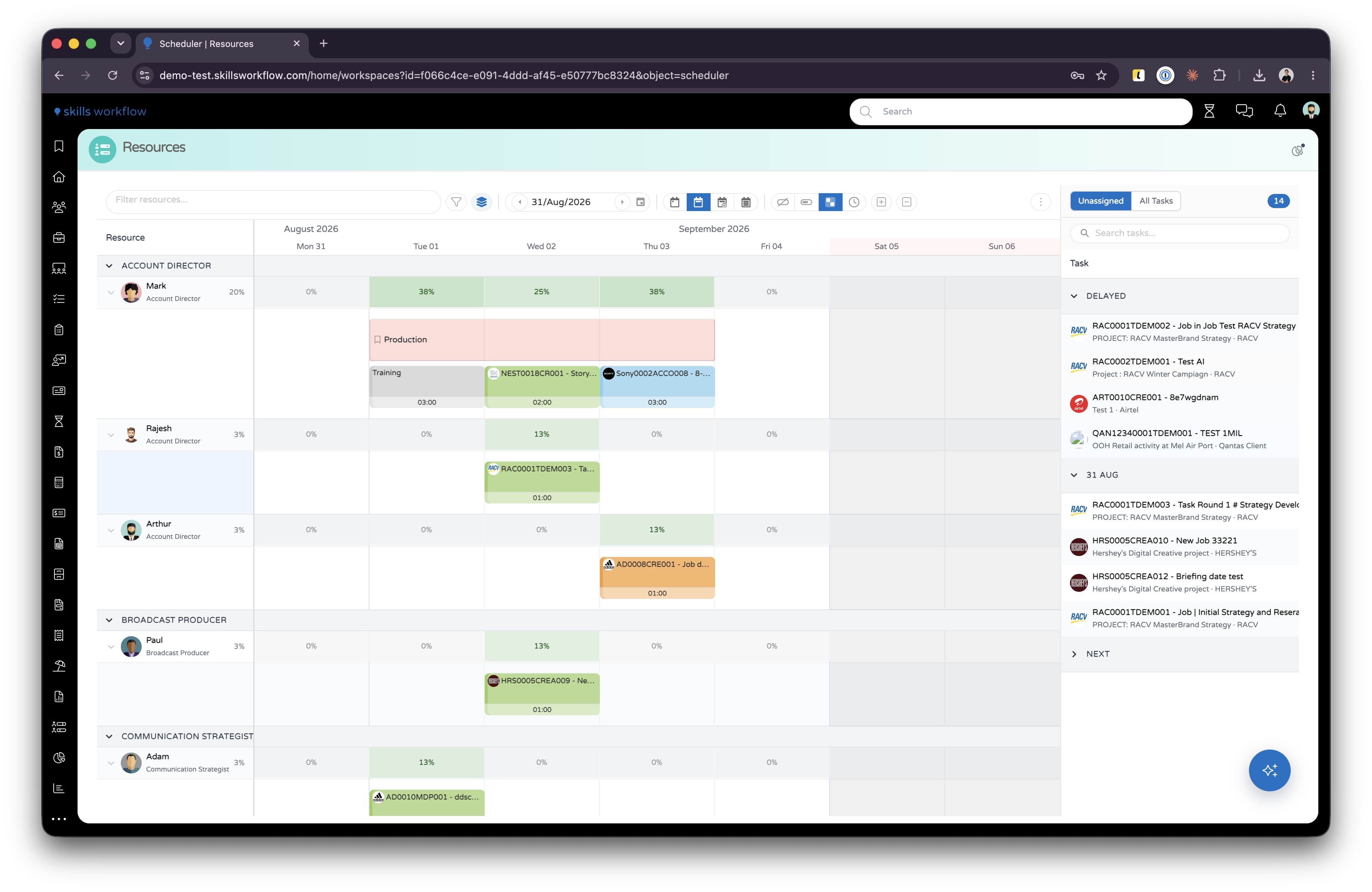
A coluna de recursos à esquerda traz a foto, o nome e a tipologia de cada pessoa, uma barra de utilização e uma percentagem. O quadro abre agrupado por tipologia; o botão Group By muda isso.
As colunas de fim de semana e de dias não úteis aparecem sombreadas, e continuam assim em qualquer zoom.
Uma barra é colorida pela etapa da sua tarefa, em tom esbatido, com a cor cheia da etapa na margem esquerda. A entrada Color no menu ⋮ repinta as barras por utilizador, responsável pelo projeto ou criador.
O que uma barra pode trazer:
| Marca | Significado |
|---|---|
| Logótipo do cliente | O cliente a que a tarefa pertence. |
NEST0018CR001 - Storyboard | O número e o nome da tarefa. |
| Ícone de indicador colorido | Prioridade: verde baixa, laranja normal, vermelho alta. |
| Ícone de repetição no cabeçalho | Pelo menos um dia da barra faz parte de uma série recorrente. |
| Ícone de repetição dentro de uma célula de dia | Esse dia é uma ocorrência recorrente. |
| Ícone de camadas dentro de uma célula de dia | Esse dia tem mais de uma marcação. |
03:00 numa célula de dia | Horas reservadas nesse dia. |
| Faixa fina acima de cada dia | O quanto esse dia está preenchido face às horas exigidas da pessoa. |
| Cápsula roxa | O projeto. |
| Cápsula cinzenta | O work type. |
As barras também têm estado. Uma barra esbatida é trabalho cujas horas continuam reservadas em alguém que já não está atribuído a ele. Uma barra traçada foi filtrada por um filtro baseado no trabalho. Uma barra cinzenta com spinner está a ser criada, e uma esbatida está a ser gravada.
Tipos de barra
Nem toda barra é uma tarefa.
As barras administrativas trazem um ícone de pasta, um nome e um work type, e nenhum número de tarefa. São tempo reservado contra um work type em vez de contra trabalho de cliente, para coisas como produção ou formação. Crie uma arrastando sobre um espaço vazio e escolhendo Workload sem selecionar uma tarefa.
As reservas são barras planas com um ícone de marcador, coloridas por prioridade. Reservam dias para uma pessoa sem apontar para nenhuma tarefa.
Ausências, feriados e dias não úteis são desenhados ao lado do trabalho, para que a indisponibilidade fique visível enquanto planeia.
Quem e o que aparece
As linhas são os utilizadores ativos pelos quais está definido como Responsável, mais a sua própria. Quem não tem equipa própria continua a ver a sua própria linha e as suas próprias marcações.
Só podem ser planeados aqui os deliverables marcados como Plannable. Essa marcação é definida no próprio deliverable.
O trabalho nas etapas que o workspace exclui nunca chega ao quadro. De fábrica, essas etapas são Cancelled, Draft e Closed.
Modo Tasks e modo Workloads
A entrada Mode no menu ⋮ muda a forma como as barras são desenhadas.
No modo Tasks, uma barra é uma tarefa inteira nessa pessoa, do primeiro ao último dia, com uma célula por dia para as horas reservadas. No modo Workloads, uma barra é uma única marcação, e movê-la move apenas essa marcação.
Os dois modos aceitam os mesmos gestos. Use o modo Tasks quando estiver a posicionar trabalho e a definir a sua duração; use Workloads quando estiver a reequilibrar horas já reservadas.
Atribuir uma tarefa
- Abra o painel de tarefas à direita.
- Encontre a tarefa em Unassigned ou All Tasks.
- Arraste-a para a pessoa e o dia pretendidos.
O editor Add Workload abre com a tarefa, a pessoa e o dia já preenchidos. Indique as horas e grave.
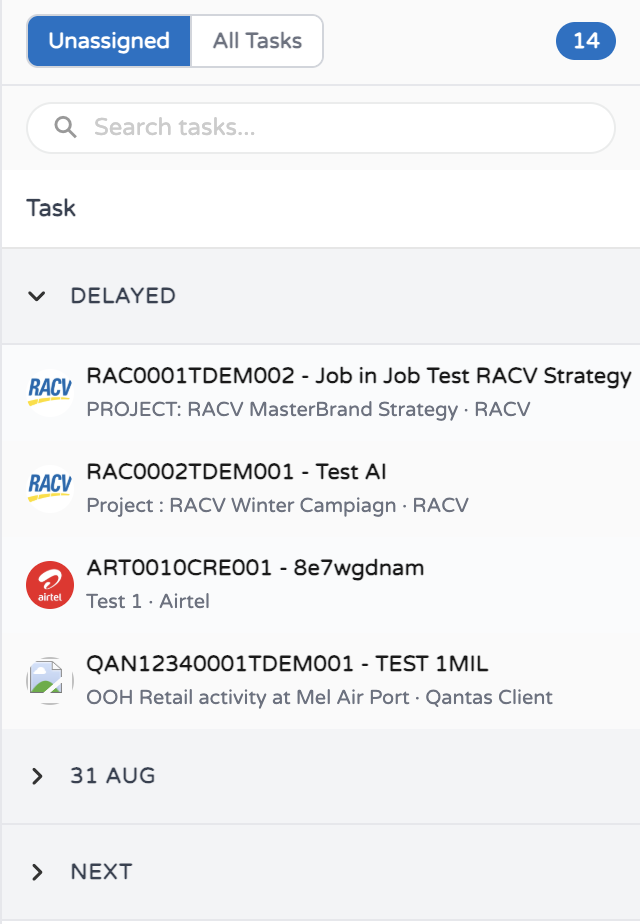
Unassigned lista as tarefas planeáveis da janela visível em que ninguém está reservado. All Tasks procura em todo o conjunto planeável, incluindo trabalho já atribuído a alguém. O número junto ao seletor conta as linhas atualmente listadas, e a caixa de pesquisa filtra a lista que estiver visível.
Cada linha mostra o número e o nome da tarefa, com o projeto e o cliente por baixo.
A lista está organizada por quando o trabalho é devido:
| Grupo | Contém |
|---|---|
| Delayed | Tarefas cuja agreed date é anterior à janela visível. |
| A data de uma semana | Tarefas com prazo nessa semana. |
| Next | Tarefas com prazo posterior à janela visível. |
| No Date | Tarefas sem agreed date. |
Um duplo clique numa linha do painel abre a pré-visualização dessa tarefa em vez de a atribuir.
Mover, prolongar e copiar trabalho
Arraste uma barra na horizontal para a mover para outras datas. Arraste-a para outra linha para passar o trabalho a essa pessoa. Arraste a sua margem esquerda ou direita para a alongar ou encurtar.
Mantenha Shift premido ao arrastar para uma segunda pessoa para copiar a marcação para ela e manter a original.
Se uma deslocação ou um redimensionamento levar o trabalho para fora das datas atuais da tarefa, é-lhe perguntado Do you want to add the Task to the dragged date? antes de essas datas serem esticadas.
Reduzir a duração de uma tarefa pergunta antes de apagar as horas que outras pessoas reservaram fora do novo intervalo, e nomeia-as.
Mover uma carga de trabalho partilhada por várias pessoas pergunta se a alteração se aplica só a essa pessoa ou a todo o grupo.
Reservar horas por dia
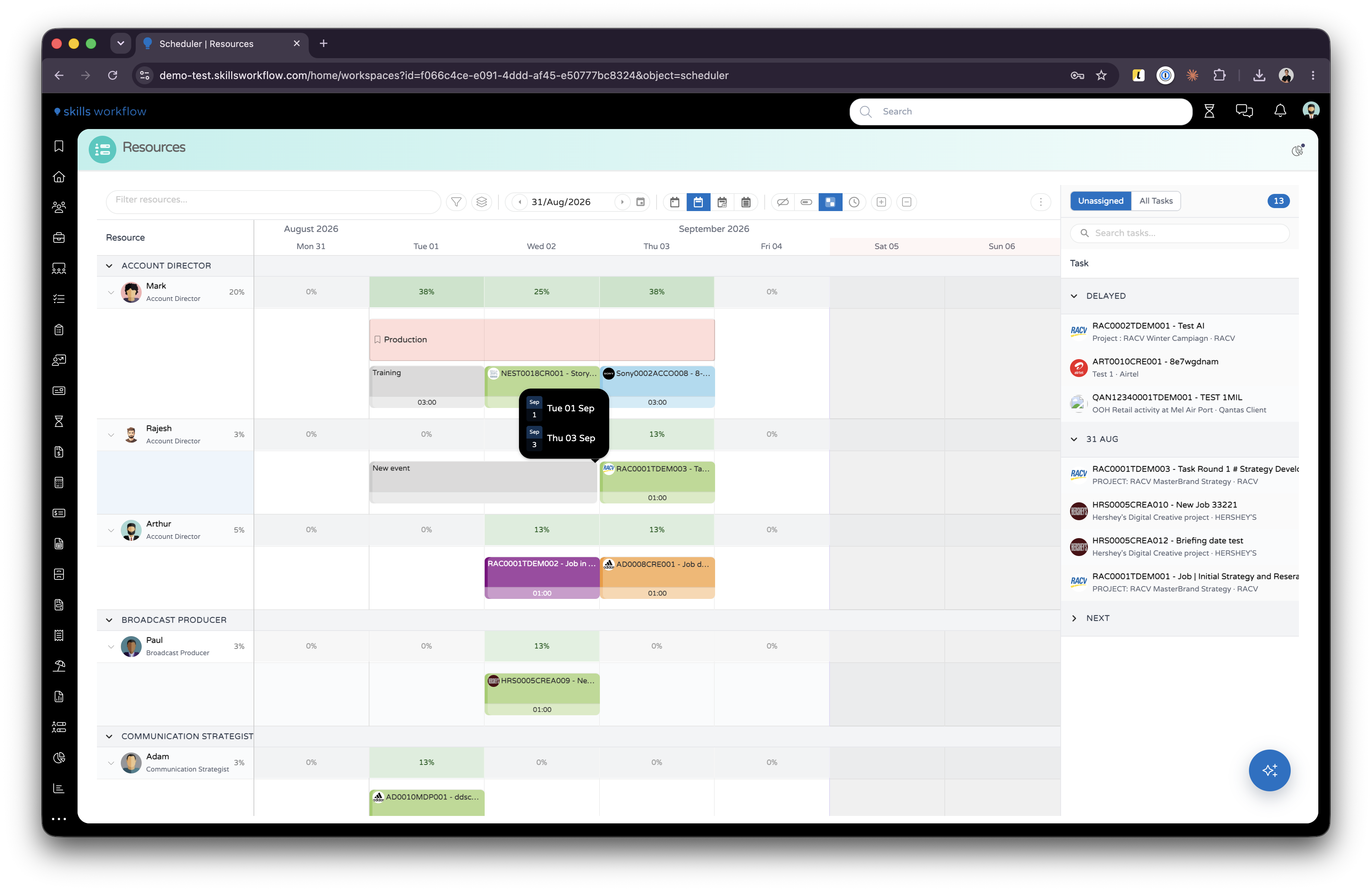
Cada barra de tarefa traz uma célula por dia que abrange. Clique numa célula para abrir o editor de carga de trabalho desse dia, e depois indique as horas. Os dias com horas reservadas mostram-nas como hh:mm.
Uma célula marcada com um ícone de camadas já tem mais de uma marcação nesse dia. O número mostrado é o total delas, e passar o rato lista cada uma com as suas horas, o seu work type e a sua hora de início.
Criar trabalho no quadro
Arraste sobre um espaço vazio na linha de uma pessoa. Quando há mais de um tipo disponível, é-lhe perguntado qual criar:
Workload abre o editor Add Workload no dia arrastado, já com essa pessoa preenchida. Escolha uma tarefa para reservar tempo contra trabalho de cliente. Deixe a tarefa vazia e escolha antes um work type para reservar tempo administrativo, que é o que desenha as barras com ícone de pasta.
Task abre o formulário de criação de entrega com as datas arrastadas já preenchidas. Depois de a tarefa ser criada, o editor de carga de trabalho abre sobre ela, e é aí que as horas são reservadas e a pessoa é atribuída. Se cancelar nesse segundo passo, a tarefa continua a existir, à espera na lista Unassigned.
Reservation pede uma descrição, e depois uma prioridade entre Low, Medium e High. Bloqueia os dias arrastados para essa pessoa sem apontar para nenhuma tarefa.
Com apenas um tipo disponível, o gesto vai diretamente para ele e nada é perguntado. Que tipos são oferecidos depende dos parâmetros do workspace e das suas roles.
O editor Add Workload
Todos os caminhos que reservam tempo abrem o mesmo editor: largar a partir do painel de tarefas, clicar numa célula de dia, e o drag-create Workload.
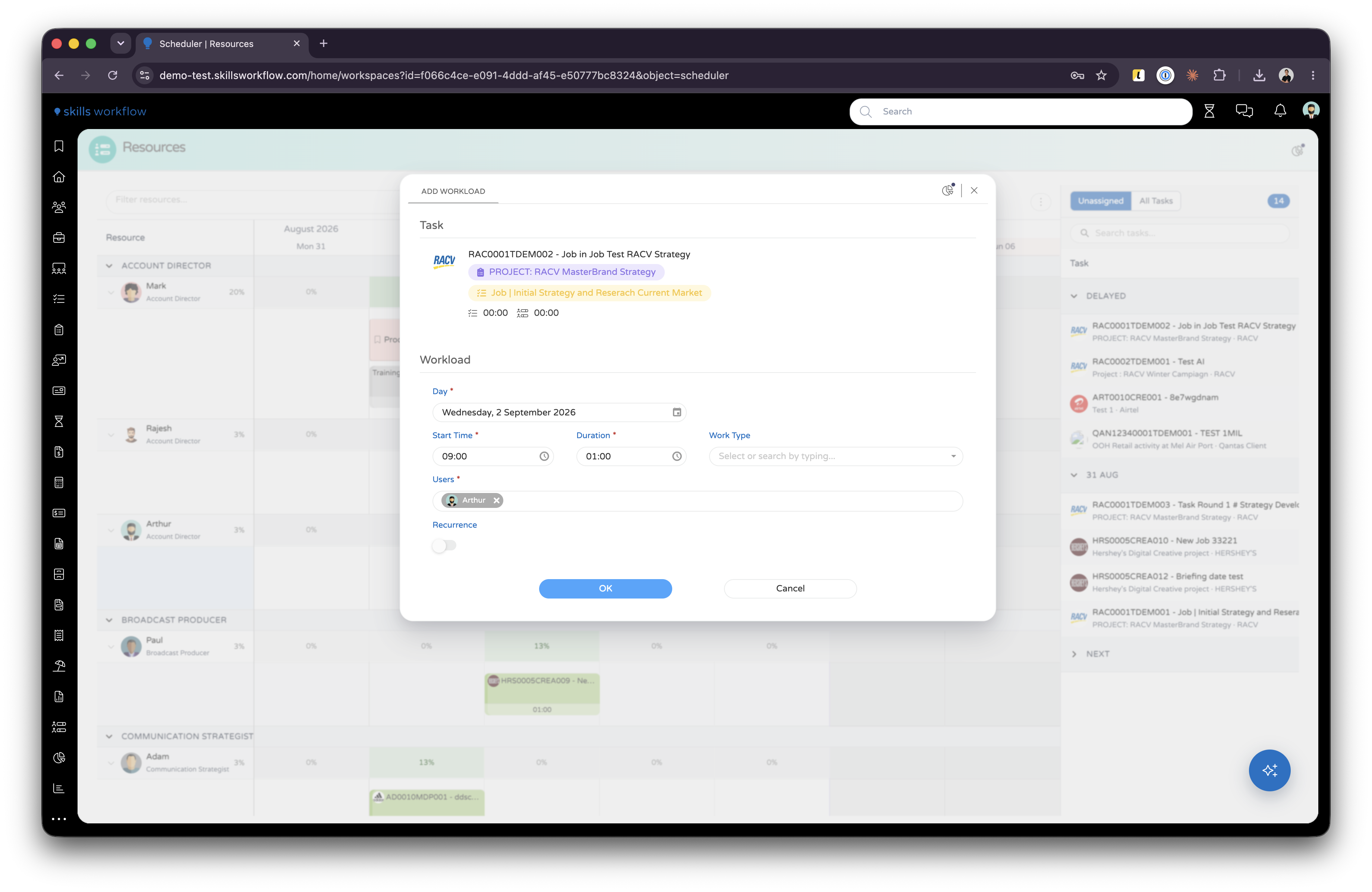
Faz mais do que receber um número de horas:
| Consegue | Efeito |
|---|---|
| Reservar várias pessoas de uma vez | A marcação passa a ser um grupo partilhado. Movê-la mais tarde pergunta se a alteração se aplica a uma pessoa ou a todo o grupo. |
| Reservar um intervalo de dias | As horas são distribuídas por todos os dias do intervalo, em vez de apenas pelo dia de origem. |
| Repetir a marcação | Uma série recorrente com a sua própria data de fim. Os dias de uma série trazem um ícone de repetição, e são editados e eliminados como série. |
| Definir um work type | Obrigatório quando não há tarefa. Opcional numa tarefa, onde aparece como cápsula cinzenta na barra. |
| Definir horas por dia, ou uma hora de início e de fim | As horas só se aplicam na vista Day. Nas restantes, a marcação é horas contra o dia. |
| Ter uma descrição | Mostrada ao passar o rato sobre a marcação. |
| Mover a tarefa para outra etapa | A transição corre ao gravar, e a barra é repintada com a cor da nova etapa. |
Ao editar uma marcação que abrange vários dias, Apply changes to decide se a edição afeta o dia que abriu ou todos os dias da barra.
Clicar com o botão direito numa barra
O clique com o botão direito oferece as ações aplicáveis ao que clicou.
| Ação | Efeito |
|---|---|
| Open | Abre a pré-visualização da tarefa. |
| Delete this day | Remove as horas reservadas no dia sob o ponteiro. |
| Delete all days | Remove todas as marcações da barra. |
| Delete | Remove a carga de trabalho, ou toda a série quando é recorrente. |
| Unassign | Remove a pessoa da tarefa. |
Desatribuir alguém com horas reservadas a partir de hoje pergunta se devem ser removidas. Responda No e as horas permanecem no quadro, desenhadas esbatidas e sem ninguém atribuído.
Um duplo clique numa barra abre a pré-visualização da tarefa. Uma reserva abre o seu próprio menu, onde pode alterar a sua descrição ou prioridade, ou eliminá-la.
A barra de ferramentas
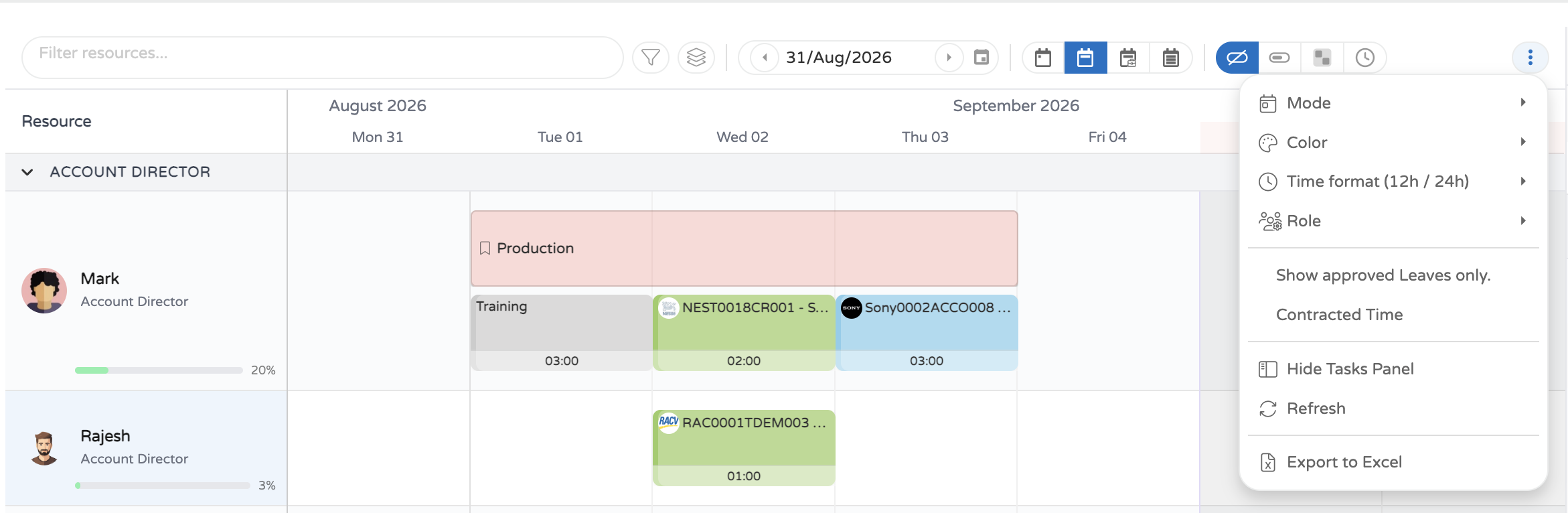
Filter resources... restringe o quadro. As suas opções estão agrupadas por categoria. Resource, Company, Department, Typology, Responsible e Tags vêm das pessoas. Deliverable Tags, Stage, Project, Client e Task vêm do trabalho. Um filtro baseado em pessoas oculta linhas; um filtro baseado no trabalho mantém a linha e traça as barras que não correspondem.
O botão de funil filtra por carga: All Users, Overbooked Only (acima de 100%) ou Available Only (100% ou menos).
Group By empilha as linhas sob cabeçalhos. As opções são None, Company, Department, Typology, Project, Task (by Date), Client, Stage, Agreed Date e Task (by Priority).
A caixa de data define a âncora da janela visível. As suas setas avançam ou recuam um período, e o seu calendário escolhe qualquer dia em qualquer zoom.
Quatro botões definem a amplitude:
| Zoom | Janela |
|---|---|
| Day | Um dia, num eixo de horas. |
| Week | Sete dias a partir do primeiro dia da semana. |
| Work week | A mesma semana com o fim de semana fora do eixo. |
| Month | 28 dias, a começar uma semana antes da data escolhida. |
Mais opções
O menu ⋮ reúne:
- Mode, alternando entre Tasks e Workloads.
- Color, pintando as barras por Stage, User, Project Owner ou Created By.
- Time format (12h / 24h), que muda o eixo de horas e as tooltips. As durações nunca são reformatadas: 8,5 horas continua a ser
08:30. - Role, que escolhe o tipo de atribuição gravado nas atribuições e cargas de trabalho aqui criadas. Não muda o que o quadro mostra.
- Show approved Leaves only., ocultando ausências ainda a aguardar aprovação.
- Contracted Time, sobrepondo horas contratadas vindas de orçamentos. Esta entrada só é oferecida a utilizadores com a role
EstimateRead. - Show Tasks Panel / Hide Tasks Panel, Refresh e Export to Excel.
Quando a janela é demasiado estreita para a barra de ferramentas inteira, os botões de zoom e de capacidade passam para este menu.
Capacidade e disponibilidade
Ao lado de cada nome há uma barra de utilização e uma percentagem, verde até 100% e vermelho acima disso. A capacidade diária vem das horas definidas em cada utilizador.
Os botões de capacidade escolhem a sobreposição desenhada ao longo da linha do tempo:
| Sobreposição | Mostra |
|---|---|
| No capacity overlay | Apenas as barras. |
| Capacity bar | Uma barra de utilização por dia. |
| Heatmap (%) | Cada dia sombreado conforme o quanto está preenchido. |
| Hours | As horas reservadas em cada dia. |
Heatmap e Hours acrescentam uma linha de resumo acima das barras de cada pessoa. Enquanto uma delas está ativa, Expand all users e Collapse all users aparecem na barra de ferramentas, e clicar numa linha de resumo recolhe apenas essa pessoa.
Passar o rato sobre uma célula de capacidade indica as horas reservadas e livres nesse dia, e as horas ainda livres nessa semana.
Ausências e feriados
Passar o rato sobre uma ausência ou um feriado mostra o seu tipo e data, e a sua duração como Half Day, Full Day ou em horas quando o tipo de ausência é registado em horas. Qualquer descrição ou motivo aparece por baixo.
Regras e comportamento
As barras de ausência, feriado e dia não útil não podem ser movidas nem redimensionadas.
As cargas de trabalho recorrentes não podem ser arrastadas nem redimensionadas. Edite-as através do editor de carga de trabalho.
Uma carga de trabalho não pode exceder 24 horas num dia, e um dia que já atingiu o máximo de horas diárias da pessoa recusa novas.
Não pode adicionar cargas de trabalho a uma tarefa à qual não está atribuído.
Quando a sua empresa não permite planeamento aos fins de semana, sábado e domingo recusam novas cargas de trabalho.
Copiar uma tarefa para alguém já atribuído a ela é recusado.
As permissões aplicam-se tanto aos gestos como aos ecrãs:
| Ação | Role necessária |
|---|---|
| Alterar a quem uma tarefa está atribuída | ExecutorAssignmentSave |
| Alterar as datas de uma tarefa arrastando ou redimensionando | DeliverableWrite |
| Criar uma tarefa a partir de um arraste | DeliverableCreate |
| Criar uma reserva | ReservationCreate |
| Editar ou eliminar uma reserva | ReservationWrite |
| Ver a sobreposição Contracted Time | EstimateRead |
Configuração
O scheduler é um workspace, e o seu comportamento é definido pelos parâmetros desse workspace. Os valores abaixo são os que vêm de fábrica.
| Parâmetro | Efeito |
|---|---|
DefaultMode | Modo inicial, tasks ou workloads. Vem como workloads. |
DefaultGroupBy | Agrupamento aplicado antes de o utilizador escolher um. Vem como typologyGroupName. |
DefaultTeam | Tipo de atribuição com que o menu Role começa. Vem como Executor. |
WeekStartDay | Primeiro dia da semana, 0 para domingo. Vem como 1. |
HourFormat | Relógio inicial, 12 ou 24. Vem como 24. |
EntryTime | Hora gravada numa carga de trabalho quando o editor não envia nenhuma. Vem como 09:00. |
StagesToExclude | Etapas mantidas fora do quadro. Vem como Cancelled,Draft,Closed. |
BusinessObjectTypes | Tipos a partir dos quais é possível planear. Vem como Job,Task,Deliverable. |
ConfirmJobDateExtension | Defina como 0 para esticar as datas da tarefa sem perguntar. |
DragCreateWorkload, DragCreateTask, DragCreateReservation | Defina um deles como 0 para retirar essa opção da pergunta de criação por arraste. |
WorkloadEditorWorkspaceId | O workspace aberto como editor de carga de trabalho. |
As escolhas que o utilizador faz na barra de ferramentas são memorizadas e prevalecem sobre estes valores por defeito na visita seguinte.