Install components from the Marketplace
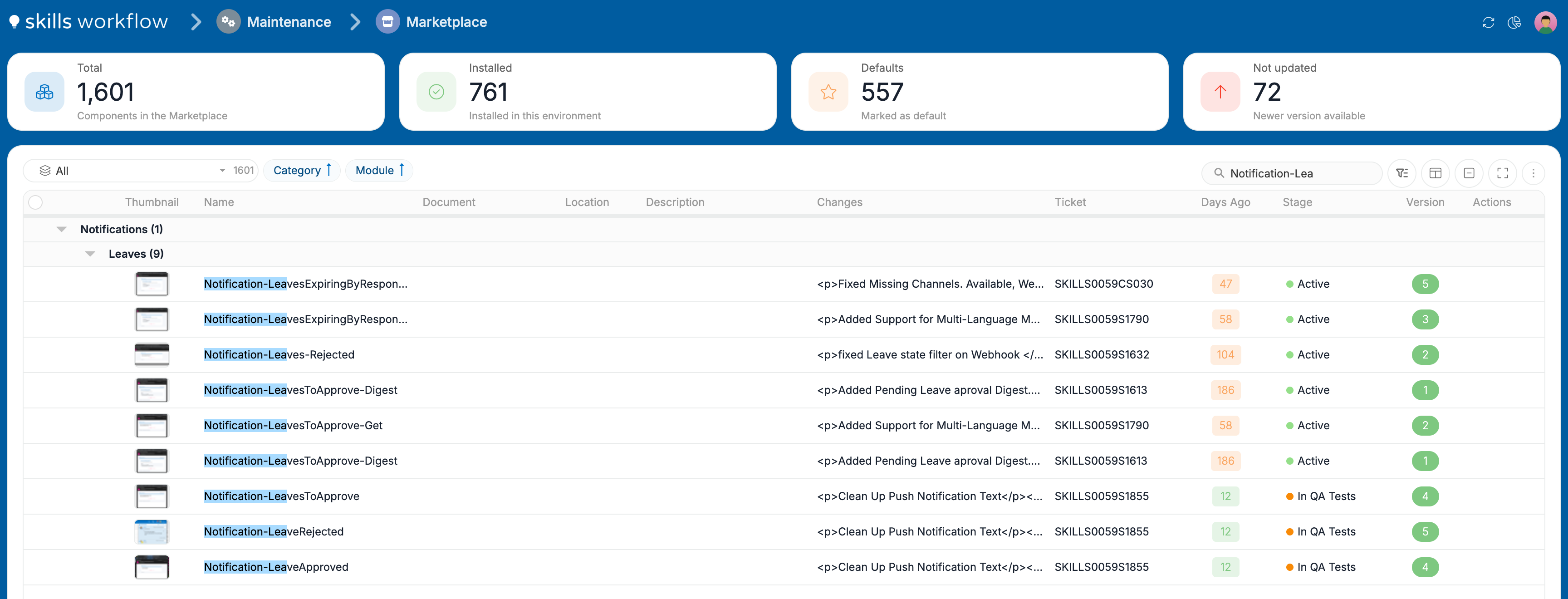
The Marketplace holds the ready-made components a tenant can install: workspaces, automations, webhooks, queries, templates, notification types and more. It is in Maintenance → Marketplace. The examples on this page use the components of the notifications service.
Marketplace overview
The cards at the top summarise the catalogue for this tenant:
| Card | Shows |
|---|---|
| Total | Components in the Marketplace |
| Installed | Installed in this environment |
| Defaults | Marked as default |
| Not updated | Newer version available |
Below the cards, the list groups components by Category and then by Module. Each row shows the component's Name, the Changes in its version, the Ticket, Days Ago, the Stage, the Version and the Actions. Use the search box to find a component by name.
Install a component
- Go to Maintenance → Marketplace.
- Find the component by name, or open its category and module.
- In Actions, click ⊕ to install it.

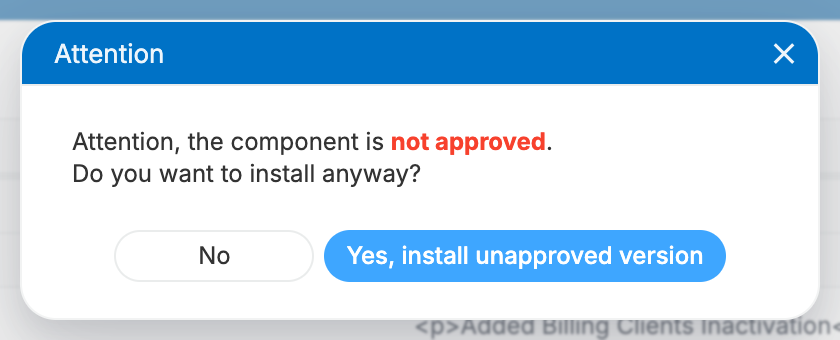
When a component's version is not approved, the Marketplace asks for confirmation before installing it. Choose Yes, install unapproved version to install it, or No to cancel.
Rules and behaviour
- An installed component shows its version in green and has no install action.
- Not updated counts the installed components that have a newer version in the Marketplace.
- A feature can need several components. The notifications service, for example, needs every component of the Notifications category and three workspaces. See Set up notifications.