Set up notifications
Setting up notifications for a tenant means turning on the notifications service, installing the notification types and the automations that send them, and selecting the channels each user receives. The steps below are for Support and agency IT. How people receive notifications is in Receive and manage notifications.
Prerequisites
- Access to Maintenance, including Configuration, Marketplace, Webhooks, Automations and Users.
- Users who should receive email notifications have an email address on their user.
Turn on the notifications service
- Go to Maintenance → Configuration.
- Open the Notification tab.
- Turn on Use Notifications Service and save.
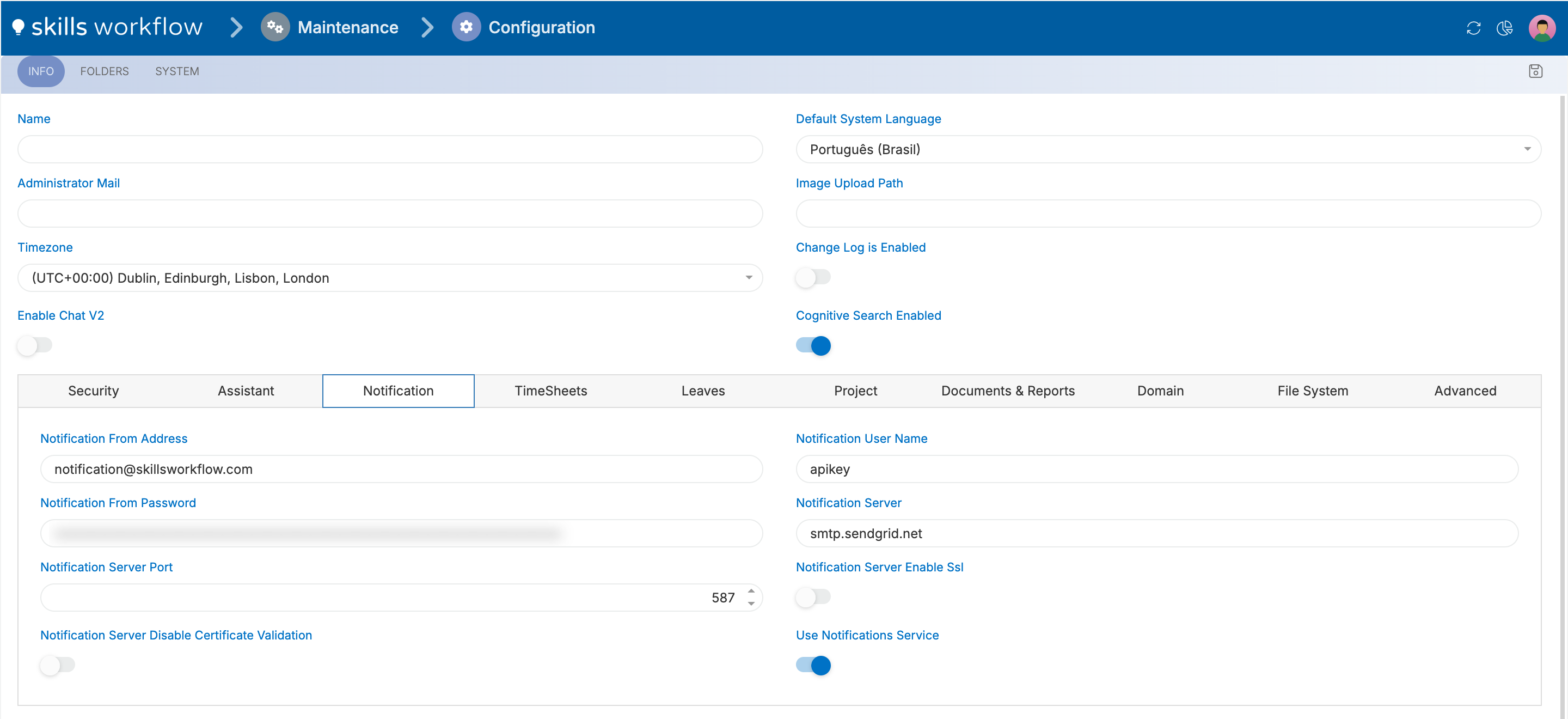
While the setting is off, the tenant uses the legacy notifications.
Set the company domain
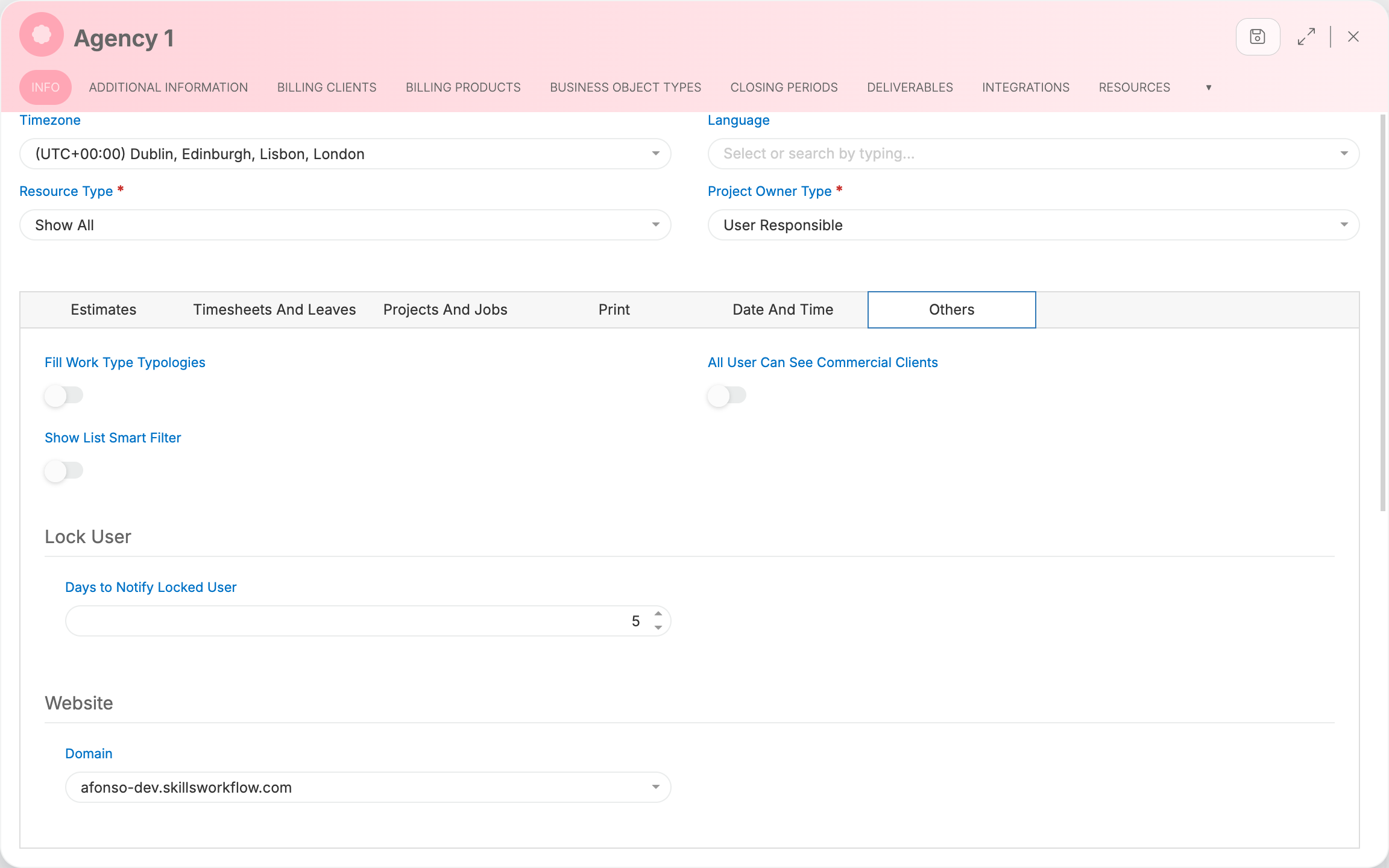
The company's domain is the address that notifications use in their links to the tenant. Leaves To Approve is only sent to approvers whose company has a domain.
- Go to Maintenance → Companies and open the company.
- Open the Others tab.
- In the Website group, select the tenant in Domain and save.
Repeat this for every company whose users receive notifications.
Install the notification components
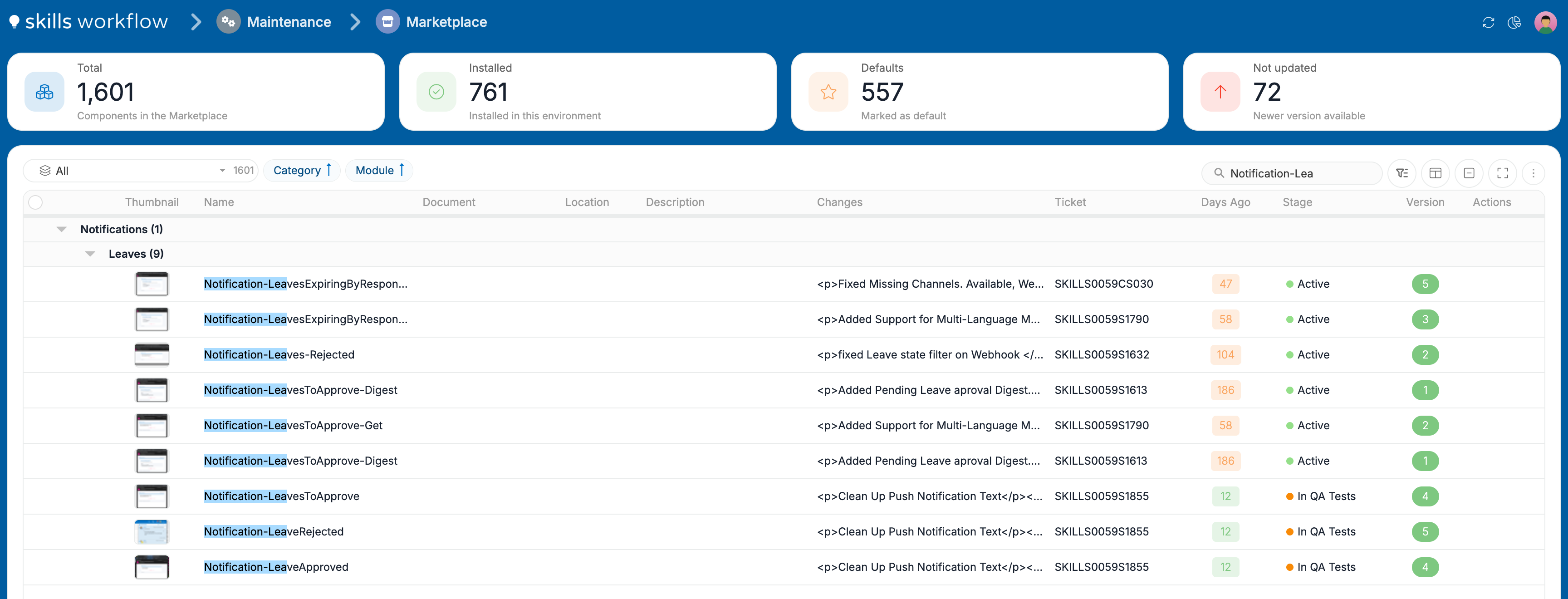
In Maintenance → Marketplace, install:
- every component of the Notifications category: notification types, email templates, queries, automations and webhooks;
- the Notification workspace, which adds the NOTIFICATION tab to users;
- the Notifications workspace, the page that lists all notifications;
- the Notification Types workspace.
The Marketplace groups components by category and then by module. Install each one with ⊕. The full procedure, including components that are not approved, is in Install components from the Marketplace.
After the installation, the notification types are listed in Maintenance → Notification Types. Each one has a name and a description per language, which you can edit. The description is what users see in their preferences.
Check the webhooks
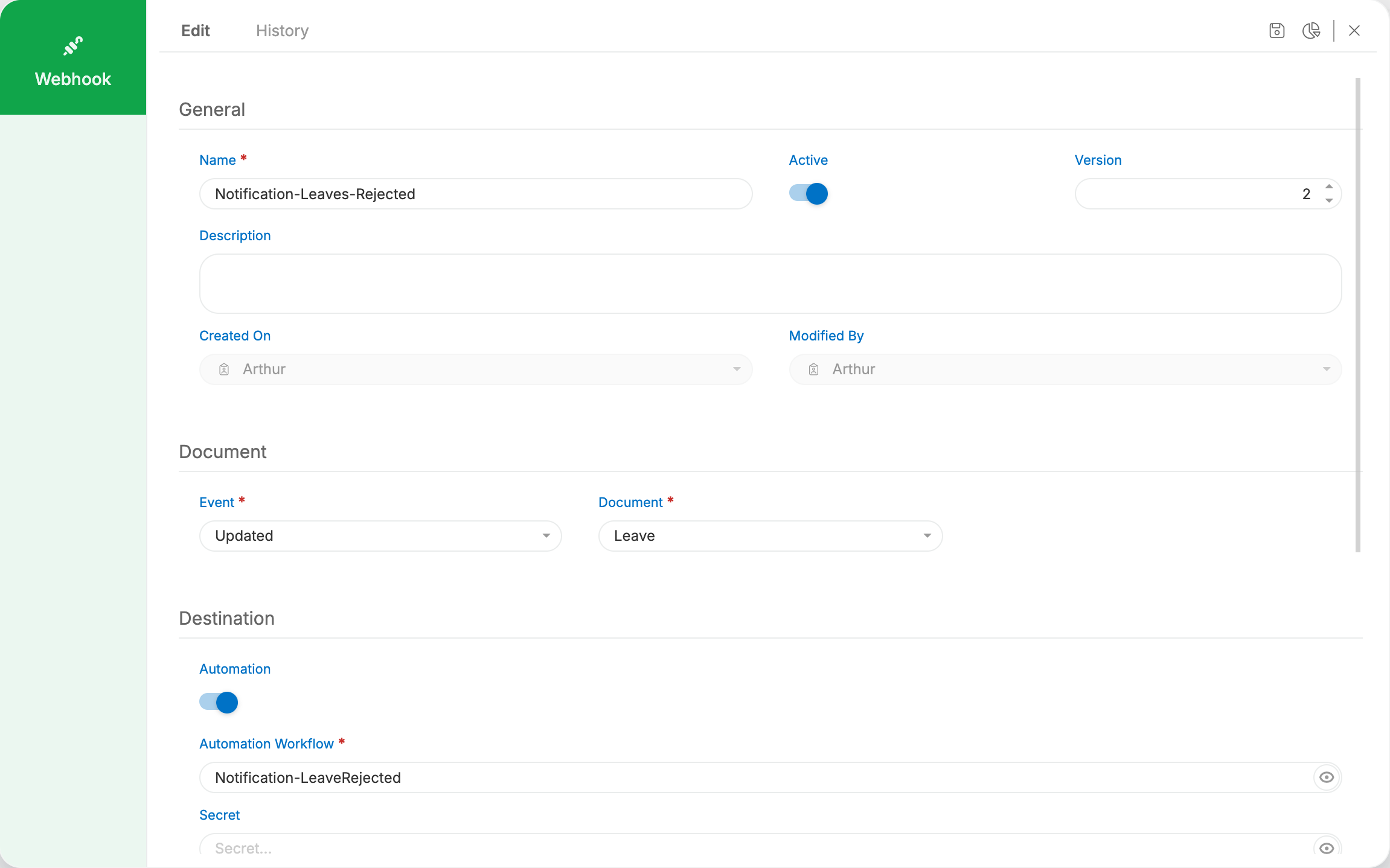
Notifications sent by an event start from a webhook. In Maintenance → Webhooks, open each notification webhook and check:
- Active is on.
- Event and Document match the event that should send the notification, for example Updated on Leave.
- Automation is on and Automation Workflow names the notification automation.
Some webhooks also have Filters, which narrow the events that run the automation. A filter combines Business Object Type Name with conditions on a Detail Path Expression, a Condition and a Value, joined with And or Or. Add filter adds a condition.
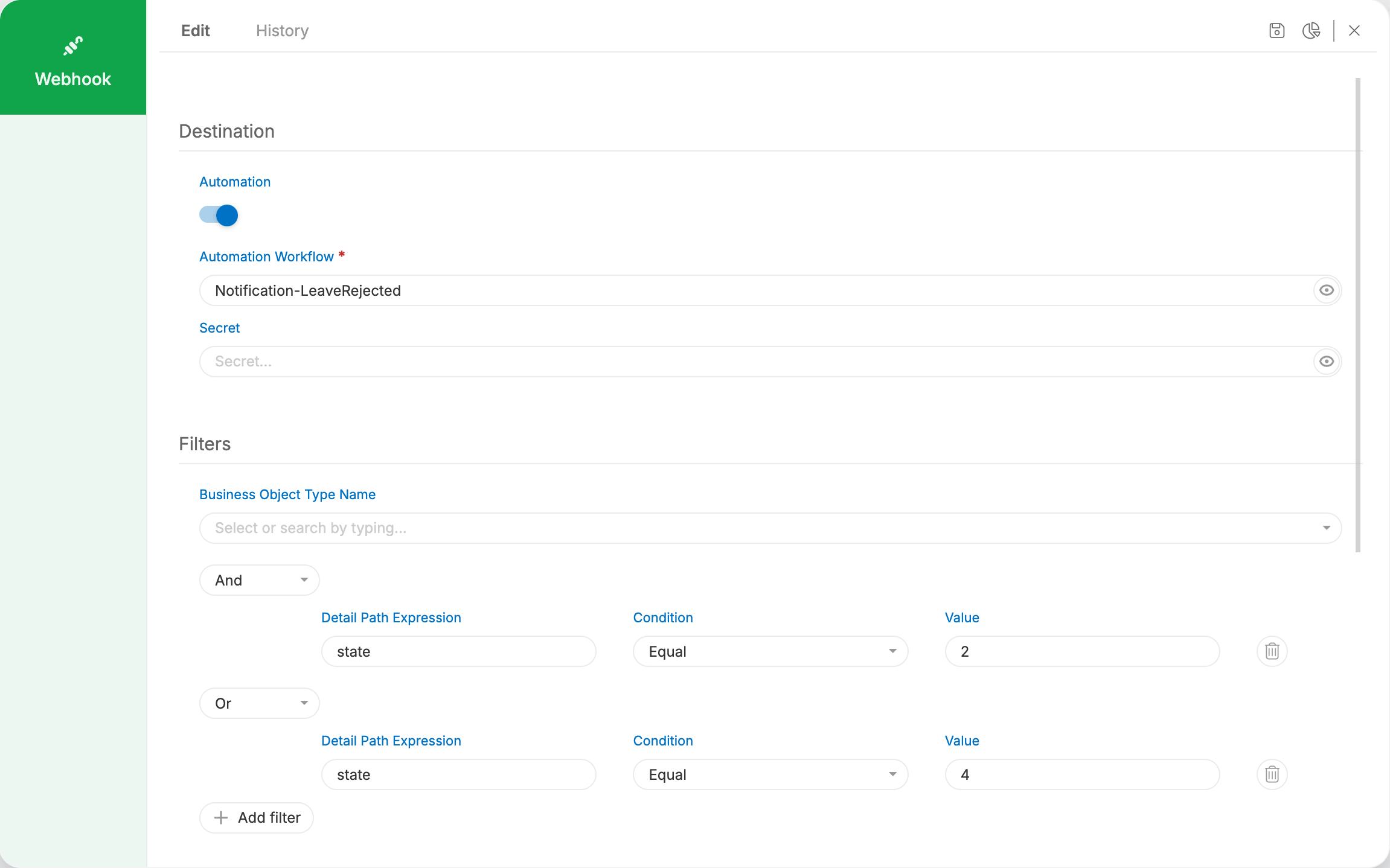
Each field of the webhook form is described in Webhooks.
Check the automation schedules
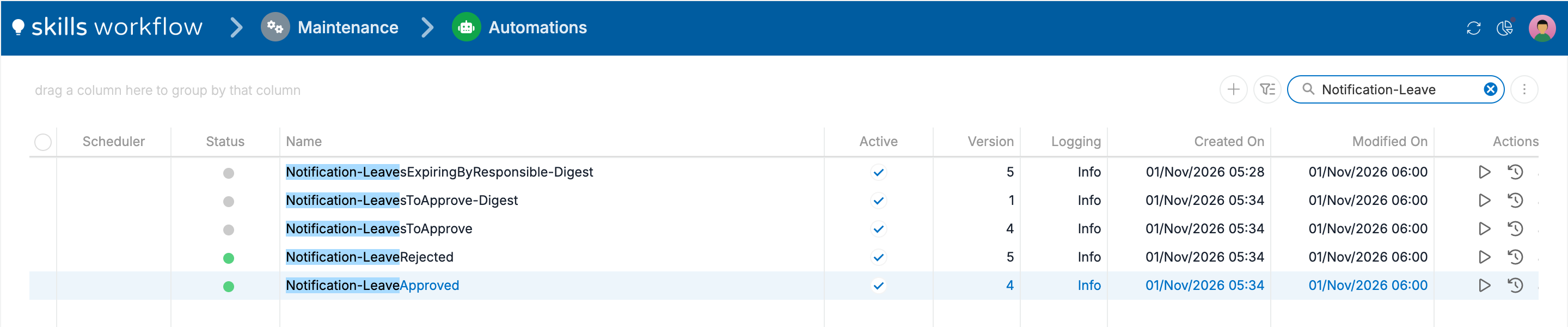
Notifications sent by a schedule, such as Team Birthdays or Leaves To Approve, run only when their automation has an active schedule. In Maintenance → Automations, the Scheduler column shows the schedule of each automation and Active shows whether the automation runs. Schedules are explained in How automations start.
Set the users' preferences
A user receives a notification type only on the channels selected for it. Until a channel is selected, the user receives nothing of that type.
- Go to Maintenance → Users and open the user.
- Open the NOTIFICATION tab, through ▾ when it is not visible.
- Select Email, Push and Web for each notification type.
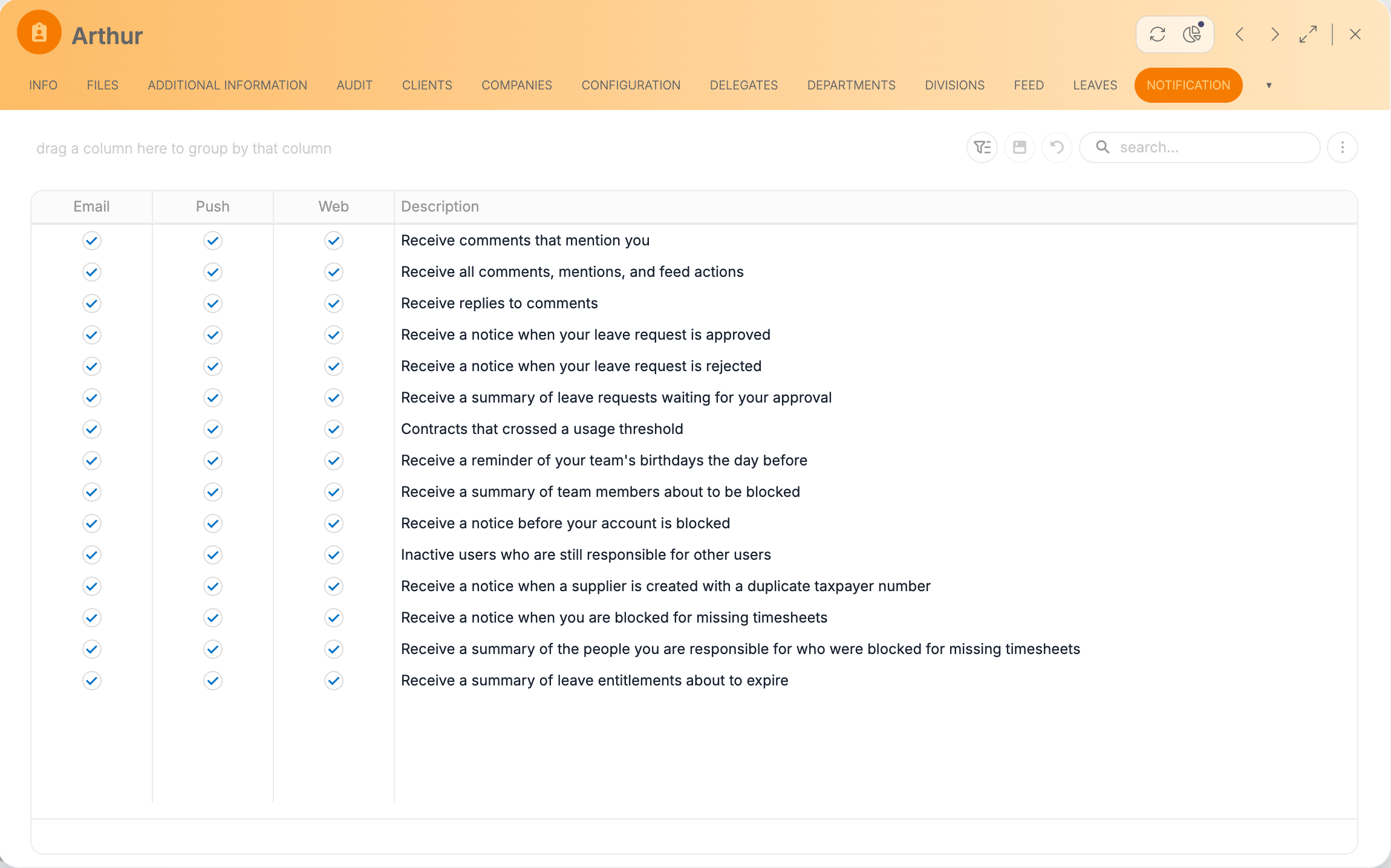
Setting the preferences of other users needs the CanManageOthersPreferences role, and the tab itself needs NotificationPreferenceWrite. For Mentions, also turn on Receive documents notifications on the user.