Receive and manage notifications
Notifications reach you on the Web, by Email and by Push, on the channels you chose for each notification type. On the Web they appear in the Notifications panel and on the Notifications page, where each one opens the document it is about.
Prerequisites
- The tenant uses the notifications service. See Set up notifications.
- The channel is selected for that notification type in your preferences. See Choose the notifications you receive.
Notifications panel
Click the bell icon in the top bar to open the Notifications panel.
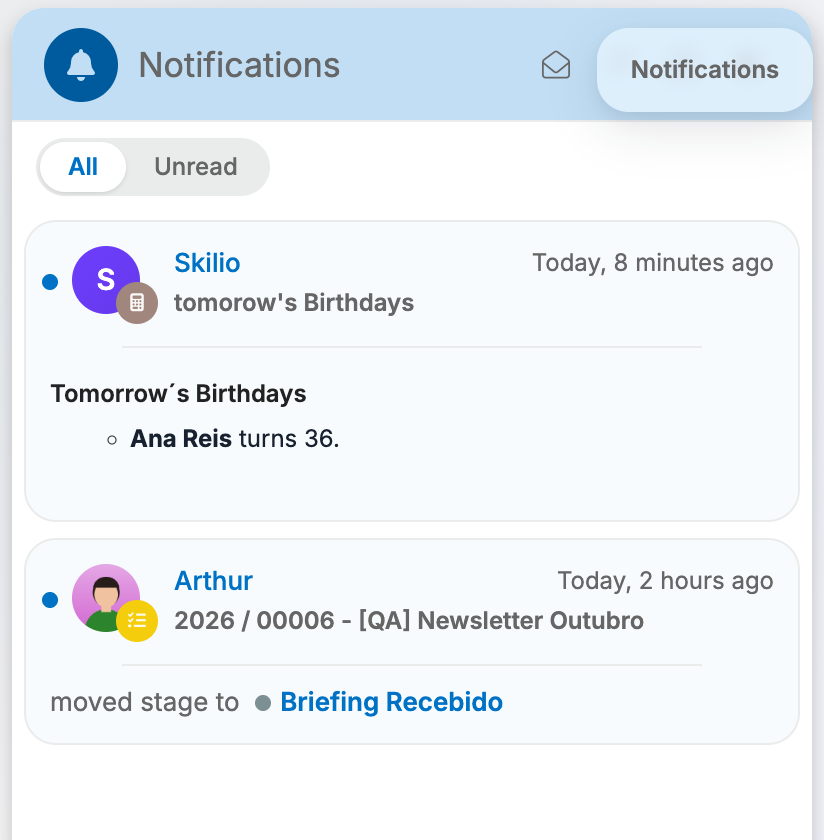
Each card shows who caused the notification, when, the document it is about and what happened: the comment, the stage change or the summary. A blue dot marks an unread notification.
- All and Unread filter the list by read state.
- Mark all as read marks every notification as read.
- View all opens the Notifications page. It is shown when the page is installed and the list is not empty.
- Refresh reloads the list.
Open a notification or mark it as read
- Click a card to mark it as read and open the document preview.
- Double-click a card to open the document.
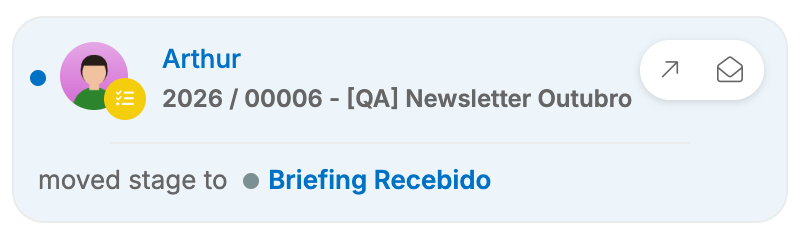
- Hover over a card to show Go to, which opens the document, and Mark as read or Mark as unread. These change the read state without opening anything.
Notifications page
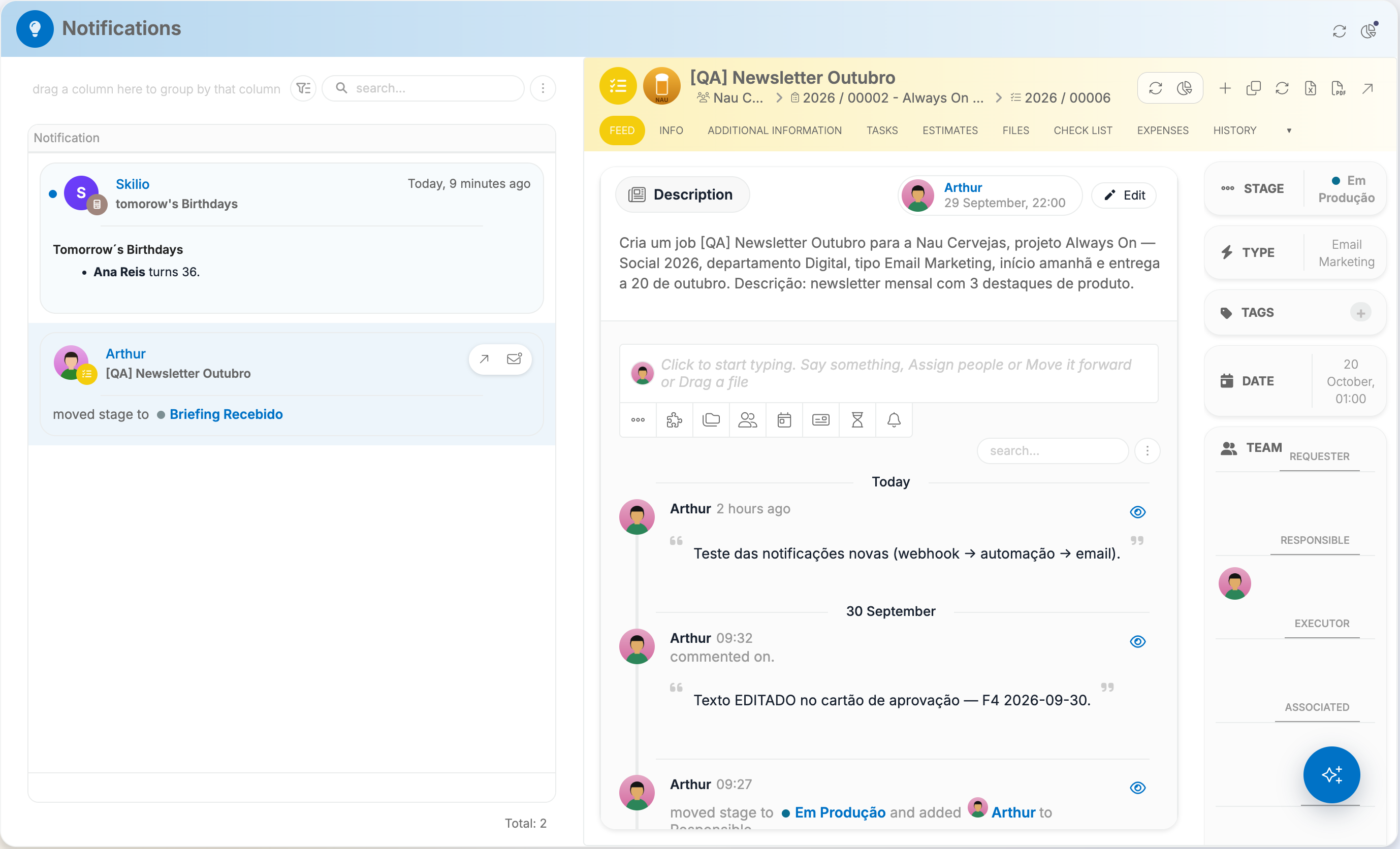
View all in the panel opens the Notifications page. It lists all your notifications, with search, and opens the selected notification's document in a preview on the right.
Notification emails
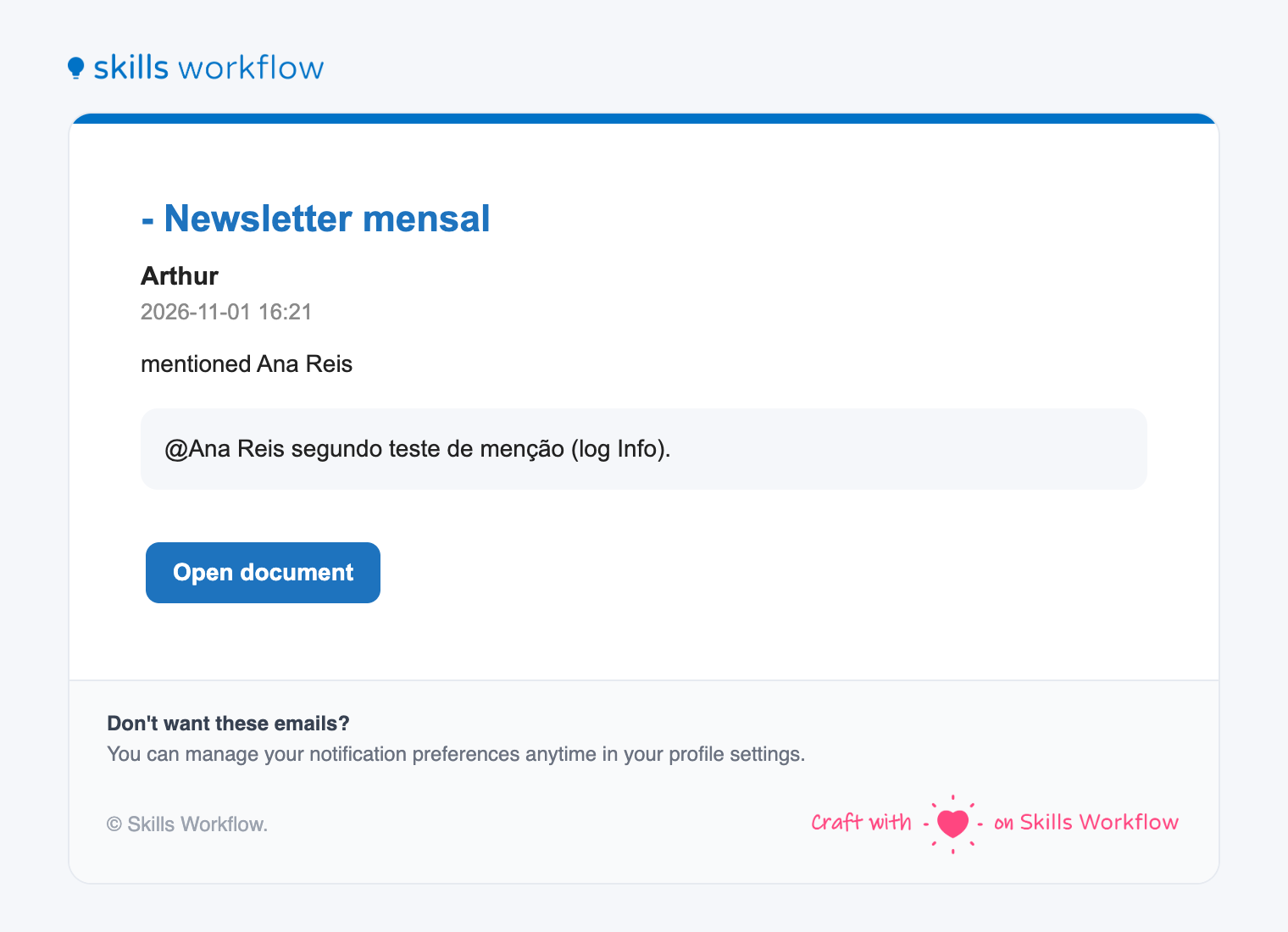
Notification emails come from notifications@skillsworkflow.com. An email about a document shows the document, the person who acted and when, what happened, the comment, and an Open document button that opens the document in Skills Workflow.
Push notifications
Push notifications appear on your phone through the Skills Workflow mobile app.
Choose the notifications you receive
Your preferences live on your user record.
- Go to Maintenance → Users and open the user.
- Open the NOTIFICATION tab. When it is not visible, open the tab list with ▾.
- Each row is a notification type, identified by its description. Select Email, Push and Web for the channels you want, and clear the ones you do not.
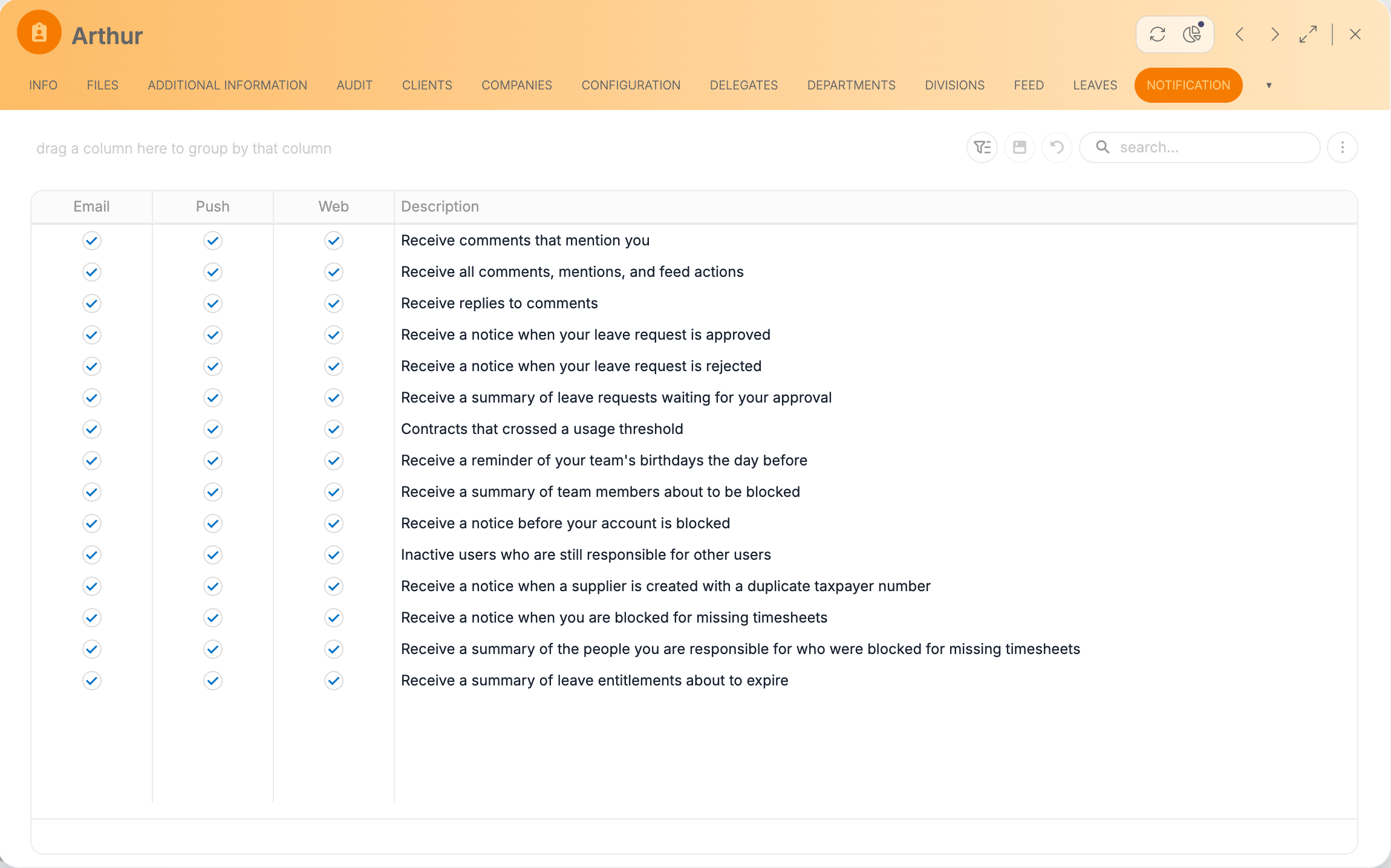
The NOTIFICATION tab is shown when the tenant uses the notifications service and you have the NotificationPreferenceWrite role. Changing another user's preferences also needs the CanManageOthersPreferences role.
Rules and behaviour
- A notification type with no channel selected is not delivered to you.
- A notification sent only by Email or Push does not appear in the Notifications panel. Select Web to see it there too.
- Email notifications need an email address on your user.
- You are never notified about your own comment.
- When someone comments on a document, the people in the document's team are notified. A reply to a comment notifies the team as well.
- A mention notifies the person mentioned. Mentions are delivered only while Receive documents notifications is on for that user.