Legacy notifications
This page applies to tenants that do not use the notifications service. For tenants with Use Notifications Service turned on, see Notifications, Receive and manage notifications and Available notifications.
Skills Workflow sends out two different types of notifications:
- E-mail notifications
- In-system notifications
Depending on their categories, notifications can have different periodicities:
- Immediate (every 5 minutes)
- Daily (once a day)
- Weekly (once a week)
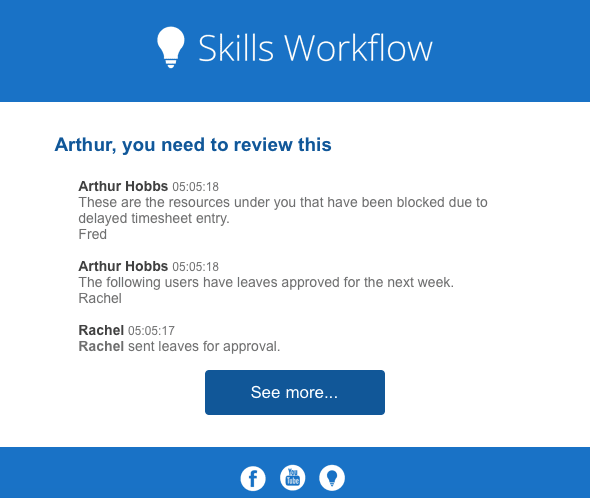
Regardless of being immediate, daily or weekly notifications, all notifications are received in the system and can be sent via e-mail if the "Receive E-mail Notifications" flag is enabled on the user form.
Immediate Notifications
The immediate notifications are received in the system over a span of time of up to 5 minutes. These are mostly about posts generated on a specific document and are of the following categories:
- Changes to workflow stages;
- Changes to document teams;
- Changes to document dates;
- Comments added to document feed;
- Tagging notifications on the document feed;
- Leave approvals/disapprovals;
- Timesheet disapprovals;
- Password resetting;


Daily Notifications
The daily notifications are seen as a daily reminder to users. These are sent every day, at a specific time, according to what is set on the "Assistant Alert Time" field and calculated based on the "Default Time Zone" field in the back-office maintenance section.
These notifications are of the following categories:
- Pending timesheet hours and tolerance days left;
- Pending timesheet approvals;
- Pending leave approvals;
- Delinquency and blocking alert due to missing timesheet hours:
- To the responsible regarding the resources they are responsible for;
- To the resources themselves;
- Blocking confirmation due to missing timesheet hours:
- To the responsible regarding the resources they are responsible for;
- To the resources themselves;


Weekly Notifications
Leaves scheduled for the week after the current one: According to the "Leaves Notification Week Day" configuration in the maintenance module of the back-office, the responsibles will receive one single notification on a specific day of the week informing which resources they are responsible for will be on leave on the following week;

My Notifications
In Skills Workflow it is now possible to select which notifications a user wants to receive based on the role they play. This means that a user can opt to receive notifications as a user perspective or as a responsible.
My Notifications:
- Push
- Timesheets
- Leaves
- Documents
- Digest Email
Responsible Notifications:
- Expiring Timesheets
- Expired Timesheets
- Timesheets to Approve
- Leaves to Approve
