AI Actions
AI Actions are the AI button in a rich text editor's toolbar. Instead of opening the chat panel, you pick an action from the toolbar and the text in the editor is rewritten in place.
The actions in that menu are not fixed. Your agency defines them. A new tenant has an empty list and no menu until someone configures it. That is also what lets you ship actions worded for your own work.
Availability
Both settings live in Maintenance > Configuration > System > Artificial Intelligence (AI):
| Setting | What it does |
|---|---|
| Enable AI | Master switch for every AI feature |
| Enable AI Actions | Shows the AI Actions button in rich text editors |
With both on, the button appears in:
- Document briefs and descriptions — the brief of a Job, Deliverable, Estimate, Contract, Request or any other document type.
- Feed posts — the editor you compose a post in.
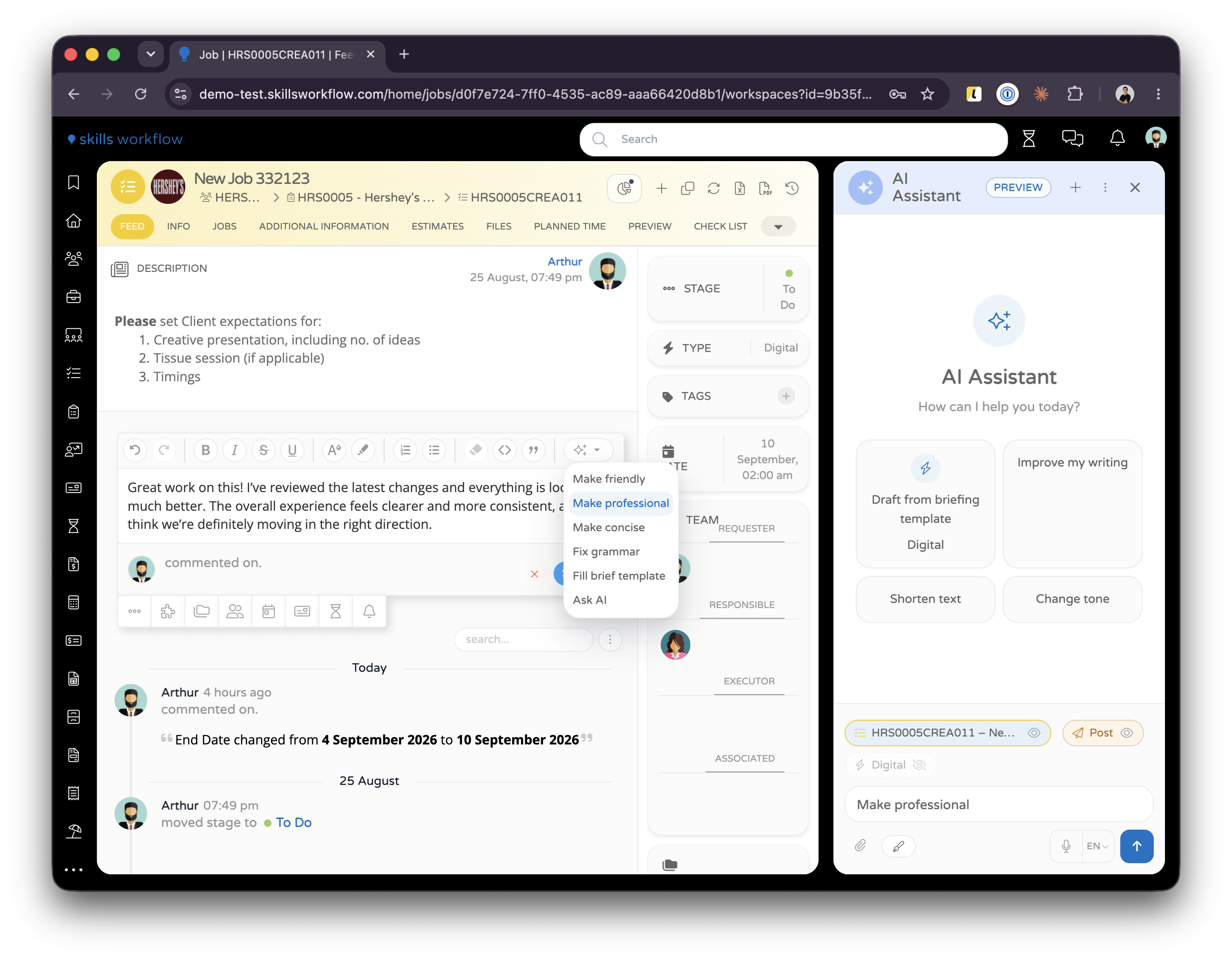
How to use
- Write something, or open a document that already has a brief. An action with an empty editor answers Add content to the editor before running this action.
- Click the AI Actions button in the toolbar.
- Pick an action, or use Ask AI and type the change you want in your own words.
- The editor goes read-only while it works.
- The result replaces what was there. A toast says Text replaced. Click to undo.
Ctrl+Z / ⌘+Z also puts the original back, and actions can be chained — rewrite, then shorten, then adjust the tone.
Some actions open the AI Assistant panel instead of applying straight away, so you can iterate on the result and choose where to insert it. Which of the two an action does is part of its configuration.
Working from a briefing template
An action can be given the job type's briefing template as well as the editor's text. That is what turns rough notes into a structured brief: the action reads what you wrote, reads the template configured on the document's job type, and fills the template's sections from your notes.
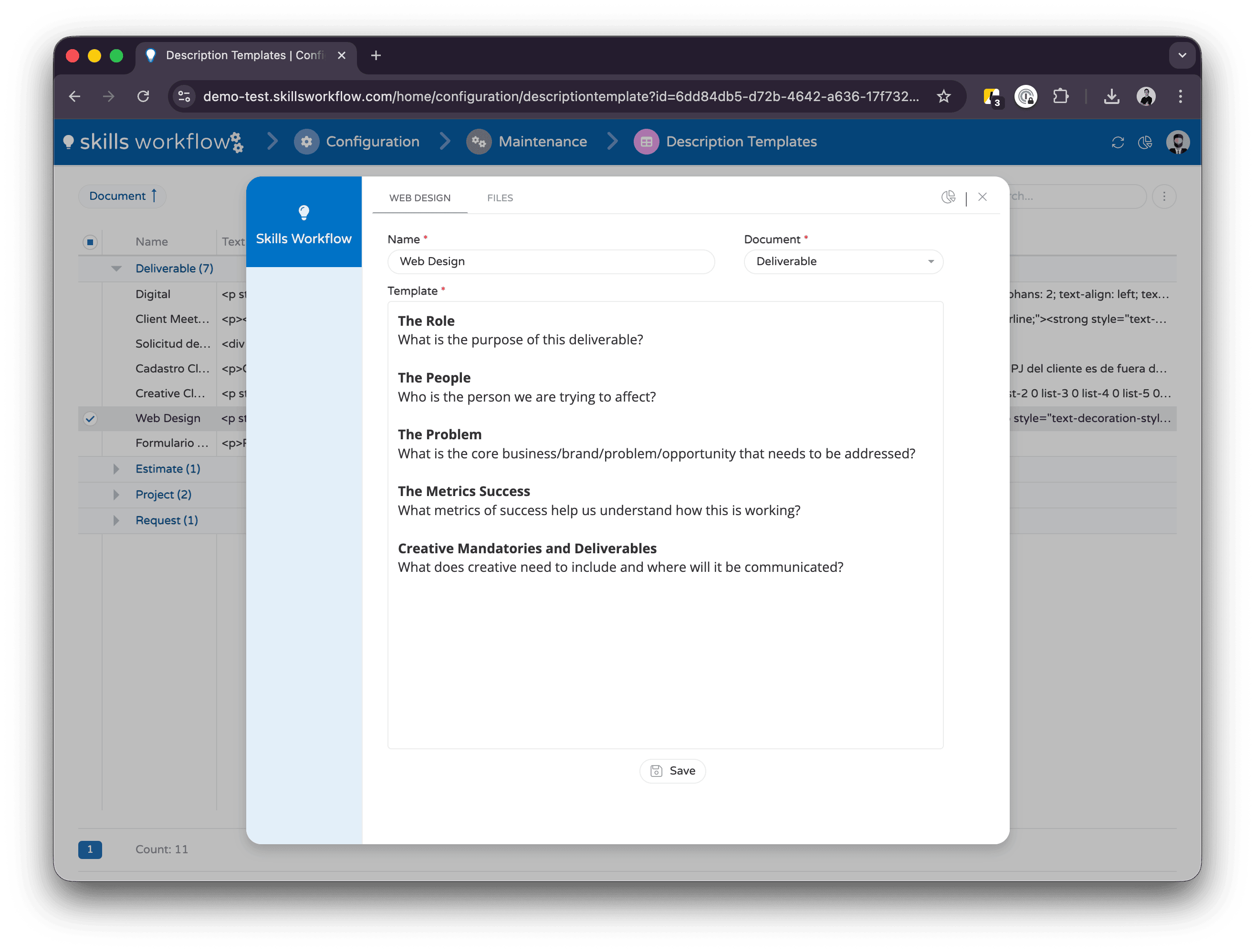
This only works where the job type has a briefing template configured. Without one, the action falls back to writing from your text alone.
Configuration
The list is the AI Actions grid in Maintenance > Configuration > System > Artificial Intelligence (AI). Each row is one entry in the toolbar menu.
| Column | What it does |
|---|---|
| ID | Identifies the action |
| Label Key | The translation key used for the menu label. Use an existing key so the label is translated in every locale your users work in |
| System Prompt | The instruction that sets how the action behaves |
| User Prompt Template | What is sent for this action. {{content}} is the editor's text; {{template}} is the job type's briefing template |
| Order | Position in the menu, ascending |
| Entities | Restricts the action to certain document types. Leave empty to show it everywhere |
| Custom Prompt | Makes this the action that asks the user what to do, rather than acting on its own |
| Execution Mode | popup applies the result in place; panel continues in the AI Assistant |
| Auto Send | Runs immediately instead of waiting for the user to confirm |
| Server Tools | Tools the action may use. See Tools |
| Content Labels | Restricts the action to a particular editor |
Actions run on the Writing Agent unless a row names a different agent, which is how an action can be pointed at an agent of your own. See Add your own skills, agents and tools.
The translation keys already shipped for common actions include Rewrite, MakeFriendly, MakeProfessional, MakeConcise, Summarize, FixGrammar, Compose, FillBriefTemplate and GenerateFromTemplate. Referencing one of these in Label Key gives you a translated label without adding a translation of your own.
Rules and behaviour
- The result replaces the editor's content. Nothing is merged.
- Actions answer in the language of the text you gave them.
- An action that fails says Unable to generate text right now. Please try again. and leaves your text alone.
- Nothing is saved until you save the document, so an unwanted result costs nothing.