AI Assistant
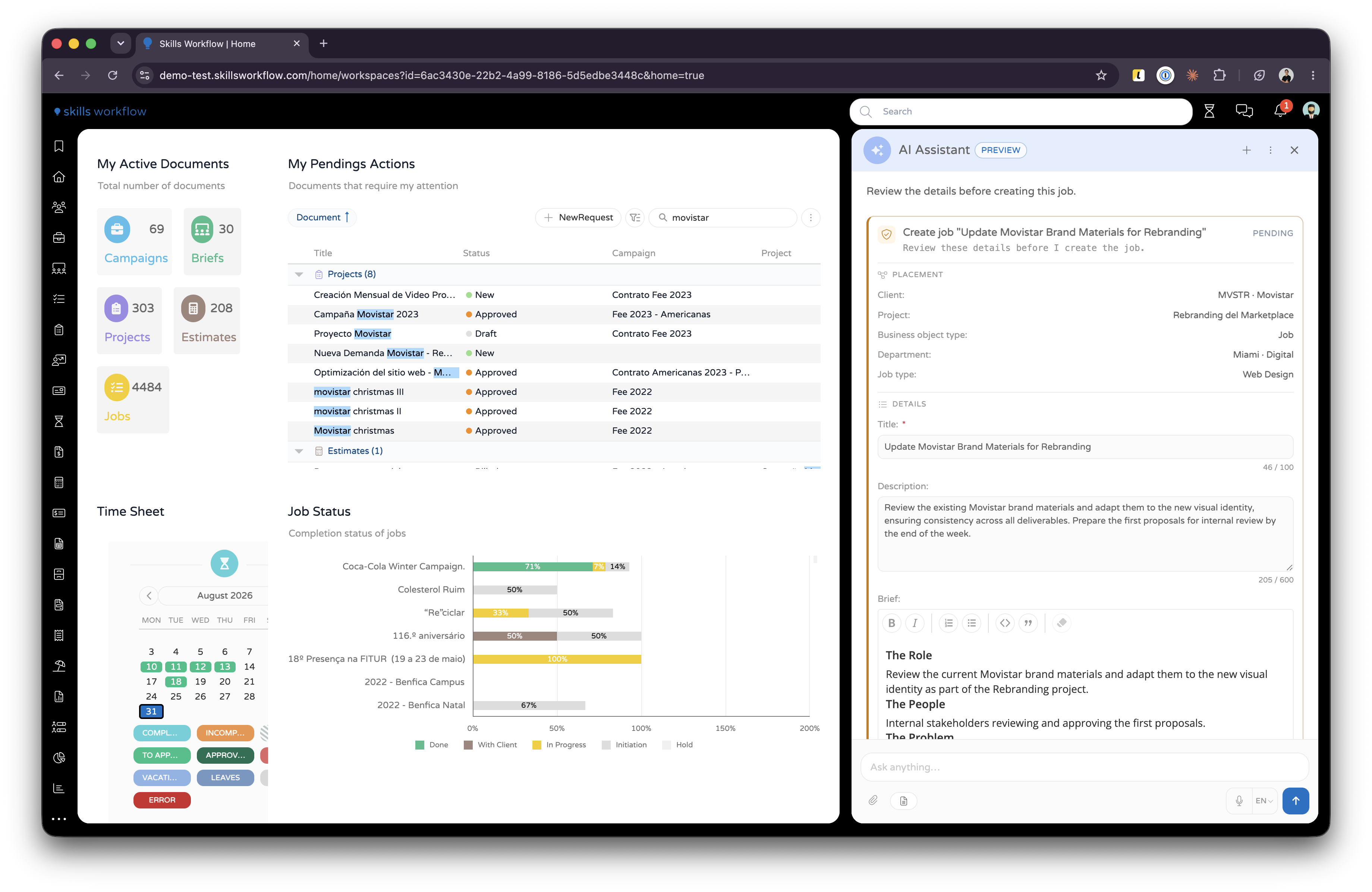
The AI Assistant is a chat panel that sits beside whatever you are working on. You type what you want in plain language, the assistant reads the screen you are on, and it answers or does the work. It does not open a separate screen and it does not lose your place.
Inside the panel you choose an agent. Each agent is built for one kind of work and carries its own tools. See Agents for which one to pick.
Availability
The assistant is in Preview. The panel carries a Preview badge, and the product's own wording is worth repeating: this feature is still under development, so its behaviour may change — review AI results before using them.
Four settings in Maintenance > Configuration > System > Artificial Intelligence (AI) control what your users see:
| Setting | What it does |
|---|---|
| Enable AI | Master switch for every AI feature. When off, all AI features are hidden and no AI calls are made. |
| Enable chat | Shows the AI Assistant panel and enables in-context AI editing without leaving the screen. |
| Enable AI Actions | Shows the AI Actions button in rich text editors. See AI Actions. |
| Enable flow logging | Adds Download Flow Log to the panel menu. Turn it on only while diagnosing a problem. |
Enable AI must be on for any of the others to take effect.
The panel is also hidden while the platform is in configuration mode.
Open the assistant
Click the floating assistant button in the bottom-right corner. It is draggable, so move it if it covers something. The panel opens on the right, and the button disappears while it is open. Collapsing the panel leaves a narrow strip you click to bring it back.

Pick an agent
Agent and context share one control, the sliders icon beside the message box: Agent and context. Open it and the Agent section names the agent in use. Click that name to see the full list with each agent's description, and pick another.
Nothing is selected for you. Without a selection the panel refuses to send: Select an agent before sending a message.
Each agent contributes its own suggested prompts to the empty conversation. Clicking one fills the message box.
Opening a rich text editor while the assistant is on a different agent gets you an offer rather than a switch, naming what you are editing and the agent that suits it better. Switch changes agent, Stay keeps the one you have and is remembered for the rest of the session. On a conversation you have not typed in yet, the panel switches on its own and undoes it if you move away.
Give it context
The assistant does not read your whole account. It reads what you allow it to, and the Context for this message section of the same control lists every piece of it, grouped, with the reason each one is there.
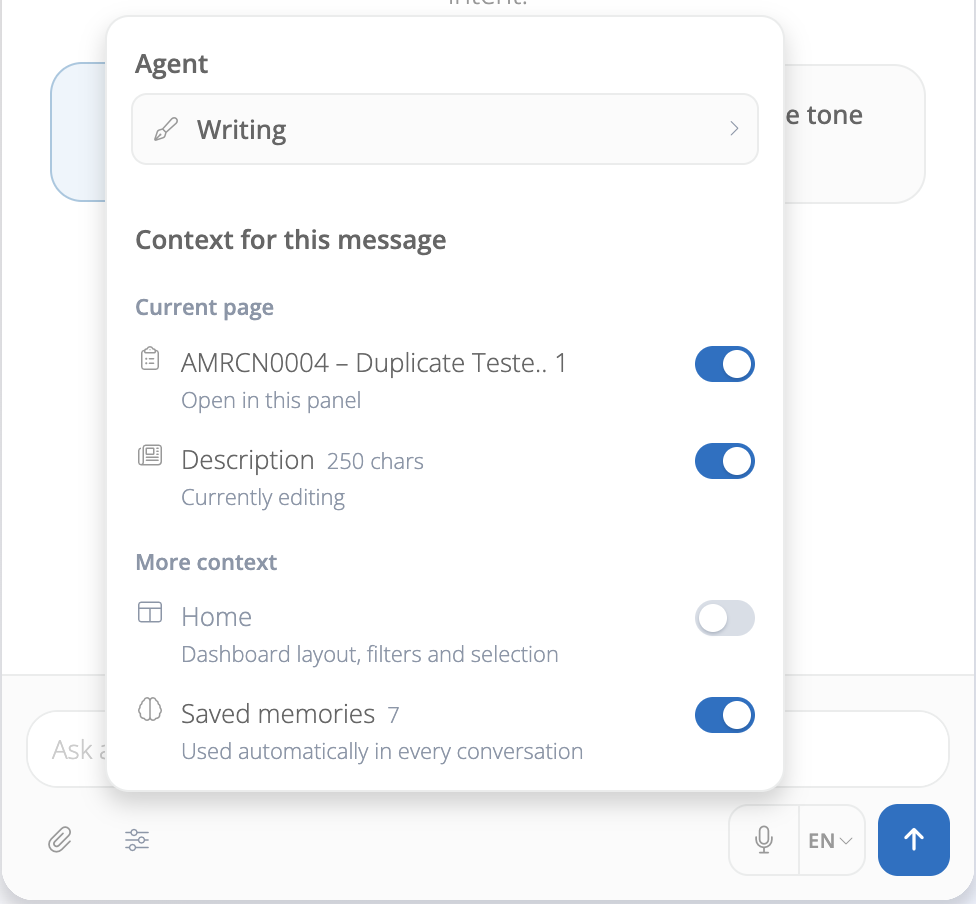
Each row appears only when there is something to send:
| Group | Row | Sends |
|---|---|---|
| Current page | The document's name | The document open behind the panel |
| Current page | The editor's name, with a character count | The text you are editing right now |
| Job guidance | Brief instructions | The guidance that applies to this response. Remove drops it |
| More context | The workspace's name | Its layout, filters and selection |
| More context | Saved memories, with a count | What the assistant has learned about you |
The switch on a row keeps that piece out of the request. The one on Saved memories is not a per-message override: it writes the same Memory on setting the memory screen shows. Manage opens that screen. See AI Memories.
Attach files
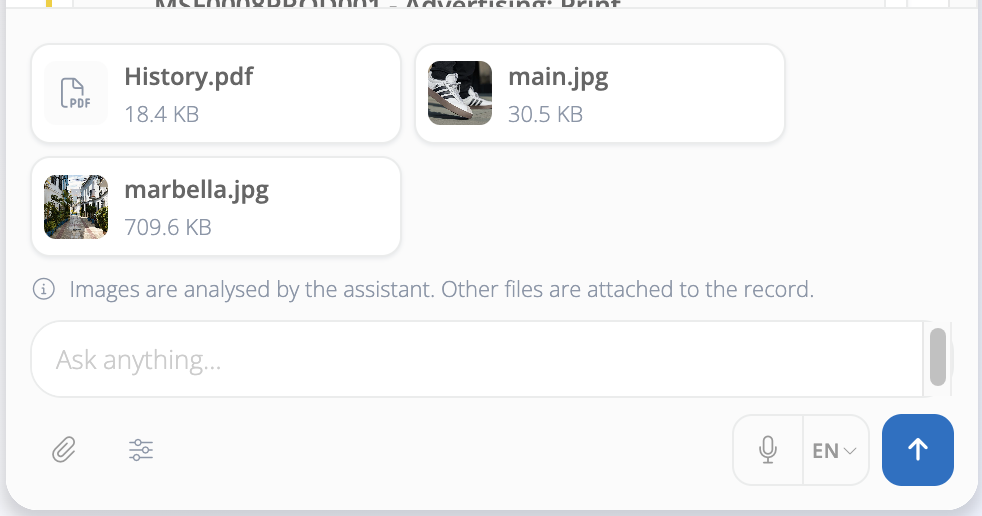
Drop a file onto the message box, or use Attach file. Each file becomes a chip above the box: images preview, everything else shows its type icon, and under the name you get the size, Uploading…, or the reason the file was refused. Remove one with the × on its chip.
What happens next depends on the file, and the panel says which: Images are analysed by the assistant. Other files are attached to the record. An image is read and described. Any other file is held ready to be attached to a brief or posted to a feed when you ask, and it is carried onto a job or deliverable the same conversation creates.
Attachments stay with the conversation. An agent asked to write a brief can still reach the file you attached two messages ago.
These cannot be attached:
- Files over your tenant's own upload limit,
FileSystemMaxSizeForUpload (MB)in Maintenance > Configuration > System > FileSystem. Unset, the limit is 10 MB. - Email files,
.msgand.eml. - Archives.
- Programs and scripts, such as
.exe,.bat,.ps1,.shand.jar.
An extension nobody recognises is still allowed. A .psd or an .indd attaches to a record perfectly well.
Approve what it does
Nothing is written on your behalf without a step you take. There are two gates, and which one you see depends on the agent.
The Document Agent shows an Approval required card naming the action and listing the arguments it is about to use: the job it will create, the stage it will move a document to, the people it will add to a team.
You have three answers:
- Approve runs the action. The card reads Running, then Approved.
- Deny changes nothing. The assistant acknowledges it and offers the specific things you might want to change, such as Change project or Change the name.
- Make changes lets you edit an argument on the card itself before approving.
Some fields on the card are editable in place. A greyed-out value is a placeholder showing what the platform will fill in if you type nothing.
Ignoring the card is safe. The action does not run, and nothing is lost if you type something else instead.
The Workflow Agent and the Workspace Agent use the other gate: they build a proposal, show you what it changes, and wait for you to apply it. A proposal you have not applied can be reverted.
Which actions raise an approval card is set per agent, so an agent your agency builds can gate as much or as little as you decide. See Tools.
Answer a question
When a request is missing something the assistant cannot guess, such as which client or which job type, it asks with a picker. Long lists come back partially, with Showing the first results — refine your search to narrow them down. Type in the picker's search box to narrow them.
Follow what it is doing
While the assistant works, the message it is writing carries the run above it, step by step. Each step names what is happening in your words rather than the tool's — Searching for clients…, Loading job type template…, Creating job… — and a count says how many steps the run took. Open a step to see the arguments it was called with and what came back.
Use it when an answer surprises you. A brief written from the wrong template usually shows up here as the wrong template being loaded.
Read an answer from your data
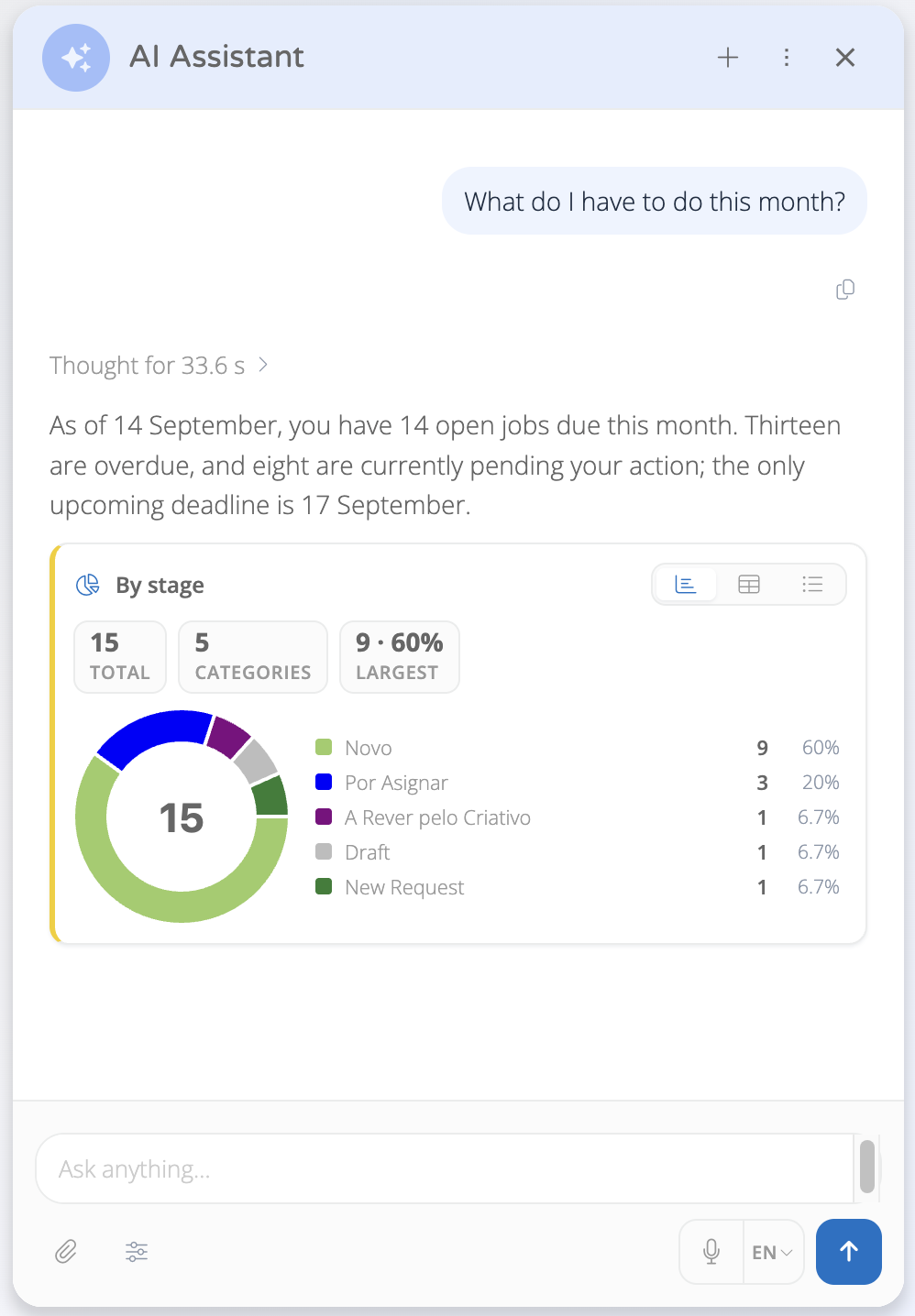
When an agent answers from one of your data extraction queries, the rows are not left as a table inside a paragraph. The panel renders the result.
- Rows that are documents come back as a list, grouped by urgency: Overdue, Due today, Tomorrow, This week, Later, No date. Counts along the top give you the totals, and clicking a row opens the document.
- Rows that describe a breakdown come back as a chart with a table view beside it. A result that is both a list and a breakdown renders as both.
- Long results are trimmed with a Show all control and a row count.
- Ask two questions in one message and the panel shows the last answer, saying 2 queries ran — showing the last.
A query that cannot run says so: The data query could not be run, or The assistant wrote a query this data does not support.
Which queries an agent may reach is set per agent. See Tools.
Chat history
Conversations are saved per user. Open Chat History from the panel menu to reopen one, and delete conversations there one at a time or several at once. Deleting a conversation cannot be undone.
New Chat (the + in the panel header) starts a fresh conversation and keeps the current one in history. Reset Chat clears the conversation on screen.
Memories
The assistant carries what it has learned about you between conversations: a client you work with constantly, the language you write in, a job type you always pick. It also counts the client, project and job type you create documents for, and proposes them next time.
Open Manage Memories from the panel menu to review all of it, switch a memory off, write one yourself, or turn memory off entirely. A remembered value is a suggestion: the assistant never reaches an approval card with one you have not confirmed. AI Memories covers the screen, the two saving modes and the limits.
Rules and behaviour
- The assistant acts as you. It can only read and write what your own permissions allow, and a request for something you cannot see comes back empty rather than elevated.
- Chat history is kept per user and per tenant. Two users never share a conversation, and the same user's conversations do not travel between tenants.
- A very long conversation is compacted automatically instead of failing, and the earliest detail is the first to go. Start a New Chat when you change subject.
- The conversation is not stored by the model service. Each request is answered and discarded there; the transcript you see is kept by Skills Workflow, on your user.
- Answers are generated. Review anything before sending it to a client or acting on it.