Assistente de IA
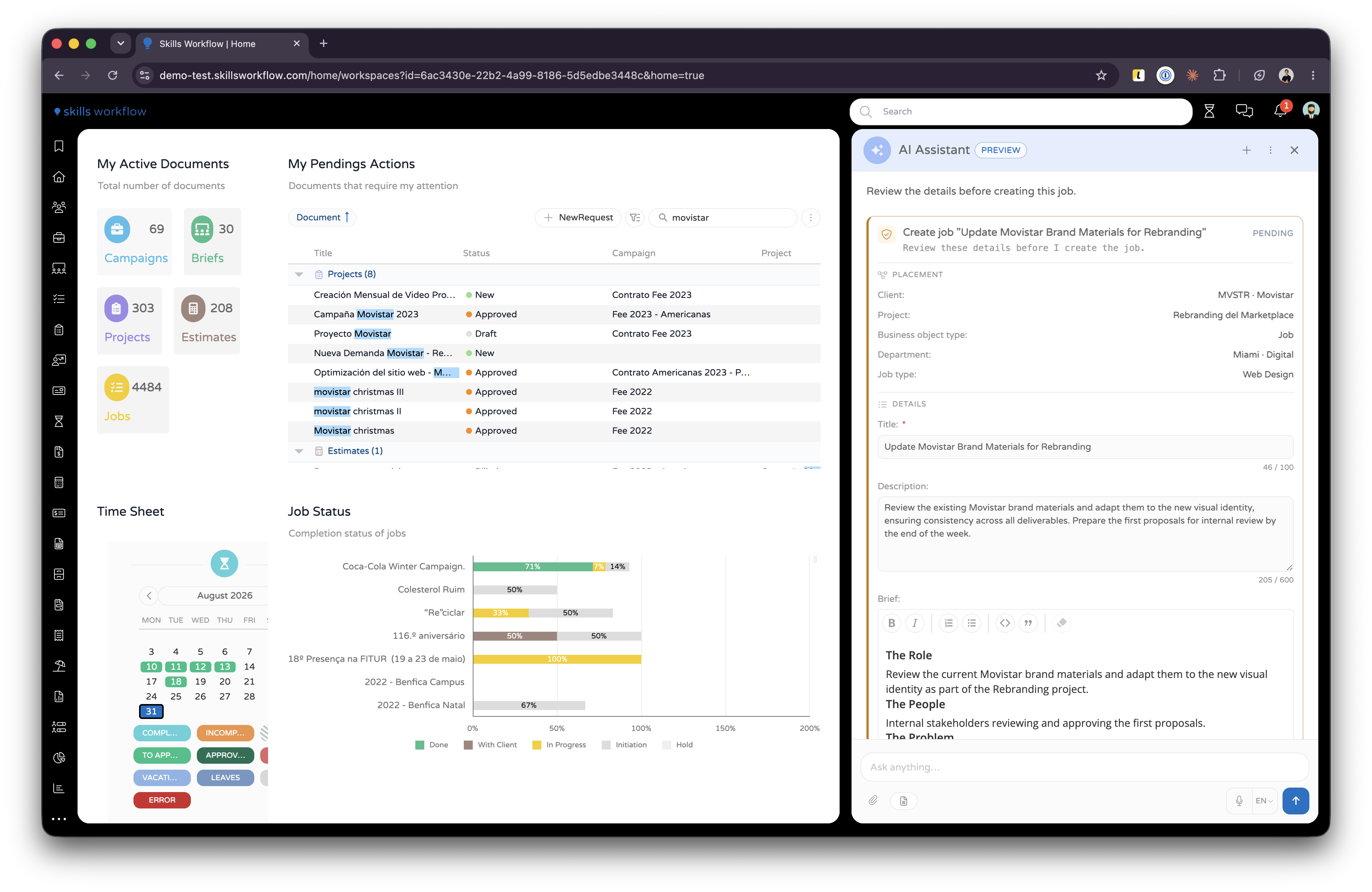
O Assistente de IA é um painel de conversa que fica ao lado daquilo em que está a trabalhar. Escreve o que pretende em linguagem simples, o assistente lê o ecrã em que está e responde ou faz o trabalho. Não abre um ecrã separado e não perde o seu lugar.
Dentro do painel escolhe um agente. Cada agente foi criado para um tipo de trabalho e tem as suas próprias ferramentas. Veja Agentes para saber qual escolher.
Disponibilidade
O assistente está em Preview. O painel apresenta um selo Preview, e vale a pena repetir as palavras do próprio produto: this feature is still under development, so its behaviour may change — review AI results before using them.
Quatro definições em Maintenance > Configuration > System > Artificial Intelligence (AI) controlam o que os seus utilizadores veem:
| Definição | O que faz |
|---|---|
| Enable AI | Interruptor principal para todas as funcionalidades de IA. Quando desativado, todas as funcionalidades de IA ficam escondidas e não é feita qualquer chamada de IA. |
| Enable chat | Mostra o painel do Assistente de IA e ativa a edição de IA em contexto sem sair do ecrã. |
| Enable AI Actions | Mostra o botão AI Actions nos editores de texto enriquecido. Veja Ações de IA. |
| Enable flow logging | Adiciona Download Flow Log ao menu do painel. Ative-o apenas enquanto estiver a diagnosticar um problema. |
Enable AI tem de estar ativado para que qualquer uma das outras produza efeito.
O painel também fica escondido enquanto a plataforma está em modo de configuração.
Abrir o assistente
Clique no botão flutuante do assistente, no canto inferior direito. É arrastável, por isso pode movê-lo se estiver a tapar alguma coisa. O painel abre à direita, e o botão desaparece enquanto estiver aberto. Ao recolher o painel, fica uma faixa estreita onde pode clicar para o trazer de volta.

Escolher um agente
O agente e o contexto partilham um único controlo, o ícone de cursores deslizantes ao lado da caixa de mensagem: Agent and context. Abra-o e a secção Agent indica o agente em uso. Clique nesse nome para ver a lista completa com a descrição de cada agente, e escolha outro.
Não é selecionado nada por si. Sem uma seleção, o painel recusa-se a enviar: Select an agent before sending a message.
Cada agente contribui com as suas próprias sugestões de prompts para a conversa vazia. Clicar numa delas preenche a caixa de mensagem.
Ao abrir um editor de texto enriquecido enquanto o assistente está com um agente diferente, recebe uma proposta em vez de uma troca automática, que indica o que está a editar e o agente mais adequado para isso. Switch muda de agente, Stay mantém o que já tinha, e essa escolha é recordada durante o resto da sessão. Numa conversa em que ainda não escreveu nada, o painel muda automaticamente e desfaz a mudança se sair dali.
Dar-lhe contexto
O assistente não lê toda a sua conta. Lê apenas o que lhe permitir, e a secção Context for this message, no mesmo controlo, apresenta cada elemento, agrupado, com o motivo pelo qual está ali.
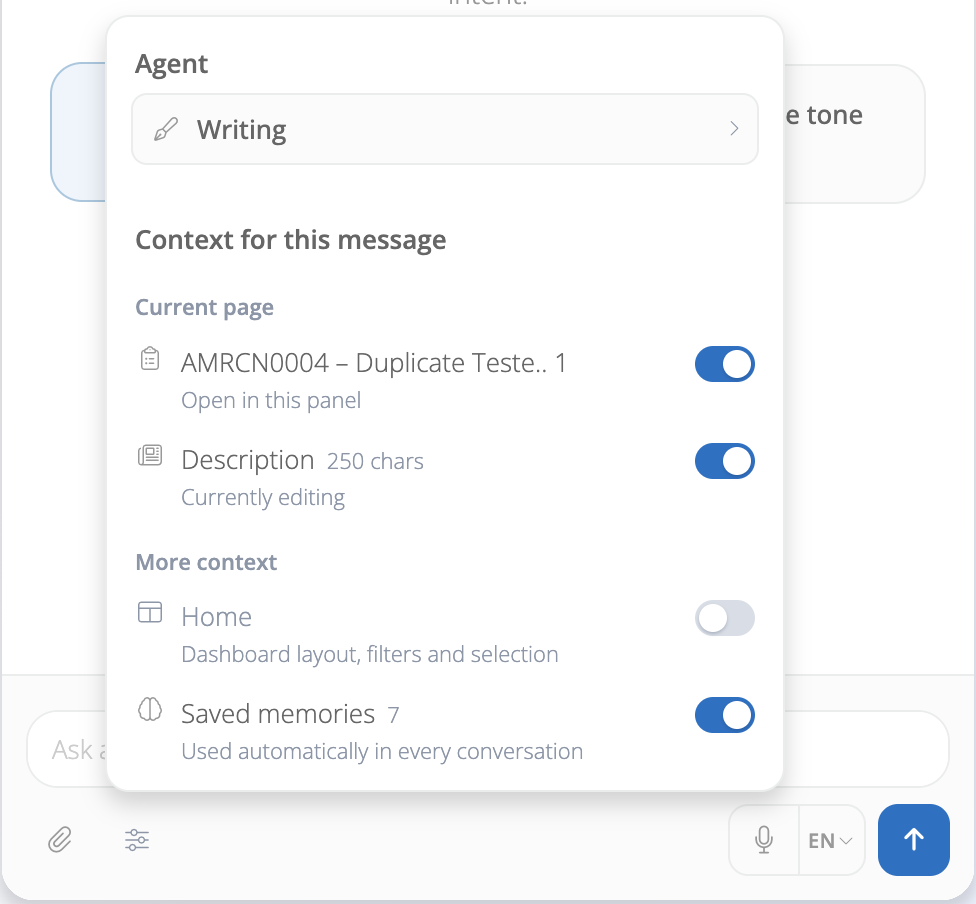
Cada linha só aparece quando há algo para enviar:
| Grupo | Linha | Envia |
|---|---|---|
| Página atual | O nome do documento | O documento aberto por trás do painel |
| Página atual | O nome do editor, com uma contagem de carateres | O texto que está a editar neste momento |
| Orientação do Job | Instruções do brief | A orientação aplicável a esta resposta. Remove descarta-a |
| Mais contexto | O nome do workspace | O seu layout, filtros e seleção |
| Mais contexto | Memórias guardadas, com uma contagem | O que o assistente aprendeu sobre si |
O interruptor numa linha mantém esse elemento fora do pedido. O de Saved memories não é uma substituição por mensagem: escreve a mesma definição Memory on que o ecrã de memórias mostra. Manage abre esse ecrã. Veja Memórias de IA.
Anexar ficheiros
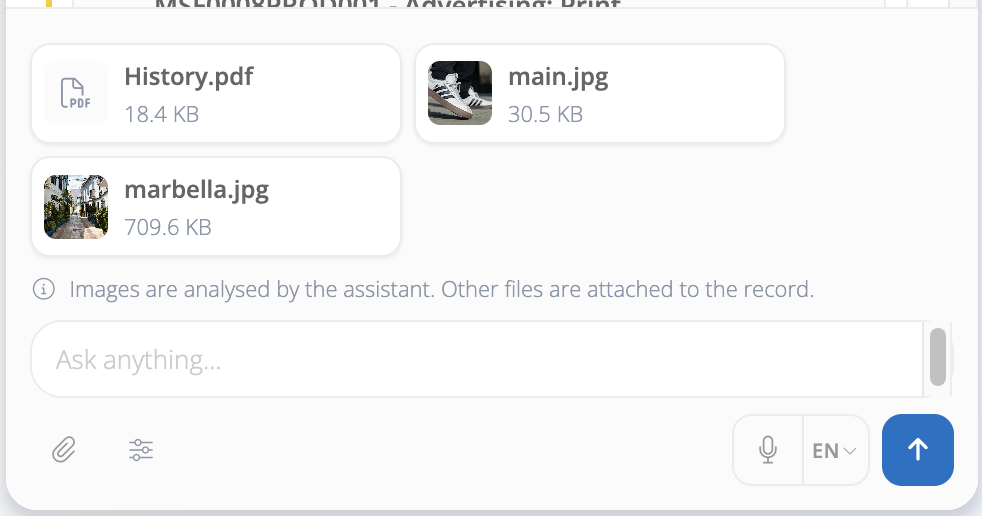
Largue um ficheiro na caixa de mensagem, ou utilize Attach file. Cada ficheiro transforma-se num chip acima da caixa: as imagens mostram uma pré-visualização, todos os outros mostram o ícone do respetivo tipo, e por baixo do nome vê o tamanho, Uploading…, ou o motivo pelo qual o ficheiro foi recusado. Remova um com o × no respetivo chip.
O que acontece a seguir depende do ficheiro, e o painel indica qual: Images are analysed by the assistant. Other files are attached to the record. Uma imagem é lida e descrita. Qualquer outro ficheiro fica pronto a ser anexado a um brief ou publicado num feed quando pedir, e é transportado para o job ou deliverable que essa mesma conversa cria.
Os anexos ficam associados à conversa. Um agente a quem peça para escrever um brief continua a conseguir aceder ao ficheiro que anexou duas mensagens antes.
Não podem ser anexados:
- Ficheiros acima do limite de carregamento do seu tenant,
FileSystemMaxSizeForUpload (MB)em Maintenance > Configuration > System > FileSystem. Se não estiver definido, o limite é de 10 MB. - Ficheiros de email,
.msge.eml. - Arquivos comprimidos.
- Programas e scripts, como
.exe,.bat,.ps1,.she.jar.
Uma extensão que ninguém reconheça continua a ser permitida. Um .psd ou um .indd anexa-se a um registo sem qualquer problema.
Aprovar o que faz
Nada é escrito em seu nome sem um passo que dê. Existem dois mecanismos, e qual deles vê depende do agente.
O Agente de Documentos mostra um cartão Approval required que indica a ação e lista os argumentos que vai utilizar: o job que vai criar, a stage para a qual vai mover um documento, as pessoas que vai adicionar a uma team.
Tem três respostas possíveis:
- Approve executa a ação. O cartão passa a indicar Running, e depois Approved.
- Deny não altera nada. O assistente reconhece-o e sugere coisas específicas que poderá querer alterar, como Change project ou Change the name.
- Make changes permite editar um argumento diretamente no cartão antes de aprovar.
Alguns campos do cartão são editáveis diretamente. Um valor a cinzento é um placeholder que mostra o que a plataforma vai preencher caso não escreva nada.
Ignorar o cartão é seguro. A ação não é executada, e nada se perde se escrever outra coisa em vez disso.
O Agente de Workflows e o Agente de Workspaces utilizam o outro mecanismo: constroem uma proposta, mostram o que ela altera, e aguardam que a aplique. Uma proposta que ainda não tenha aplicado pode ser revertida.
Quais as ações que geram um cartão de aprovação é definido por agente, por isso um agente construído pela sua agência pode condicionar tanto ou tão pouco quanto decidir. Veja Ferramentas.
Responder a uma pergunta
Quando falta a um pedido algo que o assistente não consegue adivinhar, como qual o client ou qual o job type, o assistente pergunta através de um seletor. Listas longas voltam parcialmente, com Showing the first results — refine your search to narrow them down. Escreva na caixa de pesquisa do seletor para as restringir.
Acompanhar o que está a fazer
Enquanto o assistente trabalha, a mensagem que está a escrever mostra a execução acima dela, passo a passo. Cada passo indica o que está a acontecer nas suas próprias palavras, e não nas da ferramenta — Searching for clients…, Loading job type template…, Creating job… — e uma contagem indica quantos passos a execução teve. Abra um passo para ver os argumentos com que foi chamado e o que devolveu.
Utilize isto quando uma resposta o surpreender. Um brief escrito a partir do template errado normalmente aparece aqui como o carregamento do template errado.
Ler uma resposta a partir dos seus dados
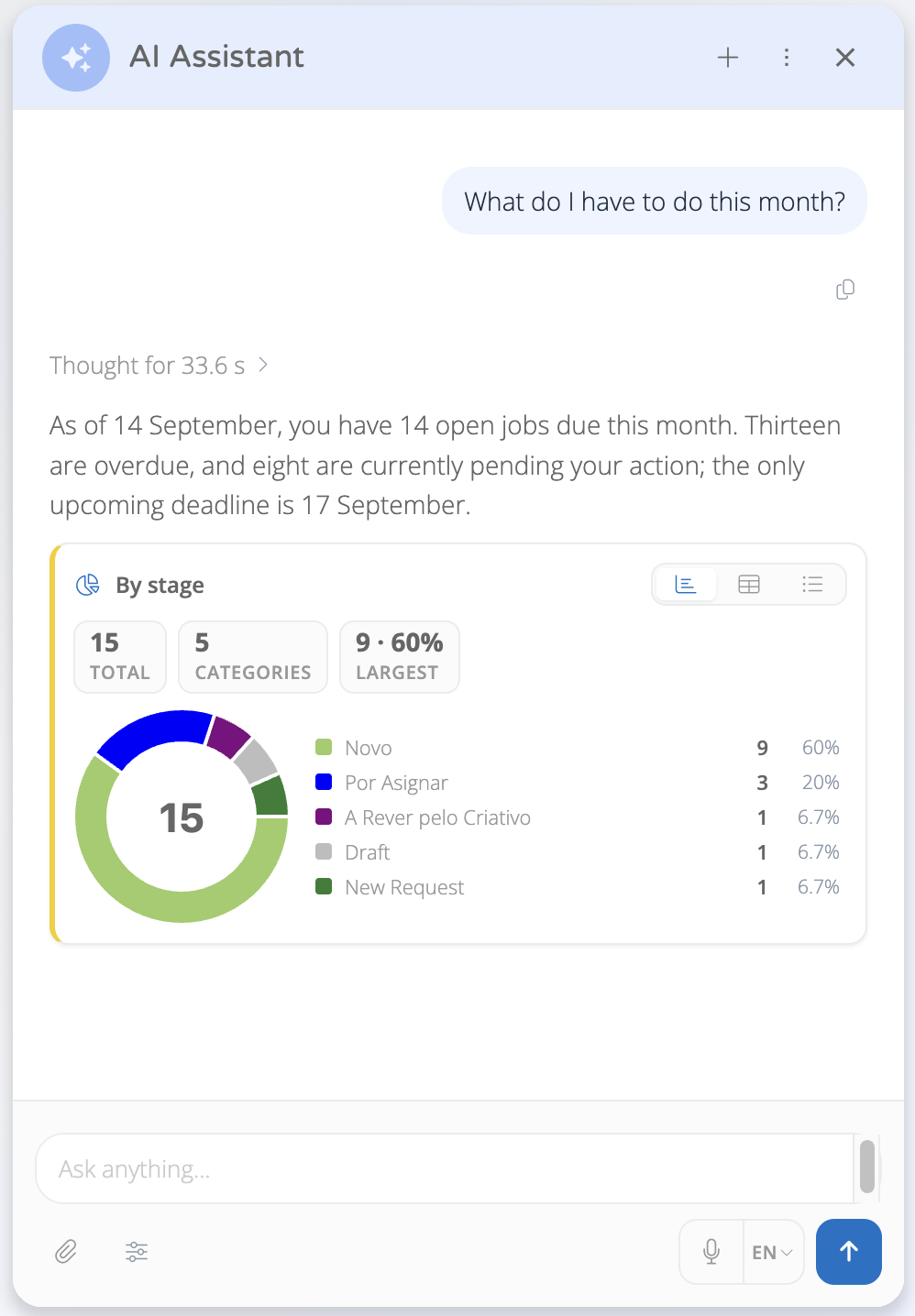
Quando um agente responde a partir de uma das suas consultas de extração de dados, as linhas não ficam apresentadas como uma tabela dentro de um parágrafo. O painel apresenta o resultado.
- Linhas que são documentos aparecem como uma lista, agrupada por urgência: Overdue, Due today, Tomorrow, This week, Later, No date. As contagens no topo dão-lhe os totais, e clicar numa linha abre o documento.
- Linhas que descrevem uma repartição aparecem como um gráfico com uma vista em tabela ao lado. Um resultado que seja simultaneamente uma lista e uma repartição é apresentado das duas formas.
- Resultados longos são reduzidos com um controlo Show all e uma contagem de linhas.
- Faça duas perguntas na mesma mensagem e o painel mostra a última resposta, dizendo 2 queries ran — showing the last.
Uma query que não possa ser executada diz isso mesmo: The data query could not be run, ou The assistant wrote a query this data does not support.
Quais as queries a que um agente pode aceder é definido por agente. Veja Ferramentas.
Histórico de conversas
As conversas são guardadas por utilizador. Abra Chat History no menu do painel para reabrir uma, e elimine conversas ali, uma de cada vez ou várias ao mesmo tempo. Eliminar uma conversa não pode ser desfeito.
New Chat (o + no cabeçalho do painel) inicia uma nova conversa e mantém a atual no histórico. Reset Chat limpa a conversa no ecrã.
Memórias
O assistente transporta o que aprendeu sobre si entre conversas: um client com quem trabalha constantemente, a língua em que escreve, um job type que escolhe sempre. Também conta o client, o project e o job type para os quais cria documentos, e propõe-os da próxima vez.
Abra Manage Memories no menu do painel para rever tudo isto, desativar uma memória, escrever uma manualmente, ou desligar as memórias por completo. Um valor memorizado é uma sugestão: o assistente nunca chega a um cartão de aprovação com algo que não tenha confirmado. Memórias de IA aborda o ecrã, os dois modos de gravação e os limites.
Regras e comportamento
- O assistente atua como você. Só pode ler e escrever aquilo que as suas próprias permissões permitem, e um pedido de algo que não pode ver volta vazio, em vez de ser elevado.
- O histórico de conversas é mantido por utilizador e por tenant. Dois utilizadores nunca partilham uma conversa, e as conversas do mesmo utilizador não passam de um tenant para outro.
- Uma conversa muito longa é compactada automaticamente em vez de falhar, e o detalhe mais antigo é o primeiro a ser descartado. Inicie um New Chat quando mudar de assunto.
- A conversa não é guardada pelo serviço do modelo. Cada pedido é respondido e descartado ali; a transcrição que vê é guardada pela Skills Workflow, associada ao seu utilizador.
- As respostas são geradas. Reveja tudo antes de o enviar a um client ou de agir com base nisso.