Favorites
Favorites let you bookmark the documents and dashboards you access most often. Favorited items appear in the search popup and optionally in the side menu, giving you quick access without navigating through modules.
Adding a Document to Favorites
There are several ways to mark a document as a favorite:
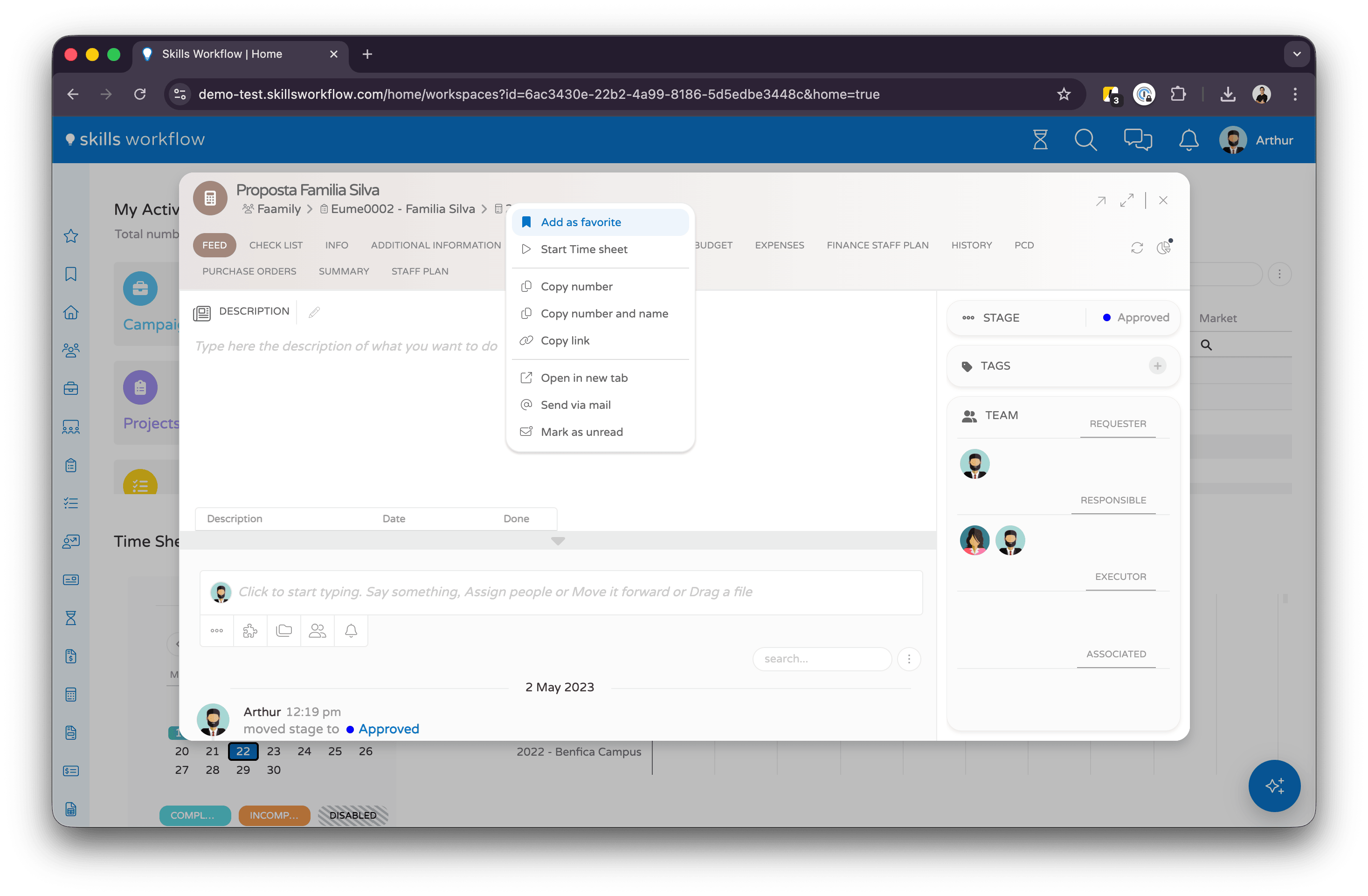
From the Document Header
- Open any document (Project, Job, Deliverable, etc.).
- Right-click the document header area.
- Select Add as Favorite from the context menu.
From a Grid Row
- In any list or grid view, look for the bookmark icon column on the left side of each row.
- Hover over a row to reveal the bookmark icon.
- Click the bookmark icon to toggle the favorite status.
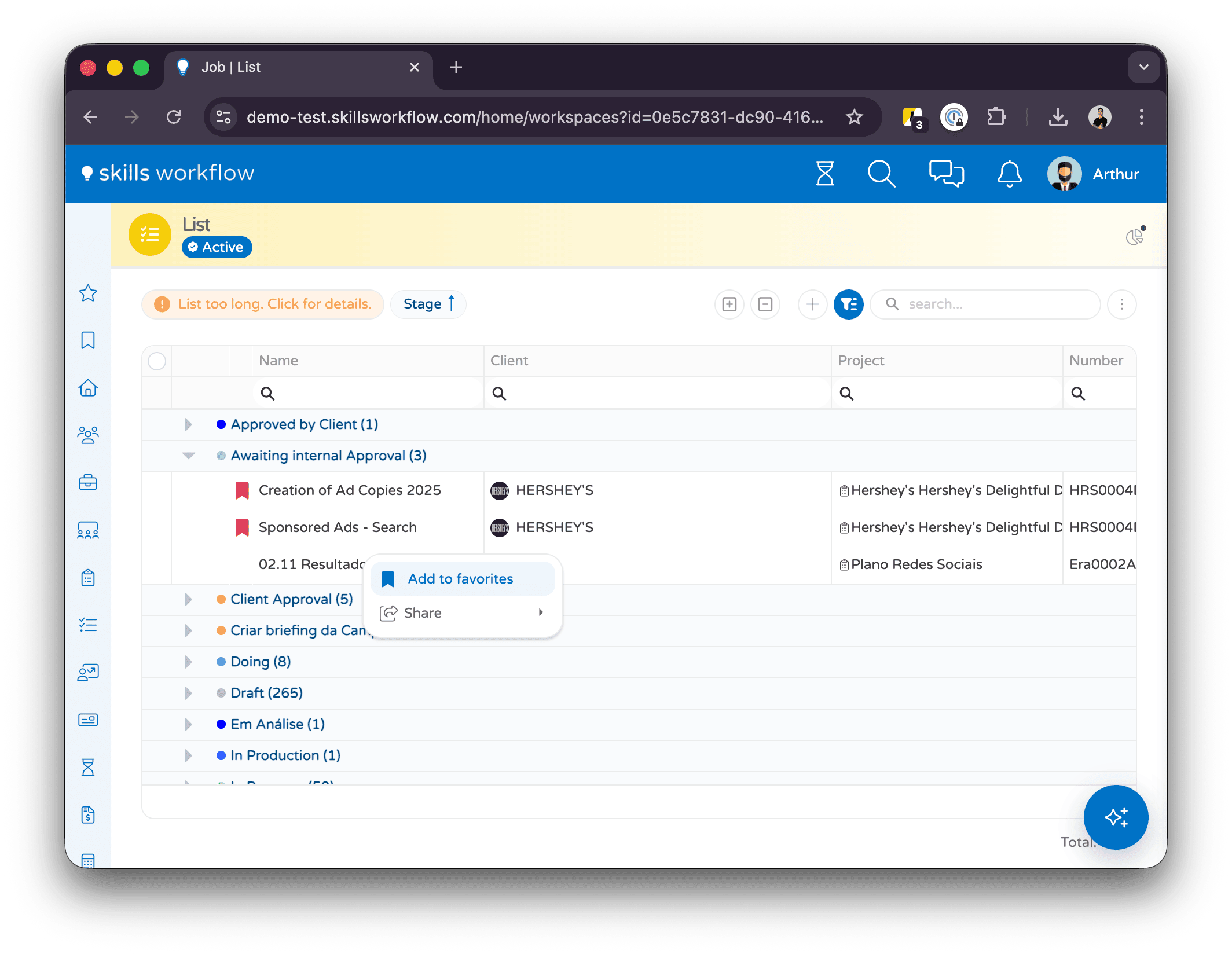
Alternatively, right-click any row and select Add to Favorites from the context menu.
Visual Indicators
- A solid bookmark icon (filled, in pink/red) means the document is favorited.
- A light bookmark icon (outline) means it is not favorited.
Removing a Favorite
To remove a document from your favorites:
- From the document header — right-click and select Remove as Favorite.
- From a grid row — click the solid bookmark icon to unfavorite, or right-click and select Remove from Favorites.
Accessing Your Favorites
Search Popup
- Press
Ctrl+S(Windows/Linux) or⌘+S(Mac) to open the search popup. You can also click the search icon in the top menu bar. - In the popup, click the Favorites tab to see all your favorited documents.
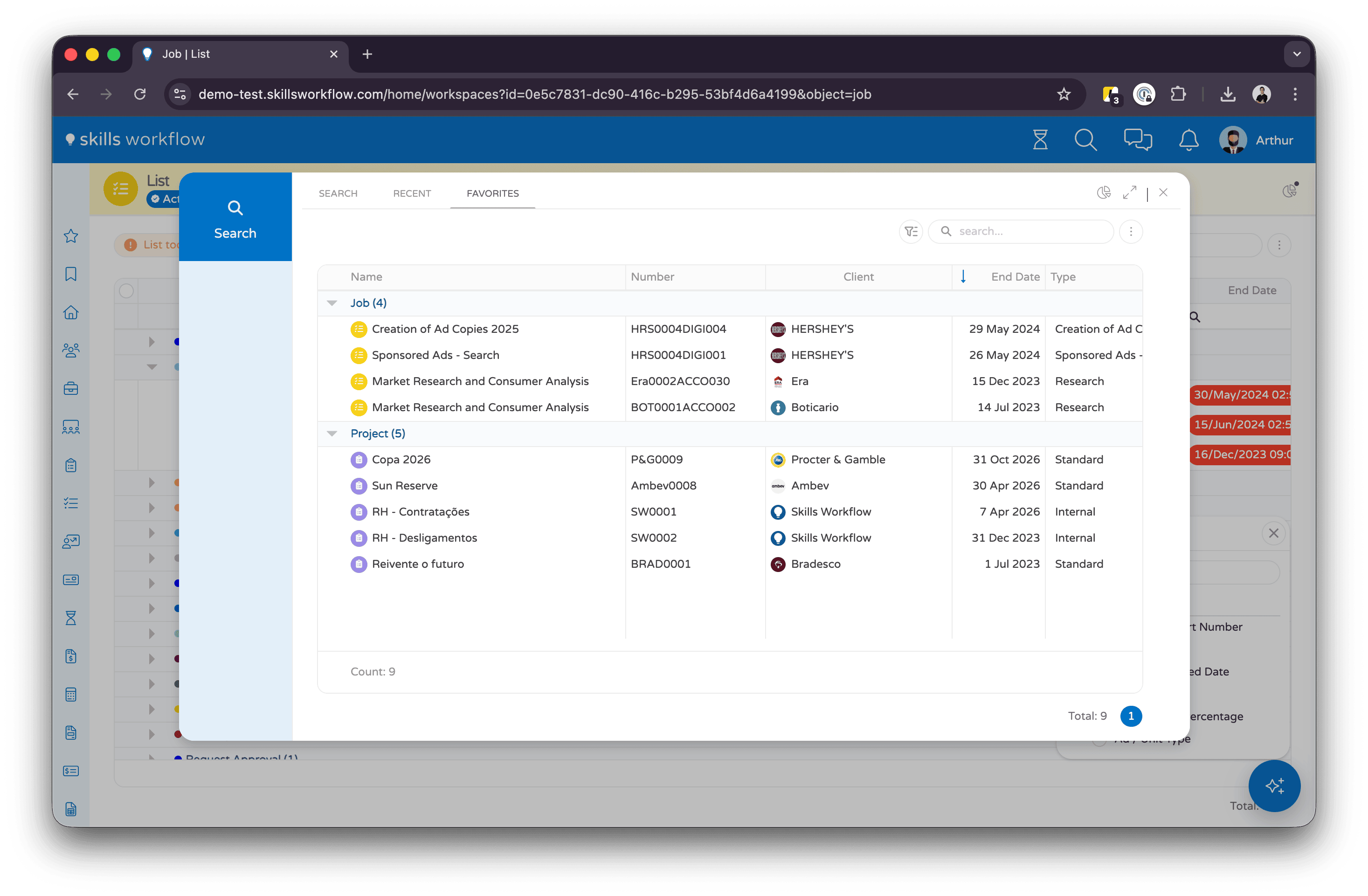
- Click on any item to navigate directly to that document.
The search popup has three tabs:
| Tab | Description |
|---|---|
| Find | Search across all documents |
| Mine | Documents assigned to you |
| Favorites | Your bookmarked documents |
Side Menu
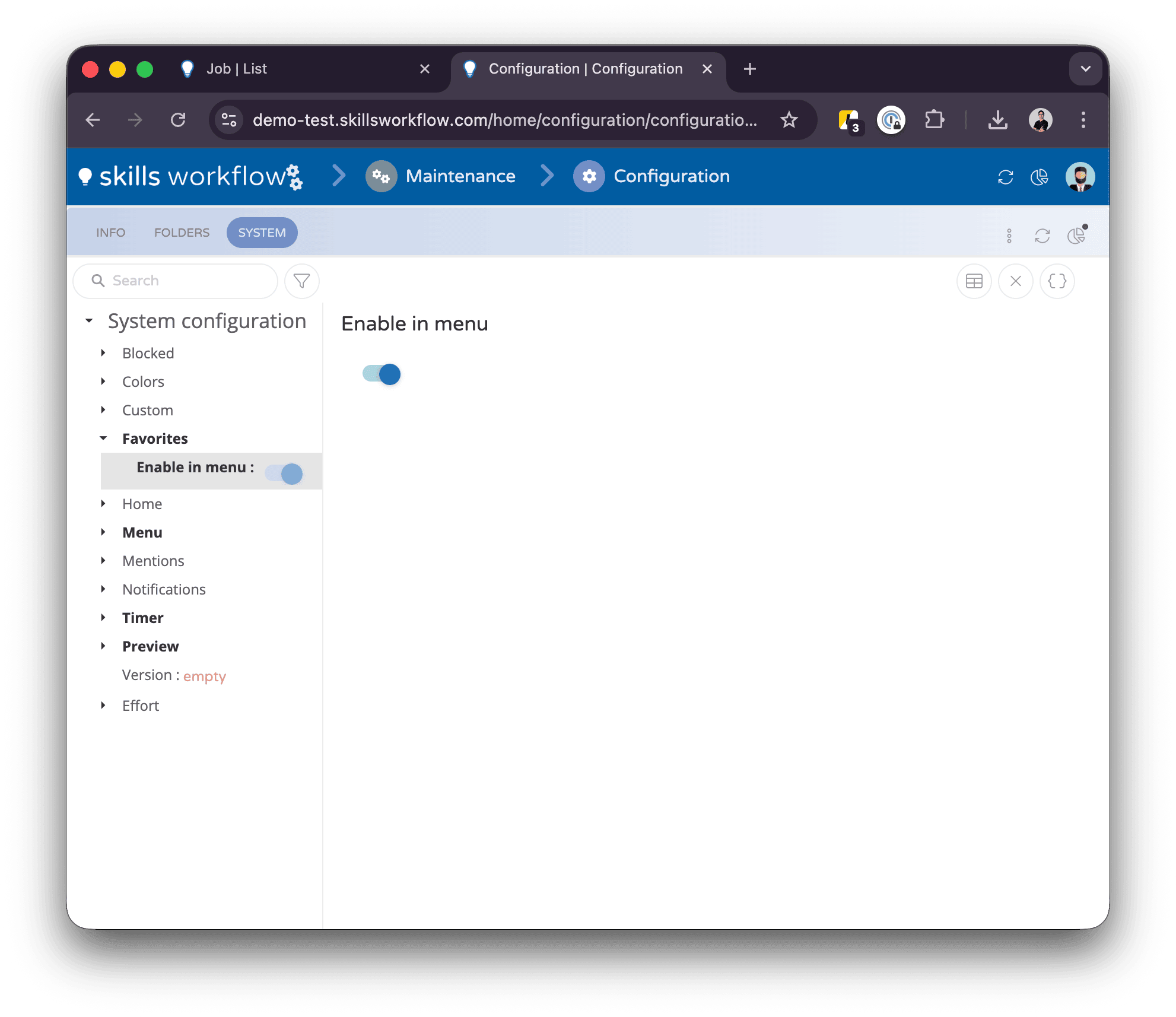
When enabled, your favorites also appear as a dedicated section in the left side menu, providing one-click access to your most-used documents.
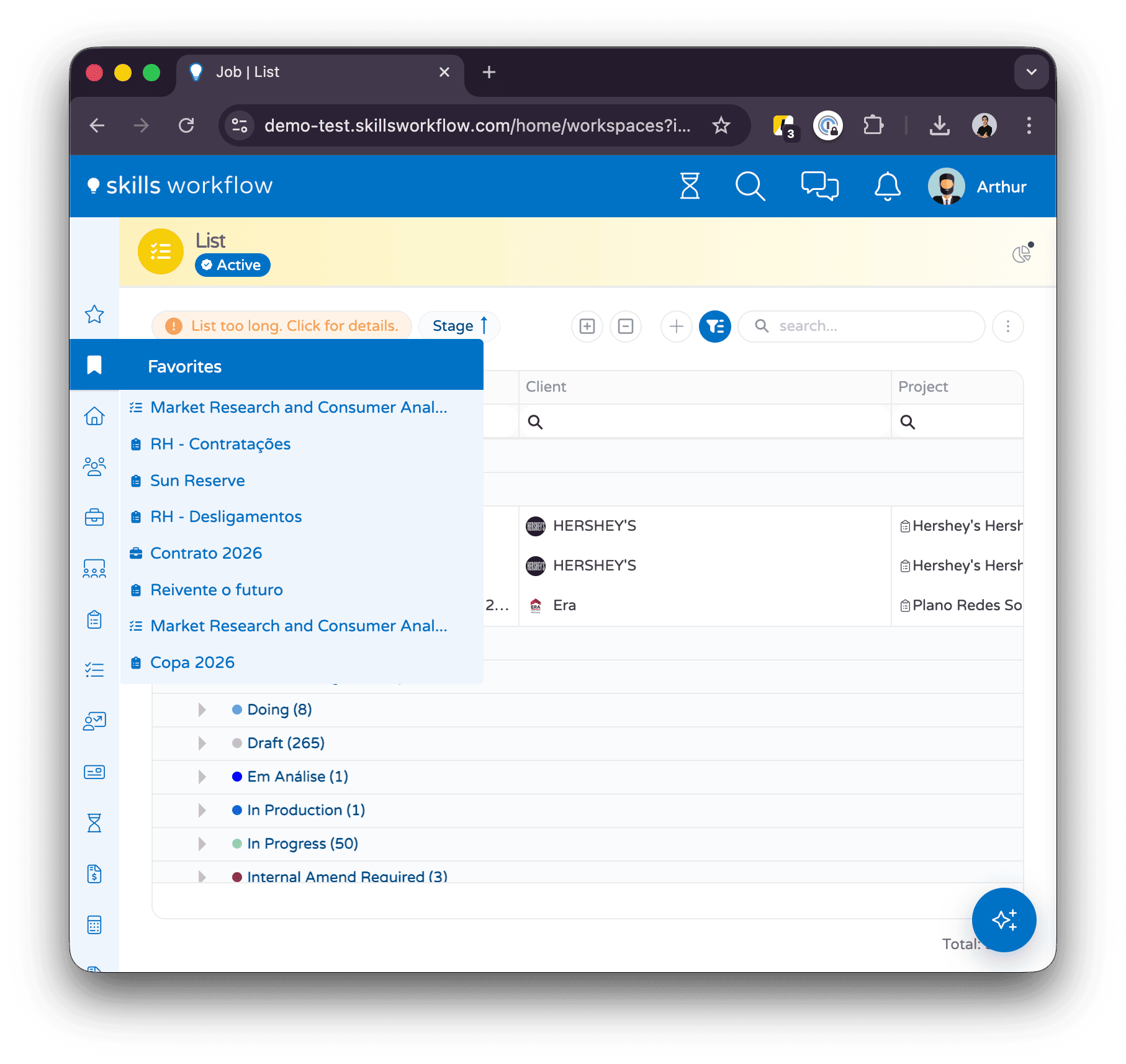
The Favorites section in the side menu must be enabled by your administrator in System Settings > Favorites > Enable Favorites in Menu.
What Can Be Favorited
You can favorite any document type available in the system, including:
- Projects
- Jobs
- Deliverables
- Estimates
- Bills
- Contracts
- Clients
- Requests
- Purchase Orders
- Dashboards and Workspaces
Tips
- Use favorites to keep your most active projects and documents at your fingertips.
- The
Ctrl+S/⌘+Sshortcut is the fastest way to reach your favorites. - Favorites are personal — only you can see your own favorites list.
- Favorites are stored on the server, so they follow you across devices and browsers.