Invoice an Estimate
Create retainer estimates
Estimates can be created as retainers, and the system will automatically display their values.
Please check how you can create the estimate on Lesson 1 under the "estimates" section.
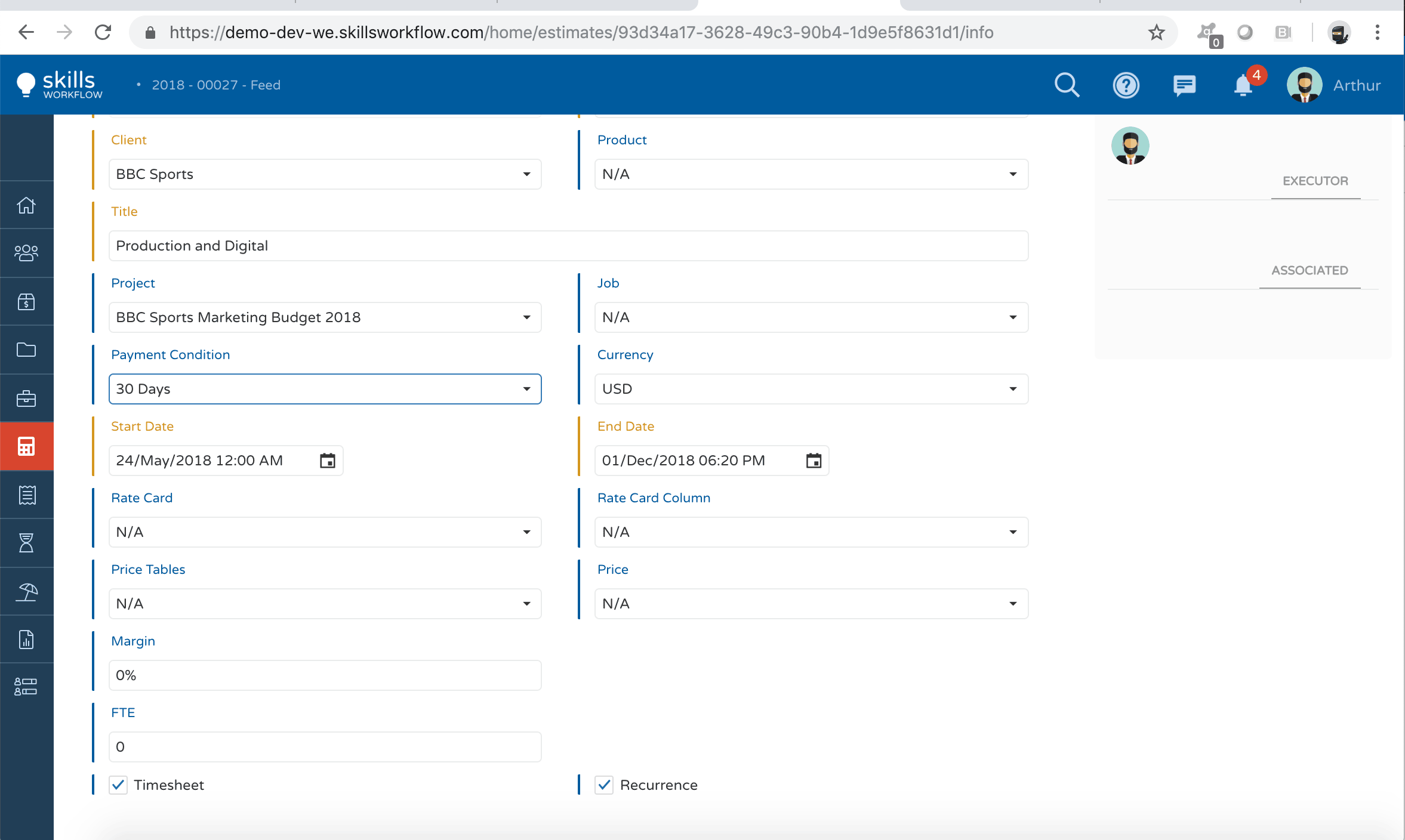
To generate a retainer estimate please navigate onto the estimate general info tab, check the "Recurrence" option and hit the save button.
The system will display a new field named "Rep. Number" at the deliverable/client level.
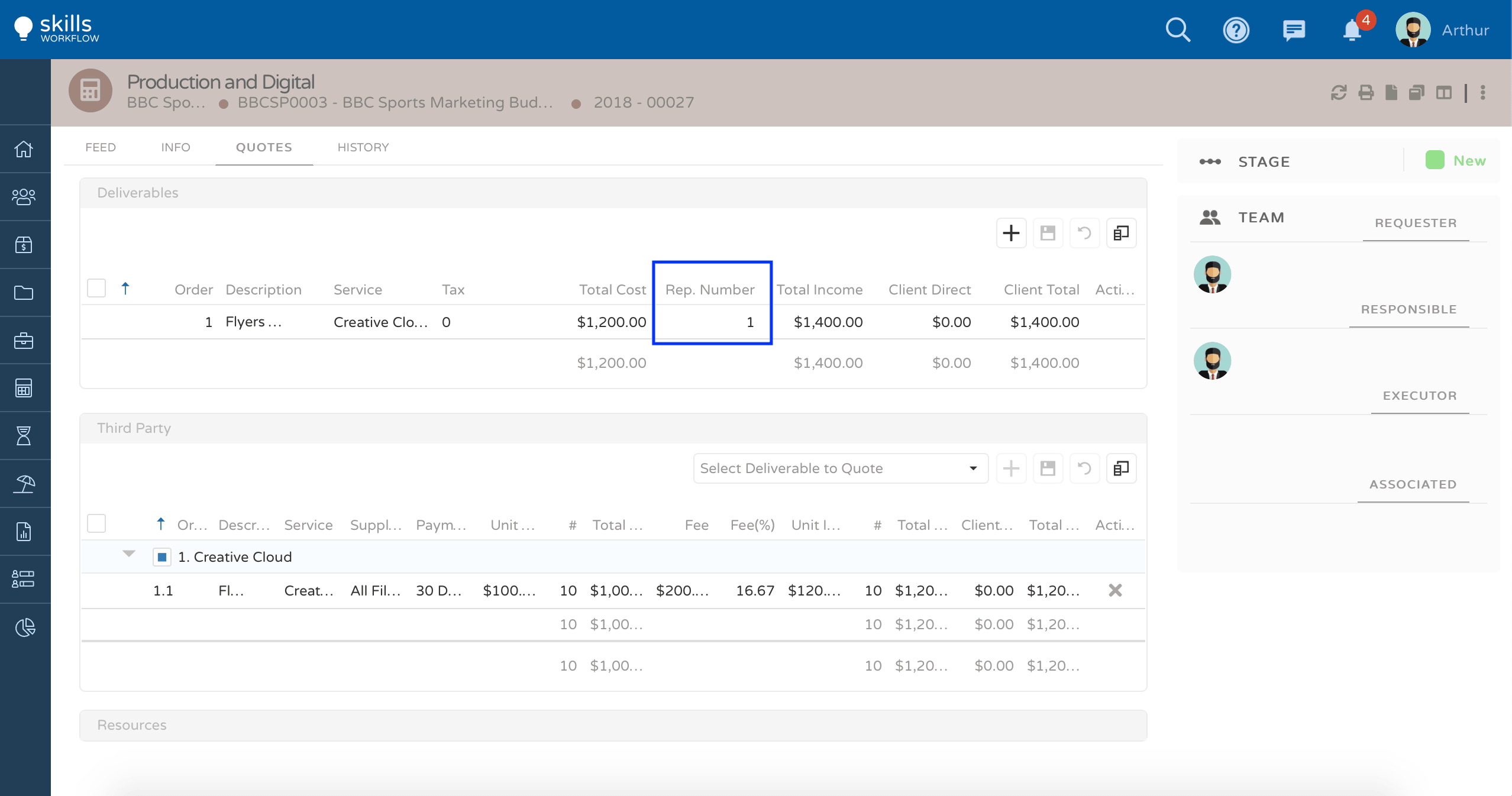
You can adjust the Rep.Number to the number of times the values need to be repeated.
On the example below, the Rep Number field is marked as 6 (it's a 6 month retainer estimate) and the system will multiply both the cost values and the income values by the Rep Number.
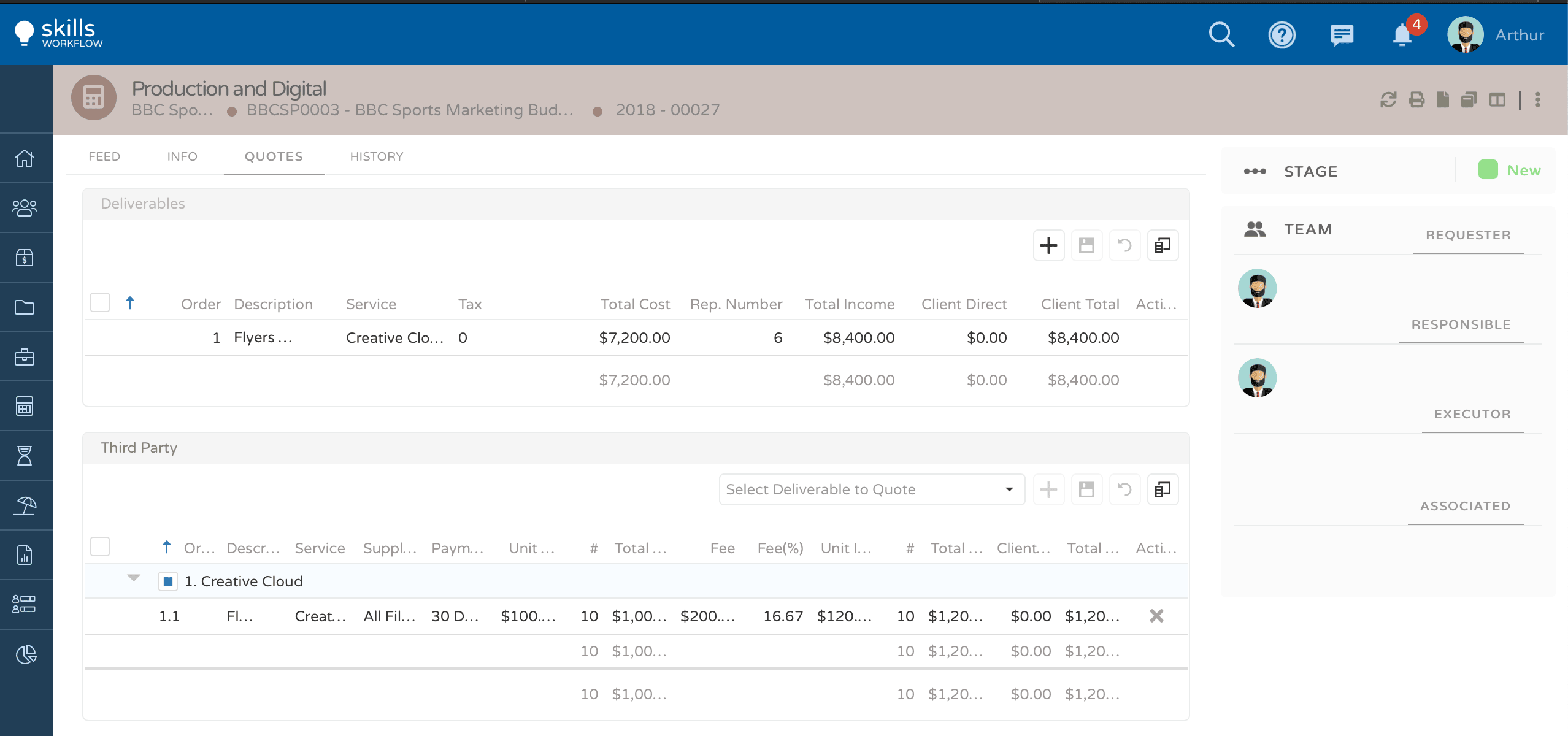
Please be aware that the values under Third Party, Expenses and Resources will be displayed with the same values.
After the client approval the system will display the information under the project with the recurrence information
At the project level third-Party and expenses will be available under "Planned Costs"
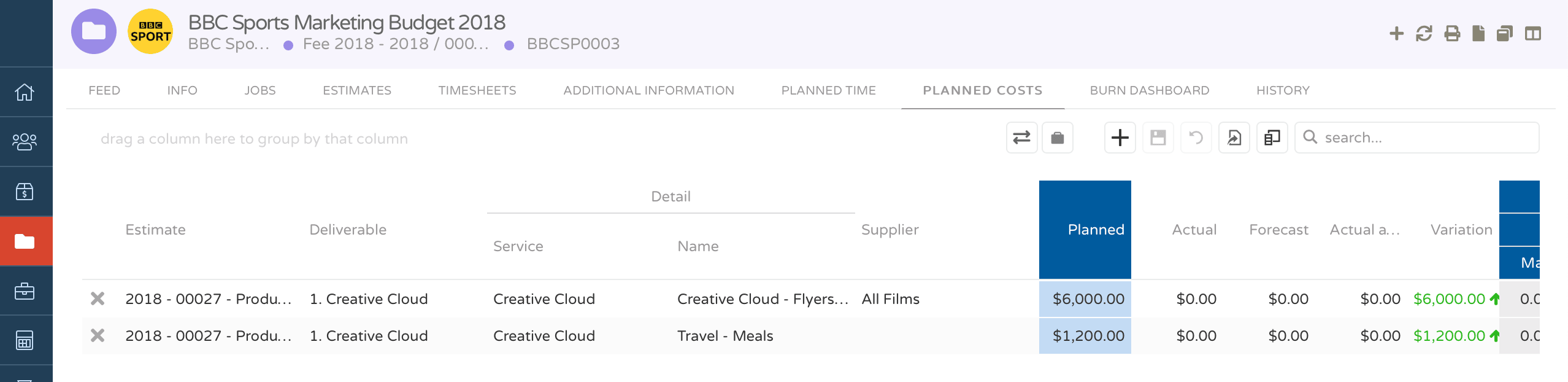
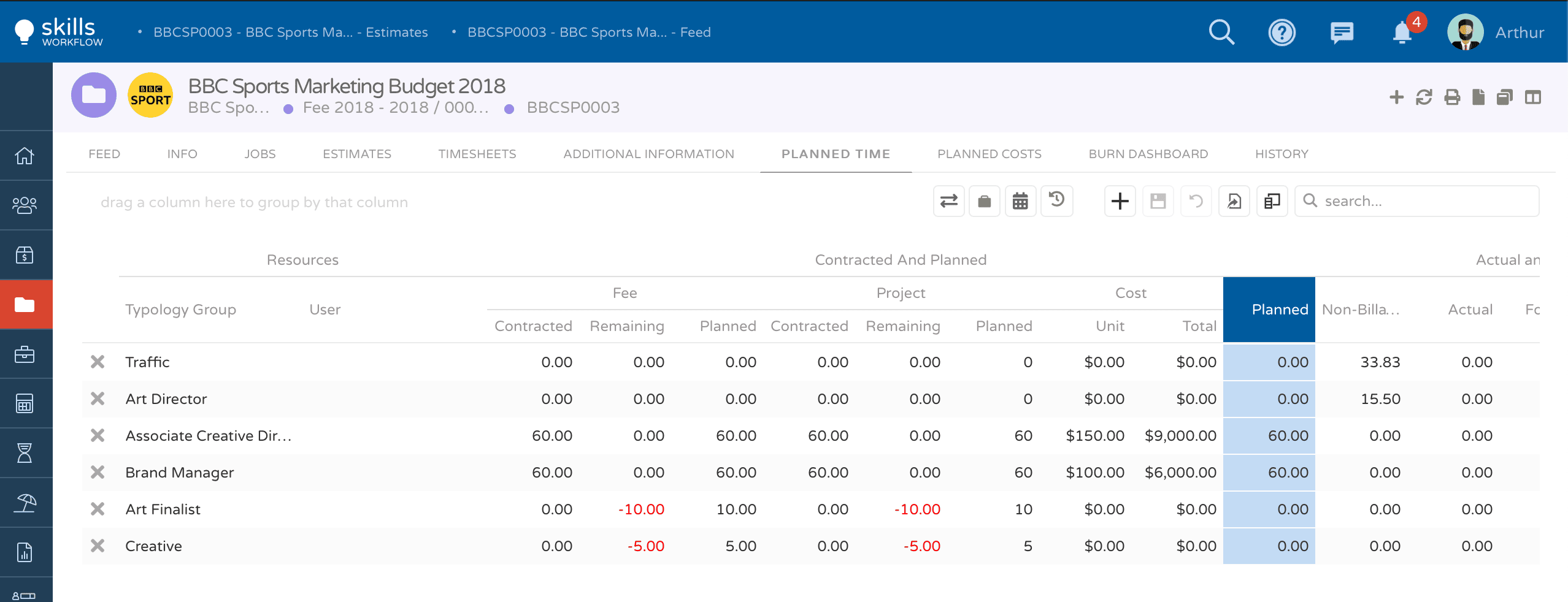
Resources will be available under "Planned Time"
Approve deliverables before invoicing
Only deliverables marked as Approved are invoiced. A new service is created already approved, but a new deliverable is not. Before invoicing, open the estimate and mark the deliverables to invoice as Approved.
Your workflow can do this for you. When the ApproveItems action is added to a transition, moving the estimate through that transition marks every deliverable and every service of the estimate as approved. Your administrator can tell you whether your estimate workflow uses it. See Workflow Actions.
Error: "There must be at least one condition with billing value / percentage"
This message appears when you invoice an estimate and none of its billing conditions has an amount that can be invoiced. Check the estimate in this order:
- At least one deliverable is marked as Approved. Only approved deliverables are invoiced, and the billing conditions are checked only on those deliverables.
- If an approved deliverable has its own billing conditions, at least one of them needs a Value or a Percentage other than 0. When every approved deliverable has its own billing conditions, the estimate's Billing Conditions are not used.
- In the estimate's Billing Conditions, fill in the field that matches the Amount Type: Percentage when the type is Percentage, Value when the type is Value. A value typed into the other field does not count.
The estimate's billing conditions cannot add up to more than 100% of the estimate value without VAT.