Workflow Management
Workflow Management is the visual editor for workflows. It lists the flows of each document type, opens a flow as a diagram, and saves stages, transitions, team access, roles, actions and reasons in one go. New flows can start blank or from a template.
Availability
- Workflow Management is switched on per tenant. Until it is, the entry does not appear in Maintenance and its address redirects back to Maintenance. See Configuration.
- You need access to Maintenance.
Open Workflow Management
- Click your user avatar in the top-right corner of the main menu and select Maintenance.
- In Browse by area, select Workflow.
- Select Workflow Management.
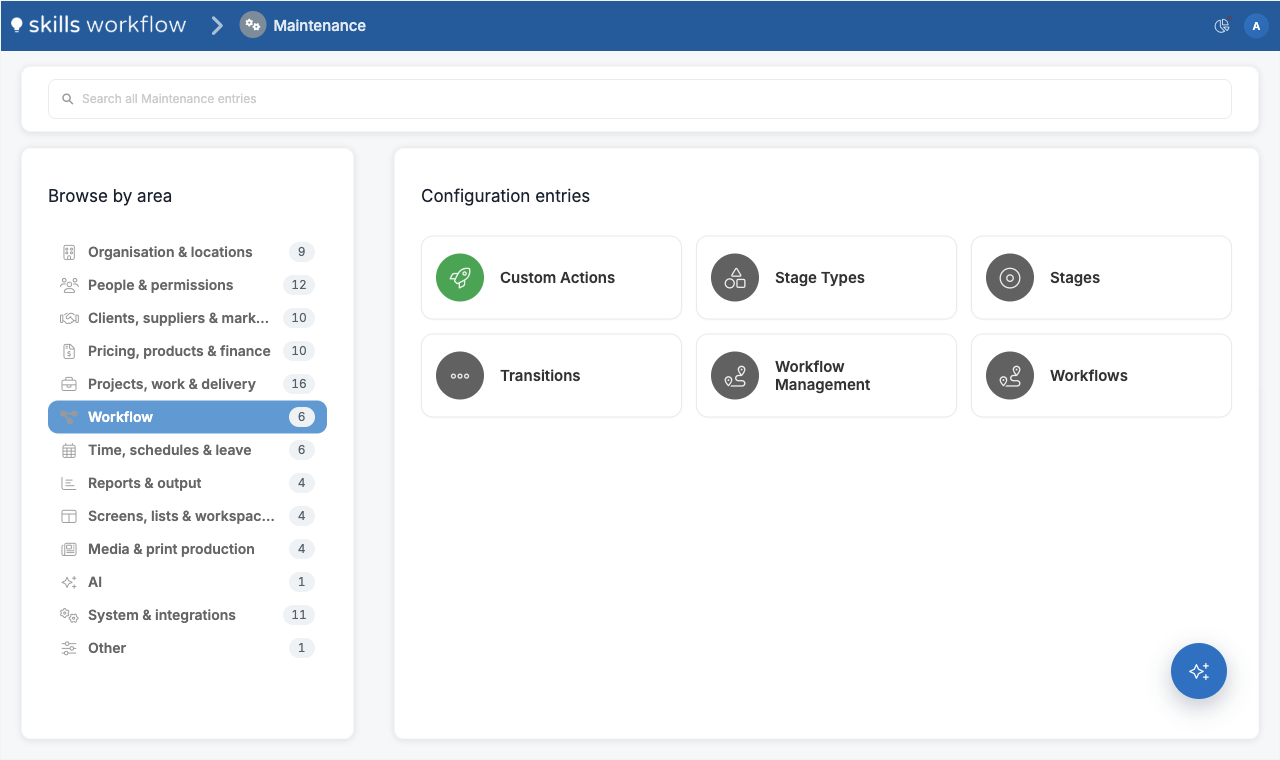
The Workflows entry next to it is the list-based screen for the same records.
Find a flow
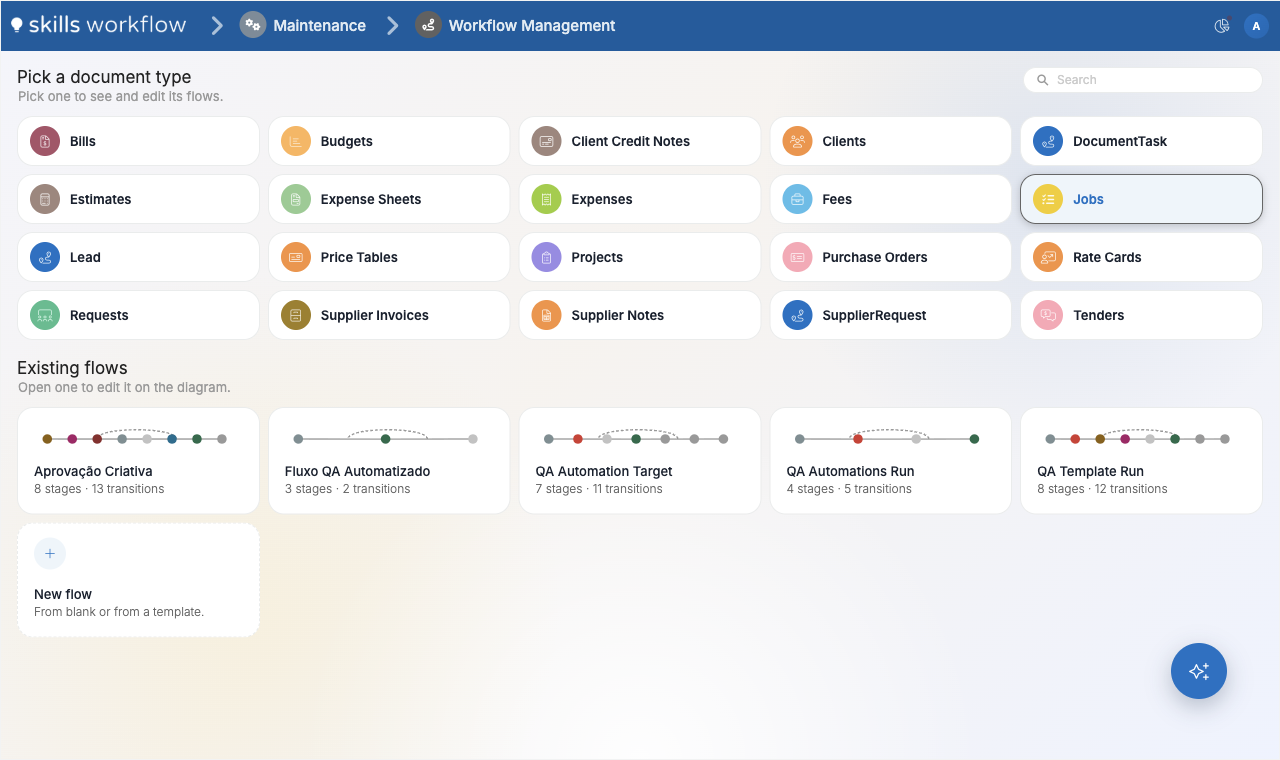
Under Pick a document type, select the document type whose flows you want to see, for example Jobs or Projects. The Search field filters the document types.
Existing flows then lists every flow of that document type. Each card shows a preview of the stage chain and how many stages and transitions the flow has. Select a card to open the flow on the diagram.
Create a flow
- Select the document type.
- Select the New flow card at the end of Existing flows.
- Choose how to start:
- Start blank creates three stages, Draft, New and Done. The Start transition moves the document from Draft to New and activates it, and Complete moves it from New to Done.
- A card marked Template copies that model's stages, team access, roles, actions and reasons.
- Edit the flow on the diagram and select Save flow.
Nothing is saved until you select Save flow.
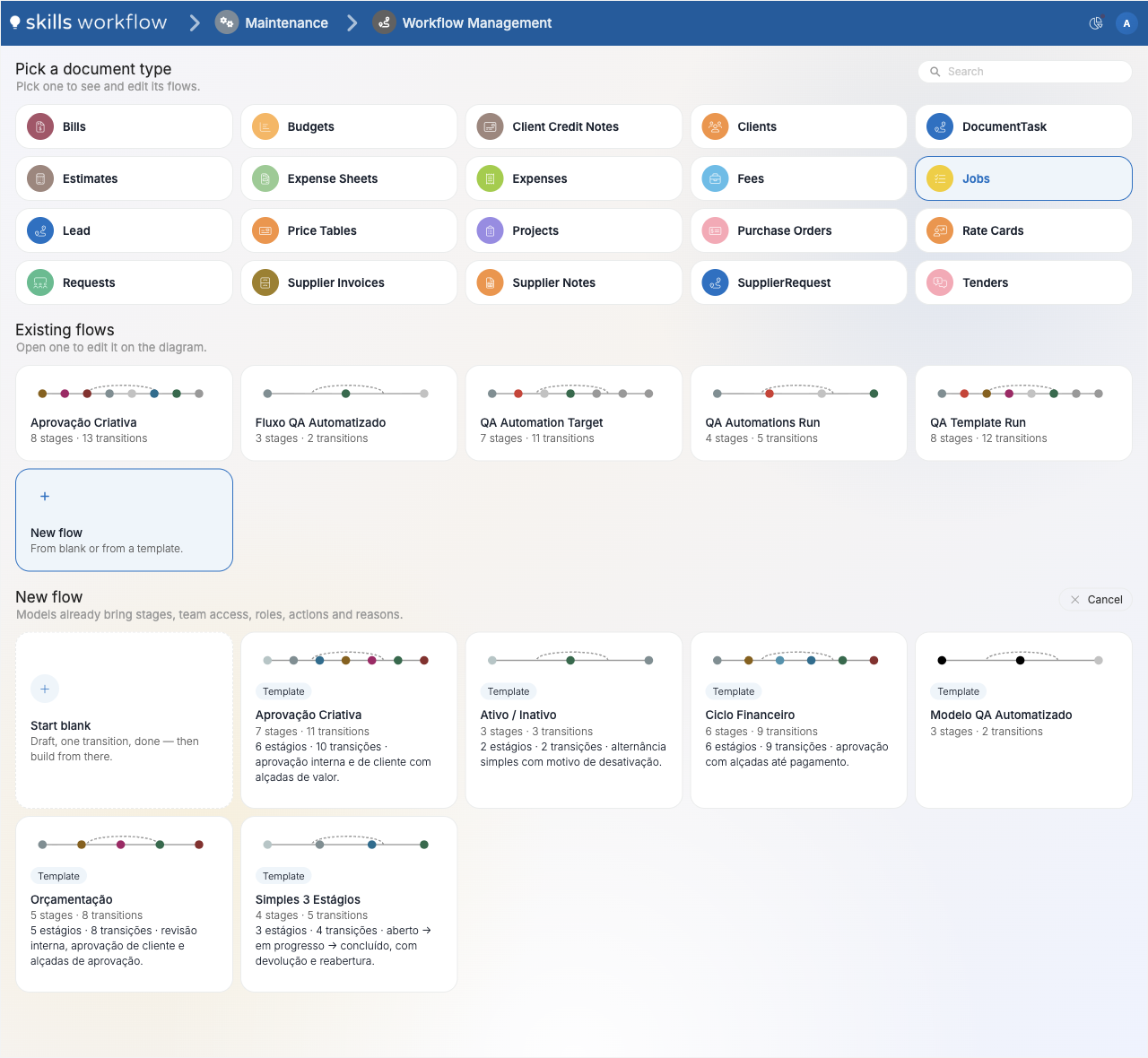
When a template uses roles or teams that do not exist in your tenant yet, the editor lists them above the diagram. Select Create what is missing to create them. A transition role that does not exist makes the save fail, and a missing team leaves its stage access out.
Edit a flow on the diagram
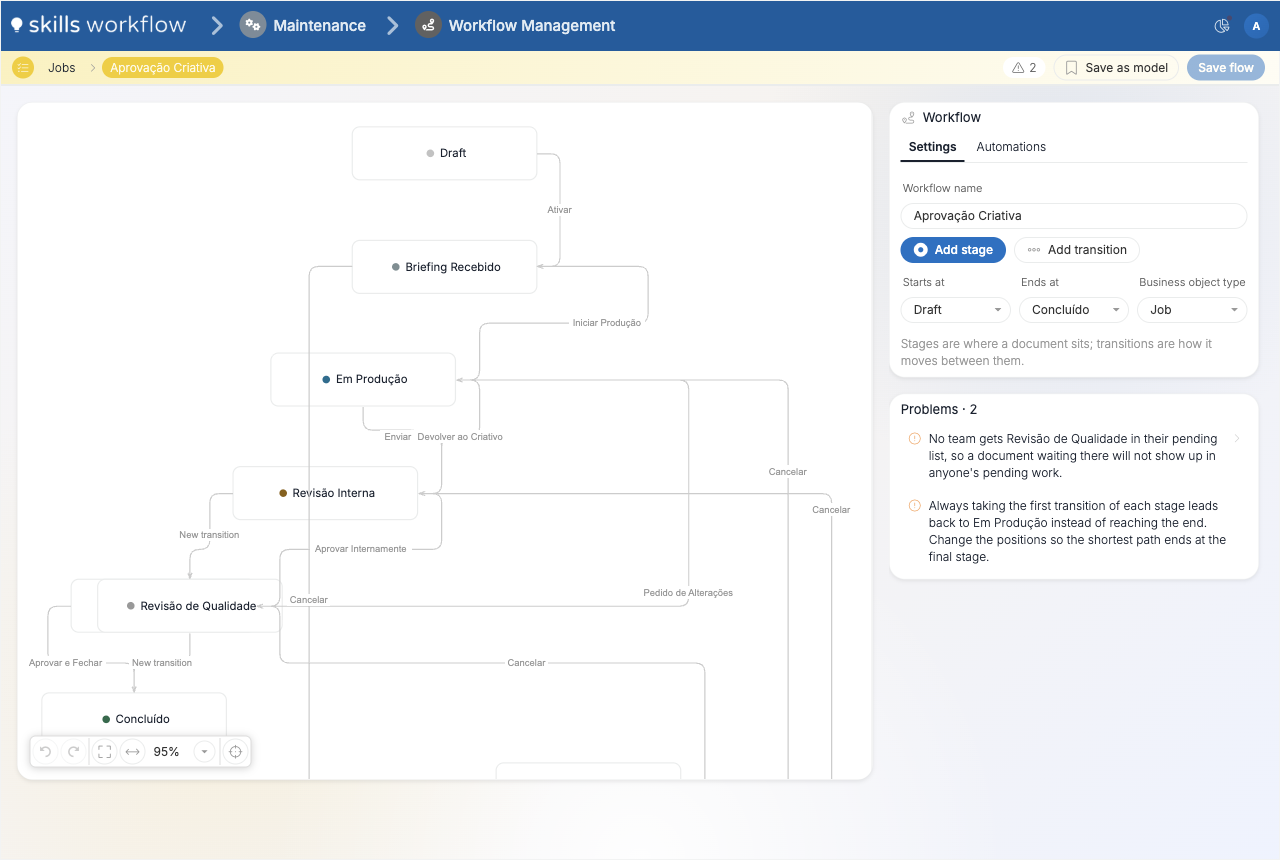
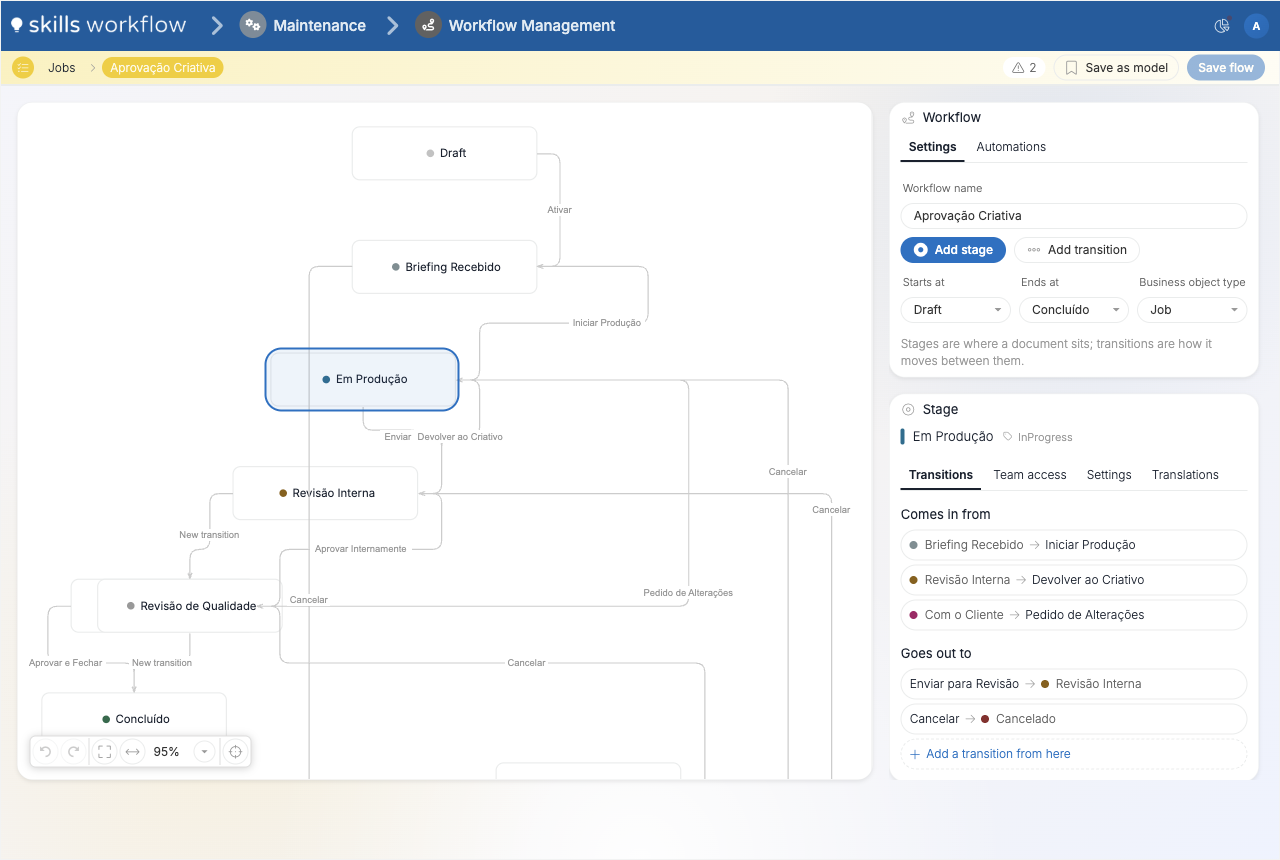
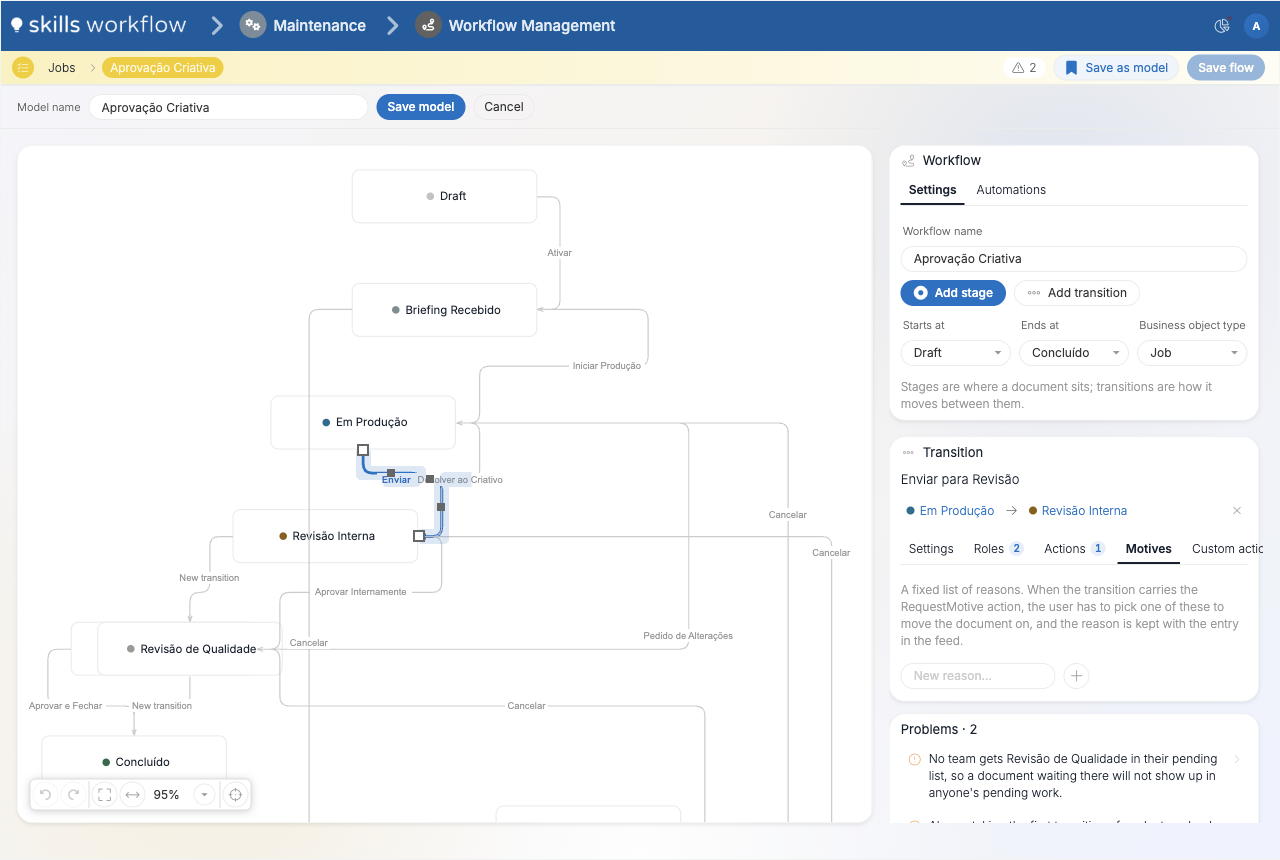
The editor has three parts:
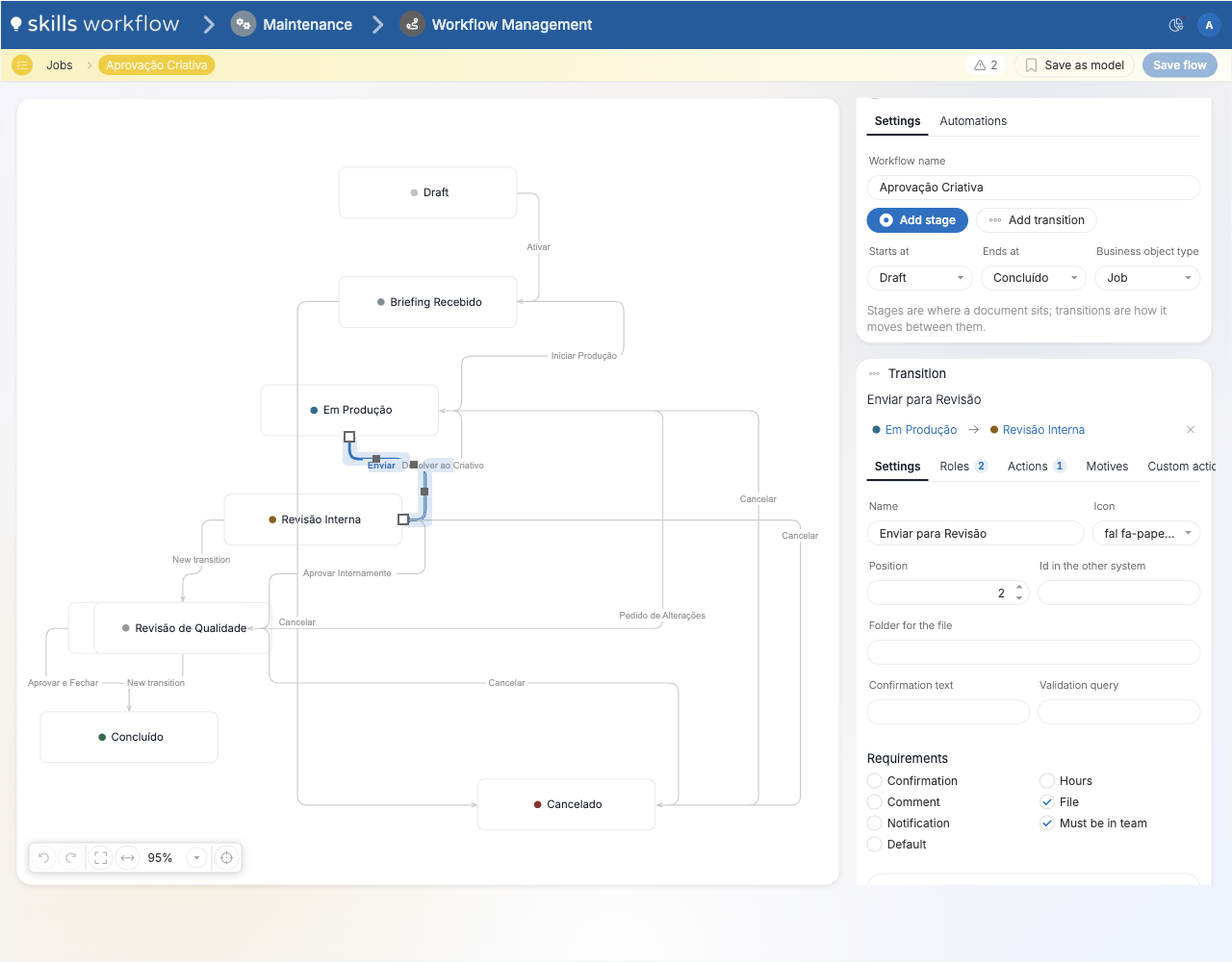
- the diagram, with the stages as boxes and the transitions as labelled arrows;
- the side panel, with the Workflow card and, when something is selected, the Stage or Transition card;
- the Problems list at the bottom of the side panel.
Work on the diagram
| To | Do this |
|---|---|
| Select a stage or transition | Click it. Its card opens in the side panel. |
| Add a transition | Drag from a connection point of one stage to another stage. |
| Add a stage and a transition together | Drag from a connection point into empty space and choose the stage. |
| Rename a stage or transition | Double-click its name. |
| Delete a stage or transition | Select it and press Delete. |
| Move around | Use the view toolbar in the bottom-left corner to undo, redo, fit the flow on screen, fit to width, zoom and centre on the selection. |
The initial and final stages cannot be deleted. Two stages can be connected by only one transition in each direction, and a transition cannot start and end on the same stage.
Workflow card
The Settings tab holds the Workflow name, the Starts at and Ends at stages and the Business object type. Add stage adds a new stage or one that already exists in the document type. Add transition asks for the From and To stages.
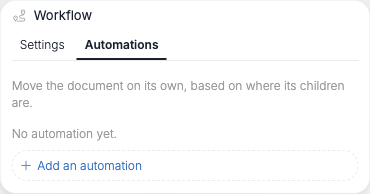
The Automations tab moves the document on its own when the documents inside it reach a given stage. For each automation, choose the document type of the children, the stage they reach (When they reach) and the stage to move this document to (Move this document to). Save the flow before adding automations to a new flow. See Stage Mappings.
Stage card
Select a stage to open its card. It has four tabs.
Transitions lists the transitions that come in (Comes in from) and go out (Goes out to). Select one to open it. Add a transition from here creates a new transition out of this stage.
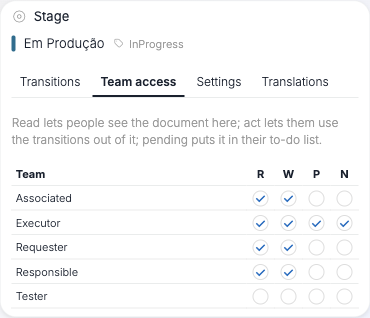
Team access sets, for each team, what it can do in this stage:
| Column | Meaning |
|---|---|
| R (Read) | The team sees the document in this stage. |
| W (Write) | The team can use the transitions out of this stage. |
| P (Shows in pending) | The document appears in the team's pending list. |
| N (Notify) | The team is notified when the document reaches this stage. |
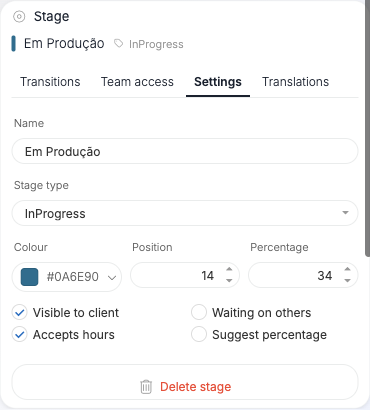
Settings holds the stage Name, Stage type, Colour, Position and Percentage, and the options Visible to client, Waiting on others, Accepts hours and Suggest percentage. Delete stage is at the bottom. See Stages and Stage Types.
Translations holds the stage name in each language set up in the tenant. Leave a language empty to show the original name.
Transition card
Select a transition on the diagram, or in a stage's Transitions tab, to open its card. The card shows the From and To stages and has these tabs:
- Settings: Name, Icon, Position, Id in the other system, Folder for the file, Confirmation text, Validation query, and the Requirements: Confirmation, Hours, Comment, File, Notification, Must be in team and Default. Delete transition is at the bottom.
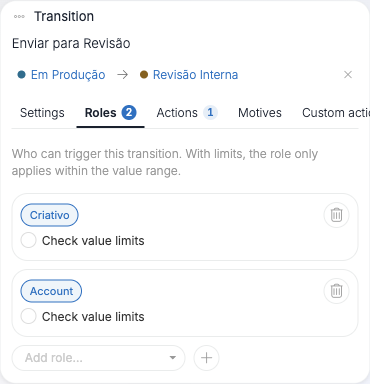
- Roles: the roles that can use the transition. Select Check value limits to limit a role to a value range, with From and To.
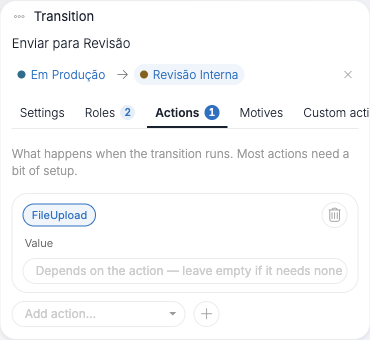
- Actions: what runs when the transition is used. Most actions need a value; the field under each action says what it expects.
- Motives: the reasons the user picks from when the transition carries the RequestMotive action. An inactive reason stays in the flow but is no longer offered.
- Custom actions: custom actions configured in your tenant that run with the transition.
- Translations: the transition name in each tenant language.
The number next to Roles, Actions, Motives and Custom actions is how many the transition has.
See Transitions and Workflow Actions for what each setting and action does.
Check the problems
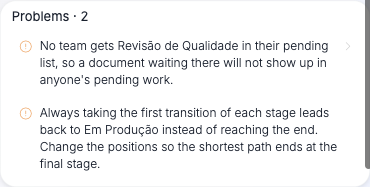
The Problems list checks the flow while you edit it. Select a problem to go to the stage or transition it names, on the tab where it is fixed. The count next to Save as model in the top bar shows how many problems there are.
Some problems block the save. Save flow stays disabled until they are fixed:
- the initial stage is not of type Draft, or the flow has more than one Draft stage;
- the first transition out of Draft does not activate the document;
- a transition goes back into the Draft stage;
- the same stage is both the start and the end of the flow;
- a stage has no transition into it or out of it.
Other problems are warnings and the flow can still be saved. They include a stage with no way out, a stage nothing leads into, a stage with no path to the final stage, a stage no team can see or act in, a stage that is in no team's pending list, and a transition that requires hours into a stage that does not accept them.
Save the flow
Select Save flow in the top bar. The button is enabled when there are changes and no blocking problems. The result appears as a message in the corner of the screen. When only part of the changes could be saved, the message says how many failed. Fix them and save again.
Save before you leave the flow. Going back to the document type, through the breadcrumb, discards unsaved changes.
Save a flow as a template
- Open the flow.
- Select Save as model in the top bar.
- Enter the Model name and select Save model.
The template appears under New flow the next time you create a flow. Saving a template does not save the flow.
Ask the AI Assistant
With Workflow Management open, the AI Assistant button opens the Workflow Agent, which can explain and change workflows from a description.
Configuration
An administrator switches Workflow Management on in System Settings > Behavior > Enable workflow management. It is off by default.