Connect Microsoft 365 Copilot to Skills Workflow
Create a Skills Workflow agent in Copilot Studio for your agency's Microsoft 365 Copilot or Teams users. The agent connects to the Skills Workflow MCP server. GitHub Copilot in Visual Studio Code connects directly; follow the separate GitHub Copilot tab in Connect Your AI Tool.
Prerequisites
Ask Skills Workflow for your tenant's API address, App ID, App key, Tenant ID, and the client-portal and app-page skills. You need access to Copilot Studio and permission to create custom connectors in the same Power Platform environment.
Use an environment with Dataverse. A Teams environment does not support the new GitHub Copilot agents; a Developer environment without Dataverse also blocks creation. Keep the App key with authorised publishers: it permits publishing and replacing pages across the tenant as its Skills Workflow administrator.
Create the custom connector
- Open Power Apps, select the environment, and open Custom connectors → New custom connector → Create from blank. Name it
Skills Workflow MCP. - Enable Swagger editor. Download the OpenAPI template, replace
YOUR-TENANT-API-HOSTwith your tenant's API hostname (withouthttps://or a path), and paste the definition into the editor. The MCP path is/mcp/client-portal. - Disable Swagger editor and check Security: authentication API Key, parameter name
x-app-key, location Header. Select Create connector.
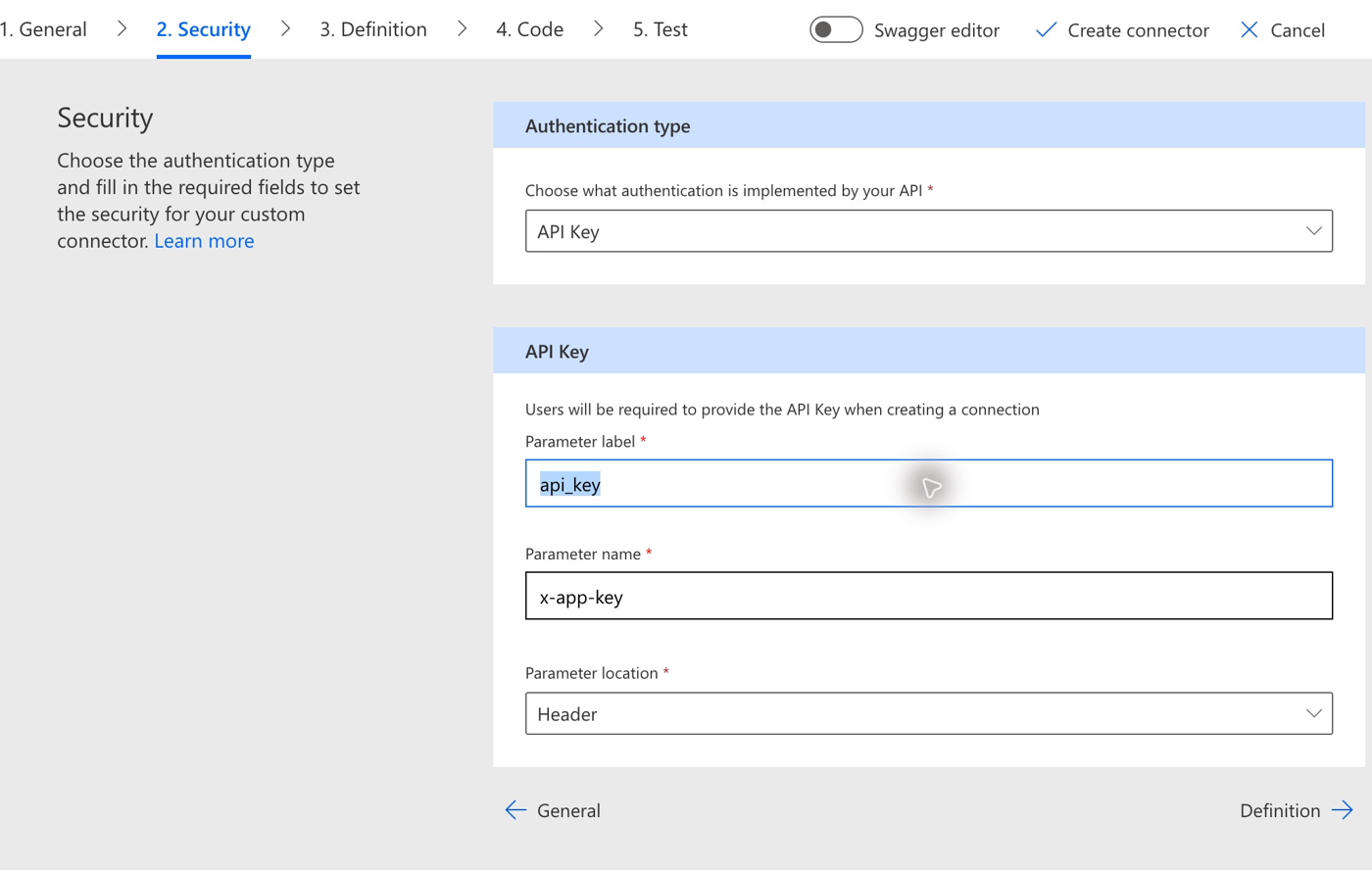
- Open Test → New connection, enter the App key in the protected
api_keyfield, and select Create. This creates the connection; a Connected status alone does not validate the MCP tools.
Create a standard agent
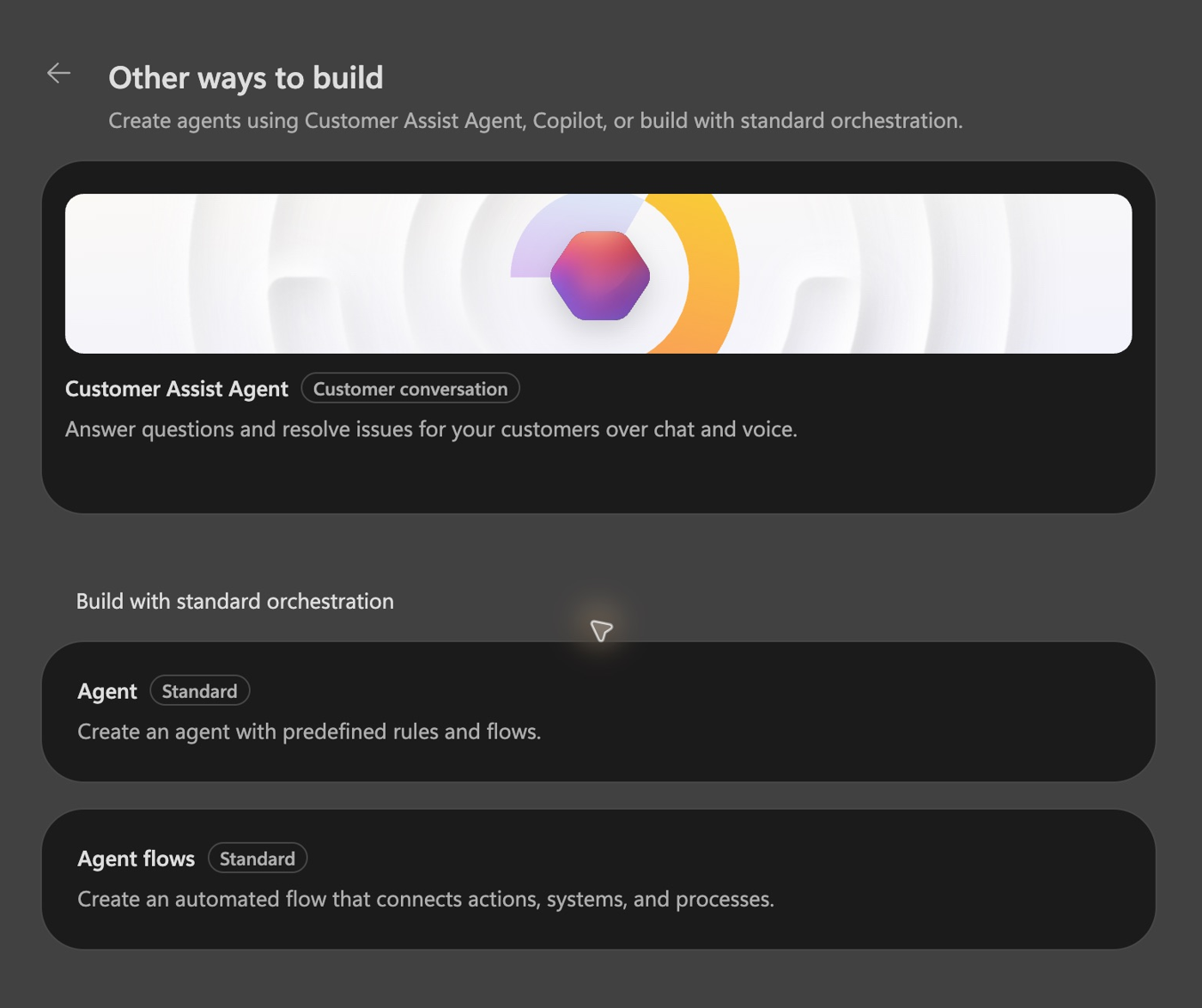
- In Copilot Studio, select the same environment. Open Home → Other ways to build → Build with standard orchestration → Agent. Enter a name and select Create.
- Open Add tool, search for
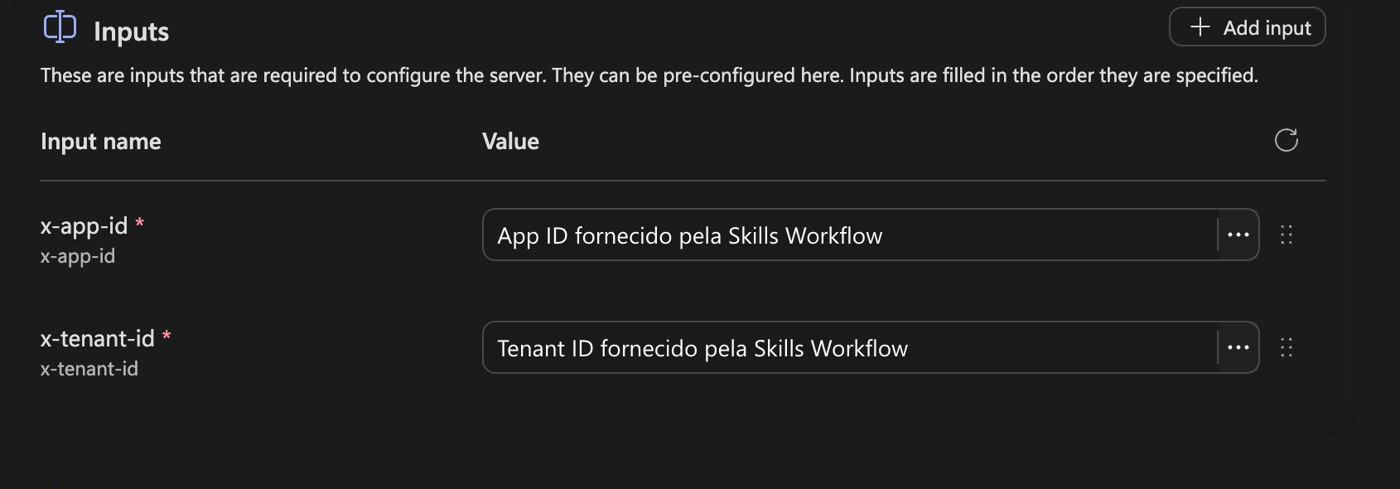
Skills Workflow, and select Skills Workflow MCP under Model Context Protocol. Select the connection you created and choose Add. - Open the added tool and fill in Inputs:
x-app-idwith App ID andx-tenant-idwith Tenant ID. Select Save. Both are headers sent with the App key from the connection. Fill them for each agent; they are not copied automatically from another agent.
Test the MCP connection
Start a new test session and ask which Skills Workflow tools are available. Compare the list with the eight tools in Check the connection.
Then ask the agent to call get_portal_url for the hypothetical client mcp-connection-check and portal connection-check, without creating or modifying anything. Inspect the activity trace: the tool must finish with Completed and return your tenant's URL. This tool returns an address even when no page exists there; it does not publish or verify the page.
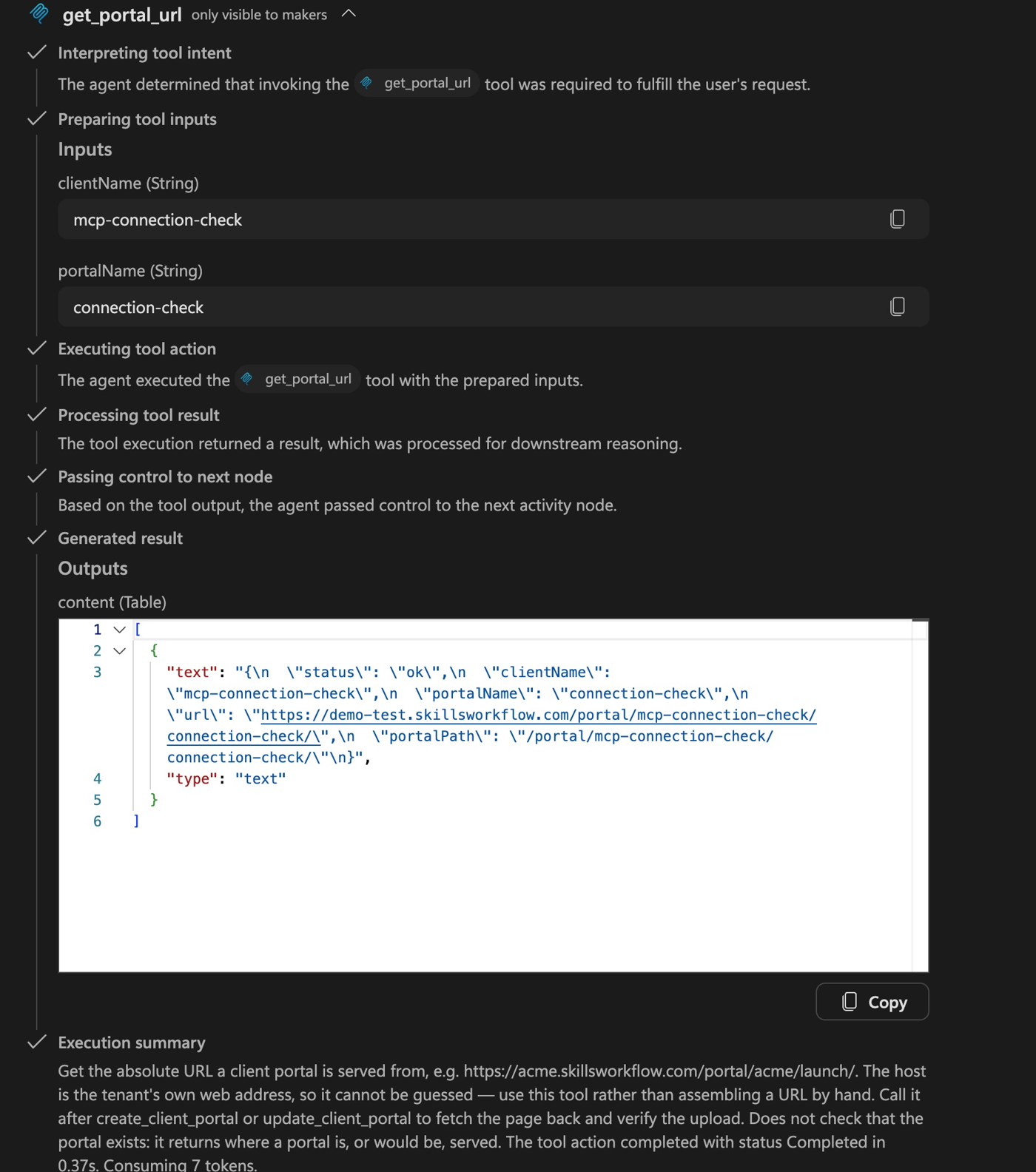
A textual list of tools is not enough to validate the connection. If the editor reports Connector request failed, check the three header values and saved inputs. Use the actual tool result in the test trace to confirm runtime behaviour.
Prepare access for key users
Before asking the agent to publish content, obtain and configure the official client-portal and app-page rules with Skills Workflow. Publication and distribution to other users require separate validation; the test above validates a connection only.
For organisational rollout, follow Microsoft's Teams and Microsoft Copilot publishing instructions. Have IT review licensing, connection identity and the intended group of authorised publishers before making the agent available. People opening published pages sign in as themselves.
Trial and credits
A Copilot Studio trial can allow testing in the standard experience. It does not guarantee execution capacity for the new GitHub Copilot experience: building and testing there can consume Copilot Credits. If you see EnforcementUsageCredits, ask your administrator to check Licensing → Copilot Studio → Manage Copilot Credits. See Microsoft's capacity guidance.