Buy conditions
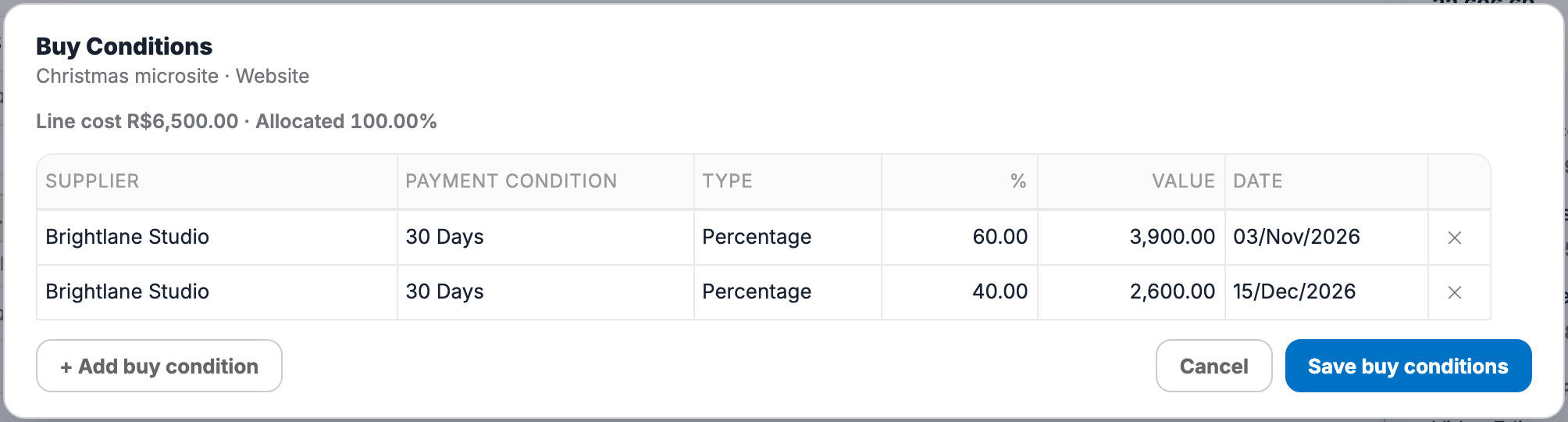
Buy conditions split the purchase of a services line into parts. Each part has its own supplier, payment condition and date, and is a percentage or a value of the line's cost.
Opening the buy conditions
On a saved services line, click its Buy Conditions button, or press Alt+Enter.
A new line has no buy conditions yet. Save it first.
The dialog works on the saved line. Changes you have not saved on the line are not part of it.
Adding a buy condition
- Click + Add buy condition. The new row takes the line's supplier and payment condition, today's date, and the share of the cost that is still free.
- Change the Supplier, Payment Condition or Date if needed.
- Choose the Type: Percentage or Value. Type the % or the Value, and the other one follows from the line's cost.
- Click Save buy conditions.
The buy conditions are saved when you click Save buy conditions, separately from the rest of the quote.
The header shows the line's cost and how much of it is allocated. The button at the end of a row removes it.
Rules and behaviour
- Every row needs a supplier, a payment condition and a date.
- Percentages and values must be higher than 0.
- A value can't be higher than the line cost.
- The buy conditions of a line can't add up to more than 100% of its cost.
- Closing the dialog with unsaved changes asks whether to discard them.