Approval and billing
Deliverables and lines carry an Approved tick for what the client accepted. Each deliverable also has a billing plan: the billing conditions it will be billed by.
Approving
Tick Approved on a deliverable or a line. Approve all ticks every deliverable and line you are allowed to approve. Once everything is approved, the button reads Disapprove all and clears them.
Approvals are stored when you click Save.
The filter button above the deliverables, or Alt+A, shows only the approved deliverables. Press it again to show them all.
Opening the billing plan
The billing plan sits below each deliverable's lines. Billing shows or hides it on every deliverable. Alt+B goes to the billing plan, and pressing it again hides it.
The header of each plan shows the deliverable's Total, what has been Billed, what is still To bill, and how much of it is Allocated.
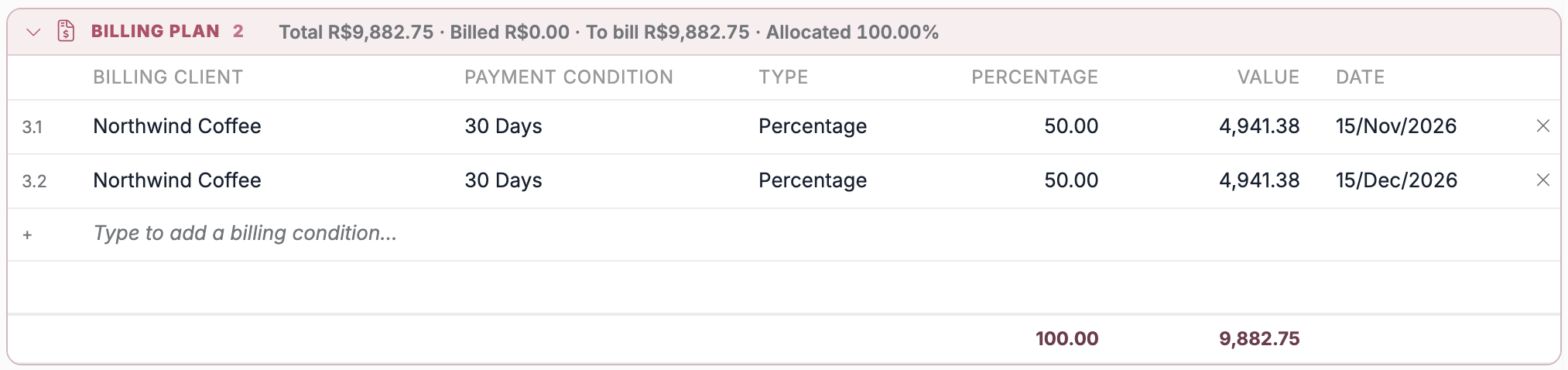
Adding a billing condition
- Start typing in Type to add a billing condition….
- Choose the Billing Client and the Payment Condition.
- Choose the Type: Percentage or Value, and type the amount. The other one follows from what is still to bill.
- Set the Date.
- Click Save.
A new billing condition starts with the percentage that is still free.
Rules and behaviour
- Every billing condition needs a billing client and a payment condition.
- Percentages and values must be higher than 0.
- A value can't exceed the deliverable's value.
- A deliverable's billing conditions can't add up to more than 100%.