Excel export and import
Export to Excel writes the quote's lines to a spreadsheet. Import from Excel reads a spreadsheet in the same layout, updates the lines it recognises and adds the new ones.
Exporting
Click Export to Excel. The file is named after the estimate's number, or its name when it has no number. It has one row per line, with these columns:
| Column | Holds |
|---|---|
| Deliverable | The deliverable's name |
| Type | Resource, Service or Expense |
| Role / service / expense type | The typology group, service or expense type |
| Department | The department of a resource |
| Description | The line's description |
| Supplier | The supplier of a service |
| Qty or hours | The quantity, or the hours of a resource |
| Unit cost | The unit cost |
| Unit sell | The unit sell price |
| ID (keep for updates) | The line's identifier |
A deliverable with no lines gets one row with only its name.
Importing
- Click Import from Excel and choose the file.
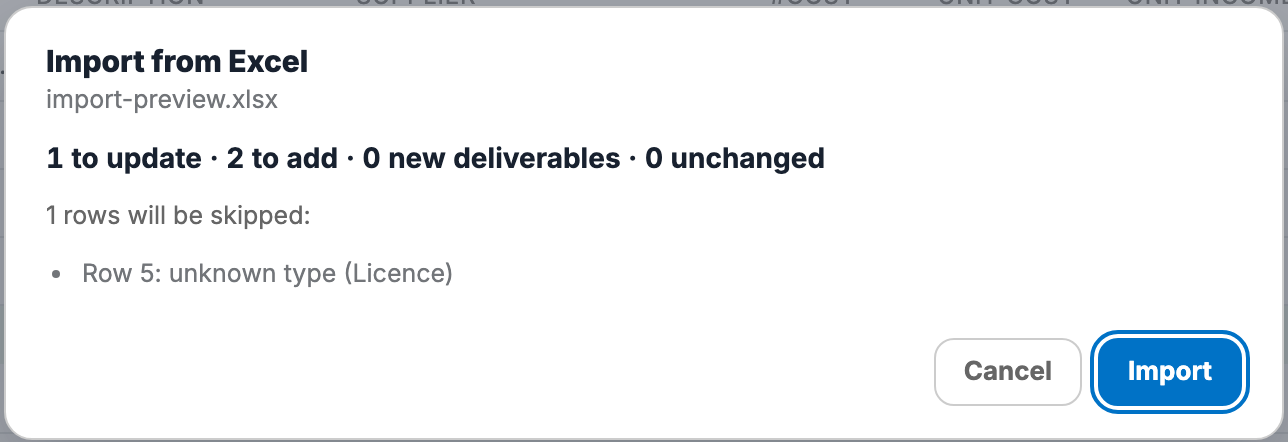
- Check the preview. It shows how many lines will be updated, added or left unchanged, and the rows that will be skipped and why.
- Click Import.
- Check the result and click Save.
Nothing is stored until you save. Values the page could not match, such as a typology group or a supplier it doesn't know, are listed after the import and left as they were.
Rules and behaviour
- A row with an ID (keep for updates) updates that line. Only the cells that changed are written.
- A row without an ID becomes a new line in the deliverable whose name is in Deliverable.
- Type also accepts the Portuguese and Spanish words for resource, service and expense.
- Expenses take no unit sell from the file. They are sold at cost plus the estimate's inflation.
- A first row with column names is skipped.